Build your architecture website with Arsha
Create architecture, construction, and interior design websites with Arsha. Follow the guides to install the theme, import a demo, and customize your pages.
- 1 InstallUpload arsha.zip
- 2 Add pluginsActivate the essentials
- 3 Import a demoPick a ready-made site
- 4 Make it yoursLogo, colors and menus
Overview
Full item name: Arsha - Architecture, Construction & Interior WordPress Theme
Introduction
Arsha is a WordPress theme for architecture, construction, and interior design websites. It is built with Elementor and Arsha Core, with portfolio and service content types for presenting projects and services. This guide covers installation, demo import, customization, Theme Options, and Elementor widgets.
For help with Arsha, consult the Arsha documentation or visit the Togra Studio website.
Choose where to begin
Jump to the part you need, or open search with Ctrl K (⌘ K on Mac) and type what you are looking for.
Setup & Install
Check the requirements, install Arsha and activate the plugins it needs.
Start installingDemo Import
Bring in a ready-made Arsha demo in one click, or import the demo files by hand.
Import a demoSite Design
Logo, colors, fonts, menus, header, footer, breadcrumb and the offcanvas panel.
Design your sitePortfolio Projects
Create portfolio entries and display projects with Arsha's portfolio widgets.
Build a portfolioElementor Widgets
Build pages with the theme's custom Arsha Core Elementor widgets.
Explore widgetsHelp & Fixes
Translating the theme, fixes for common errors, the changelog and how to reach us.
Find a fixRequirements
You need at least WordPress version 6.8+ installed for this theme to work properly. It is strongly recommended that you always use the latest stable version of WordPress to ensure all known bugs and security issues are fixed.
| Requirement | Minimum | Recommended |
|---|---|---|
| WordPress | 6.8+ |
Latest stable |
| PHP | 7.4+ |
8.1+ |
| MySQL | 5.6 / MariaDB 10.0 |
Latest stable |
| Memory Limit | 128 MB | 128 MB+ |
Recommended PHP configuration limits
        max_execution_time = 180
        memory_limit = 128M
        post_max_size = 64M
        upload_max_filesize = 32M
        max_input_time = 60
        max_input_vars = 3000
For detailed server requirements, visit: https://make.wordpress.org/hosting/handbook/handbook/server-environment
What's Included
Download Arsha from the Downloads page of your Envato account. Choose Installable WordPress file only for just the theme, or All files & documentation to get the full package below:
| File / Folder | Description |
|---|---|
arsha.zip |
The installable WordPress Theme zip file. This is the file you need to upload to WordPress. |
arsha-child.zip |
Basic child theme. Use this when making code customizations so your changes survive theme updates. More on child themes. |
| Plugins | This folder contains all required and recommended plugins for the theme. |
| Demo Data | Contains demo content files for manual import (contents-demo.xml, widget-settings.json, customizer-data.dat). |
| Licensing | Contains the terms and conditions of the license. |
| Documentation | This folder contains what you are reading now :) |
Installation
Step-by-step guide to installing WordPress, uploading the Arsha theme, installing required plugins and importing the demo content.
WordPress Installation
Please follow the instructions in the videos below to see how you can install WordPress on your hosting:
| For localhost: | https://www.youtube.com/watch?v=snFzbPm_RUE |
| For cPanel: | https://www.youtube.com/watch?v=t-YBqV2ReR0 |
Installing the Theme
If you download the "All Files" archive from ThemeForest and try to upload it directly to
WordPress, you will receive the error: "Theme is missing the style.css
stylesheet." Please make sure you unzip the main archive first and upload only
arsha.zip to WordPress.
When you are ready to install the theme, you must first upload the theme files and then activate the theme. The theme files can be uploaded in two ways:
1. Using Theme Uploader
Follow the steps below:
Go to Appearance → Themes → Add New → Upload Theme
From the WordPress dashboard navigate to Appearance → Themes → Add New → Upload Theme.
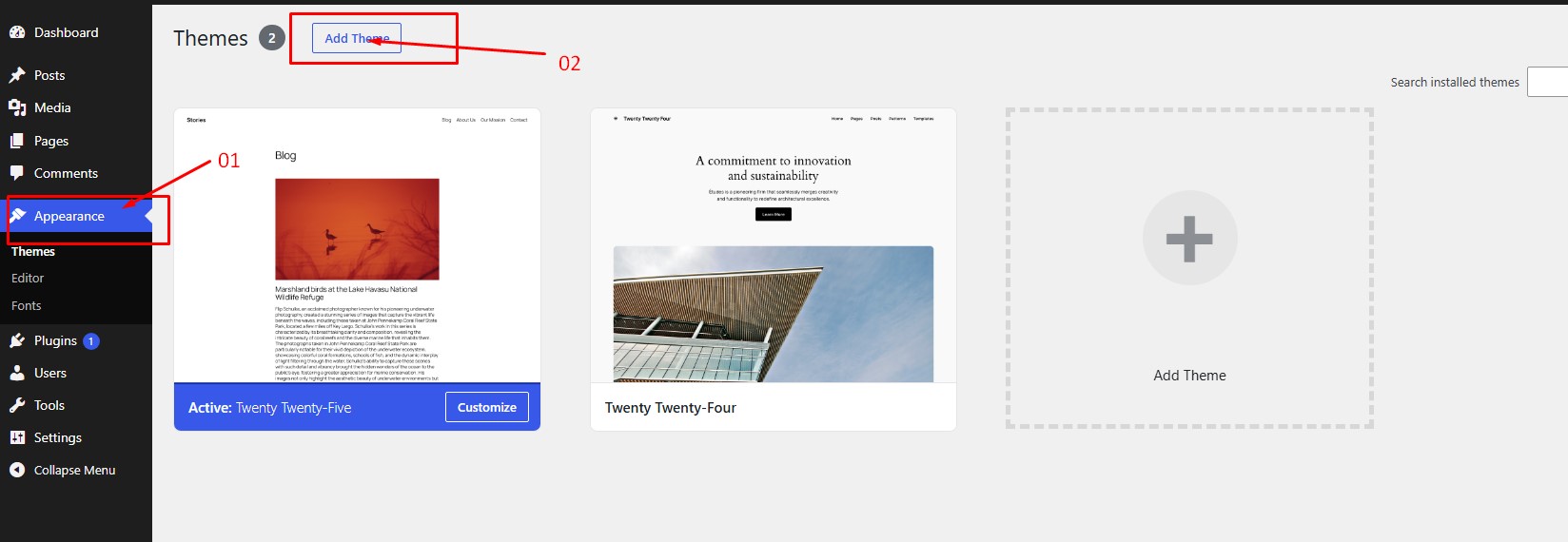
Choose File and Install
Click on "Choose File" and select arsha.zip, then click "Install Now".
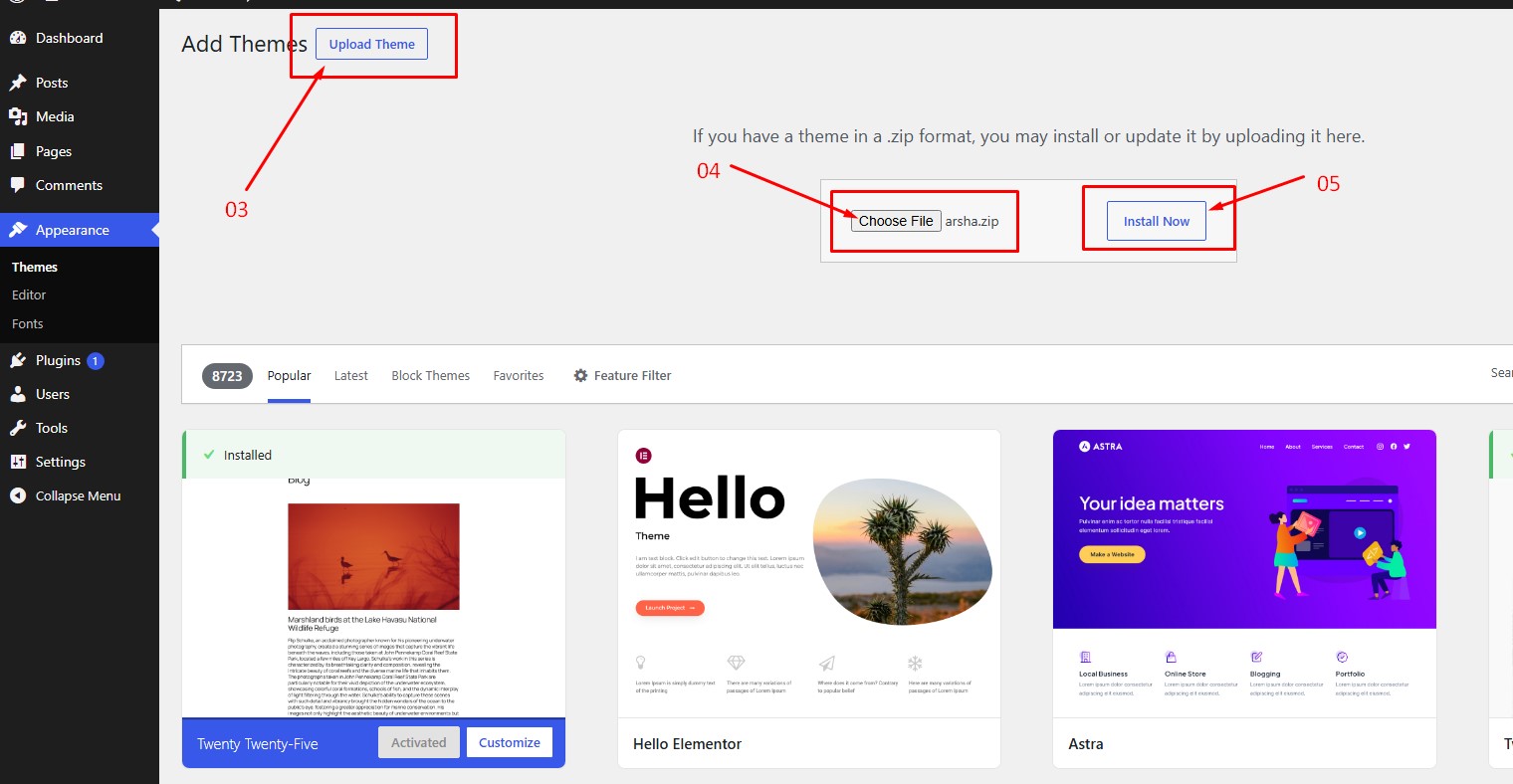
arsha.zip and click
Install Now
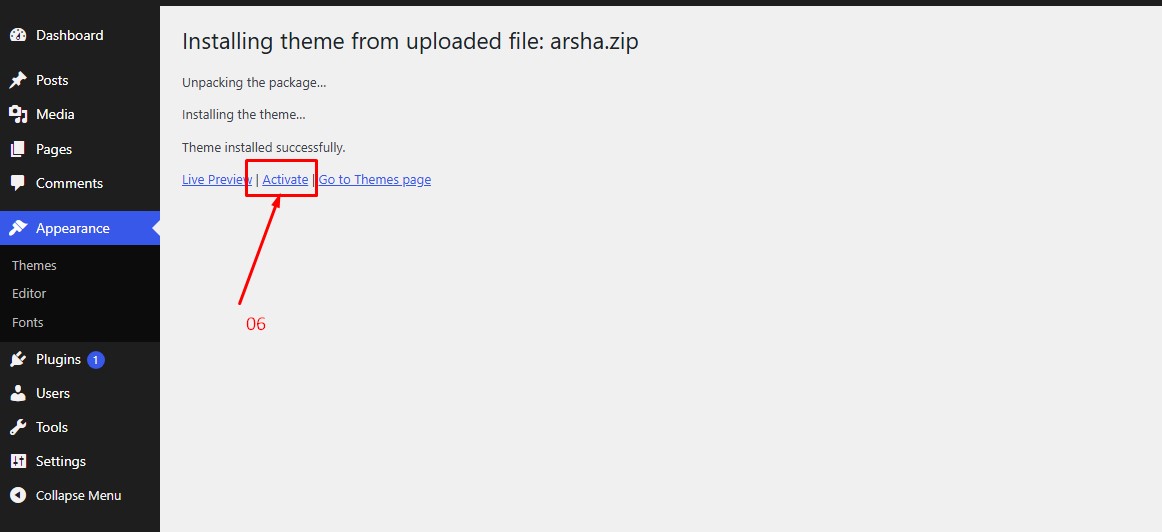
Activate the Theme
After the upload completes, click "Activate" to activate the Arsha theme.
All plugins must be installed and activated if you want your site to look exactly like the demo.
2. Using FTP Clients
Follow these steps to upload the theme using an FTP client (e.g. FileZilla):
- Use an FTP client such as FileZilla and connect to your WordPress installation directory.
- Navigate to the
/wp-content/themes/folder and upload the unzipped arsha theme folder there. - Log in to your WP Admin Dashboard and open the Appearance → Themes menu.
- You will now see the Arsha theme listed among the other themes. Click "Activate" and you're done!
3. Updating Theme
Occasionally we provide updates which include new features and bug fixes. Updating a WordPress theme is standard WordPress functionality.
Before updating, please make sure to keep a backup of your installed theme and plugins (e.g. Arsha Core) to be on the safe side. You can use this plugin: wp-theme-plugin-download
There are a few ways to update the WordPress theme:
- Install and activate the "Envato Market" plugin. Plugin zip: envato-market.zip
- From WordPress Admin Panel, navigate to the "Envato Market" menu.
- Insert your Envato Token Code. Generate it at: build.envato.com/create-token. Remember: login with the same Envato account you used to purchase the theme.
- After completing the above steps, navigate to Appearance → Themes. You'll see an "Update now" link beside Arsha. Click it to auto-update.
- From WordPress Admin Panel, navigate to Appearance → Themes.
- Activate any other theme (e.g. Twenty Twenty-Four) than the current one.
- Delete the Arsha Theme.
- Navigate to Appearance → Themes → Add New → Upload. Browse and select the updated theme zip file. Hit "Install Now".
- Using your FTP client, navigate to the
/wp-content/themes/folder on your server and delete the arsha folder. - Upload the latest unzipped theme folder into
/wp-content/themes/.
After updating the theme, please also update all plugins that come with the theme.
4. Installing Required Plugins
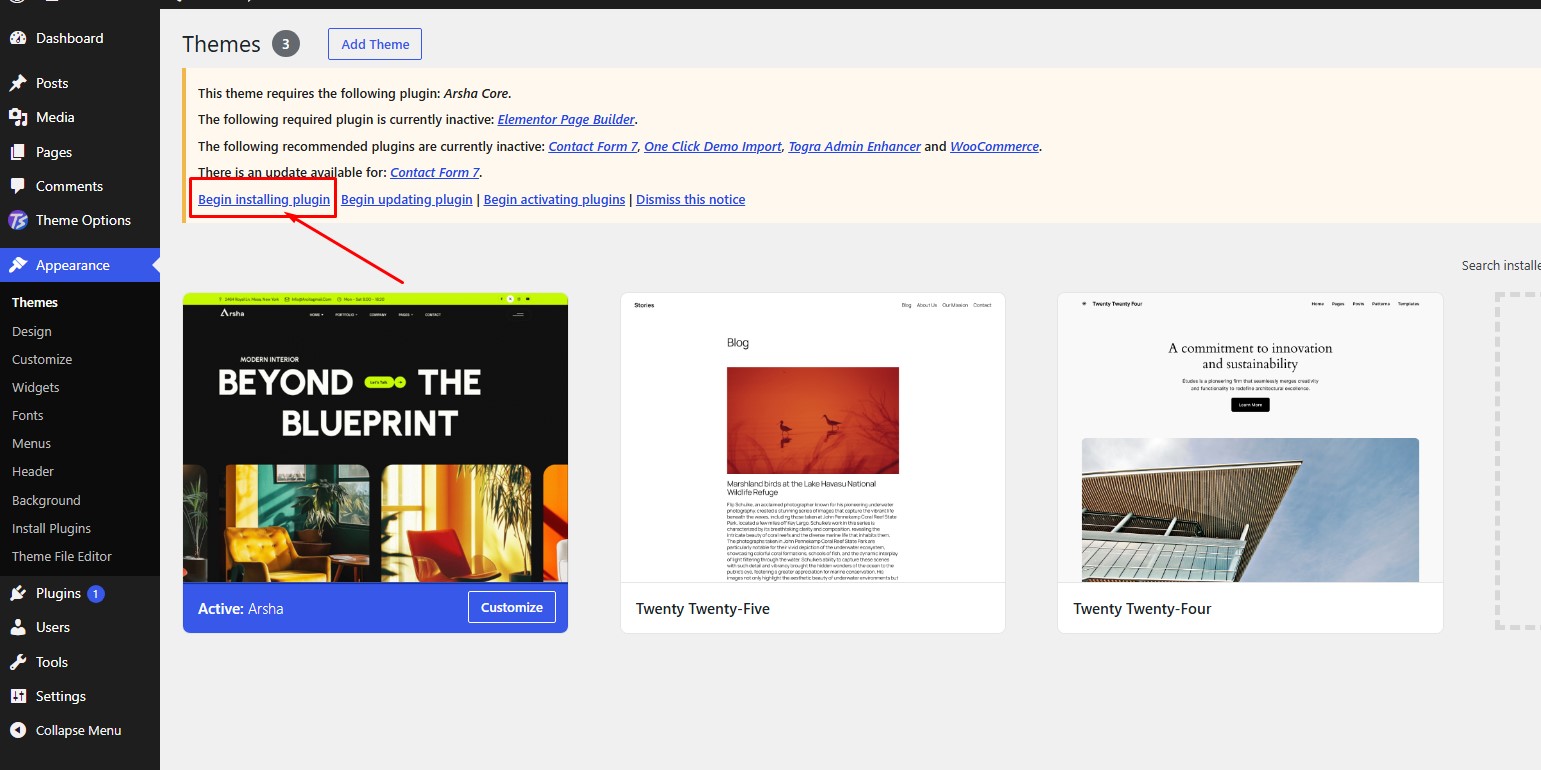
Click Begin installing plugins
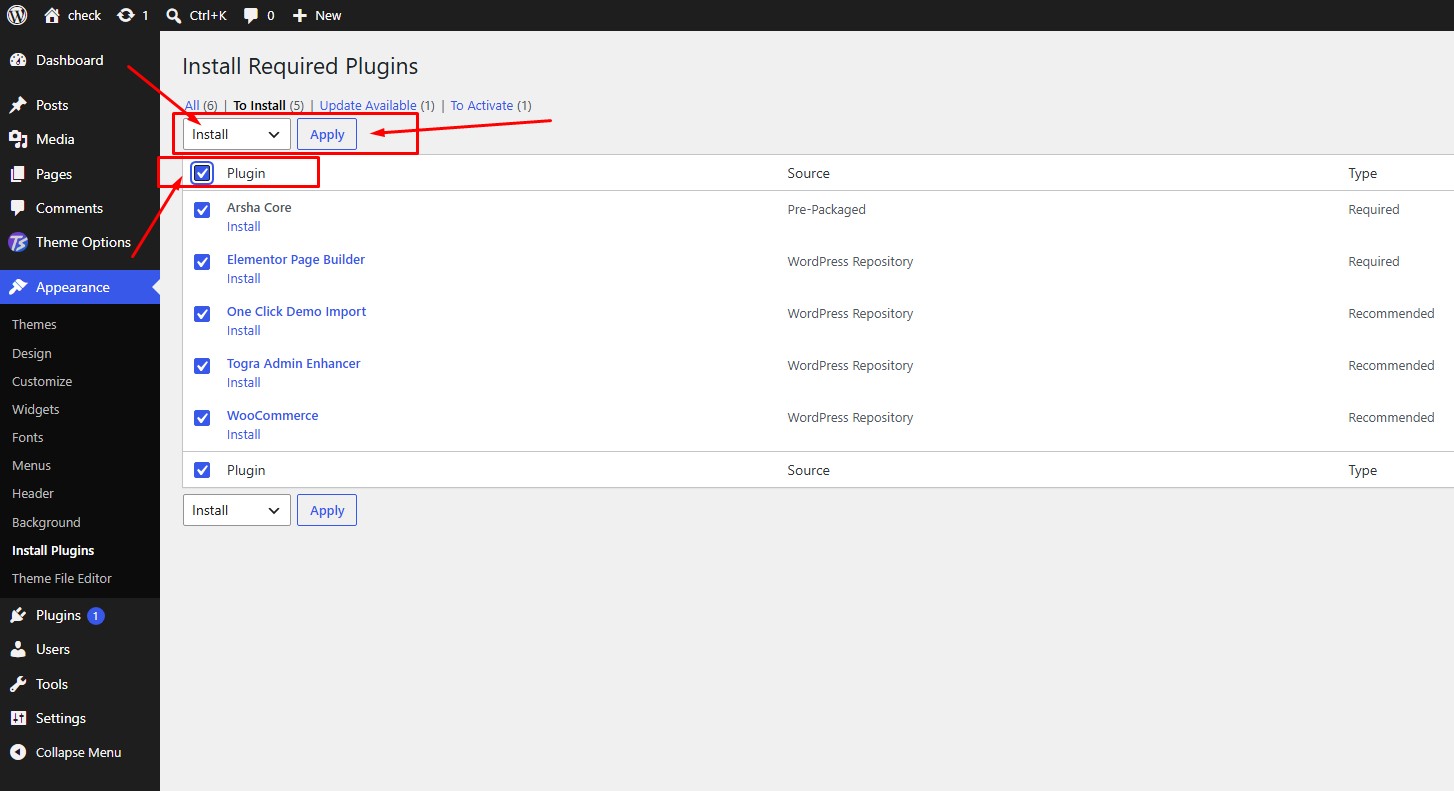
Select Install, then hit Apply
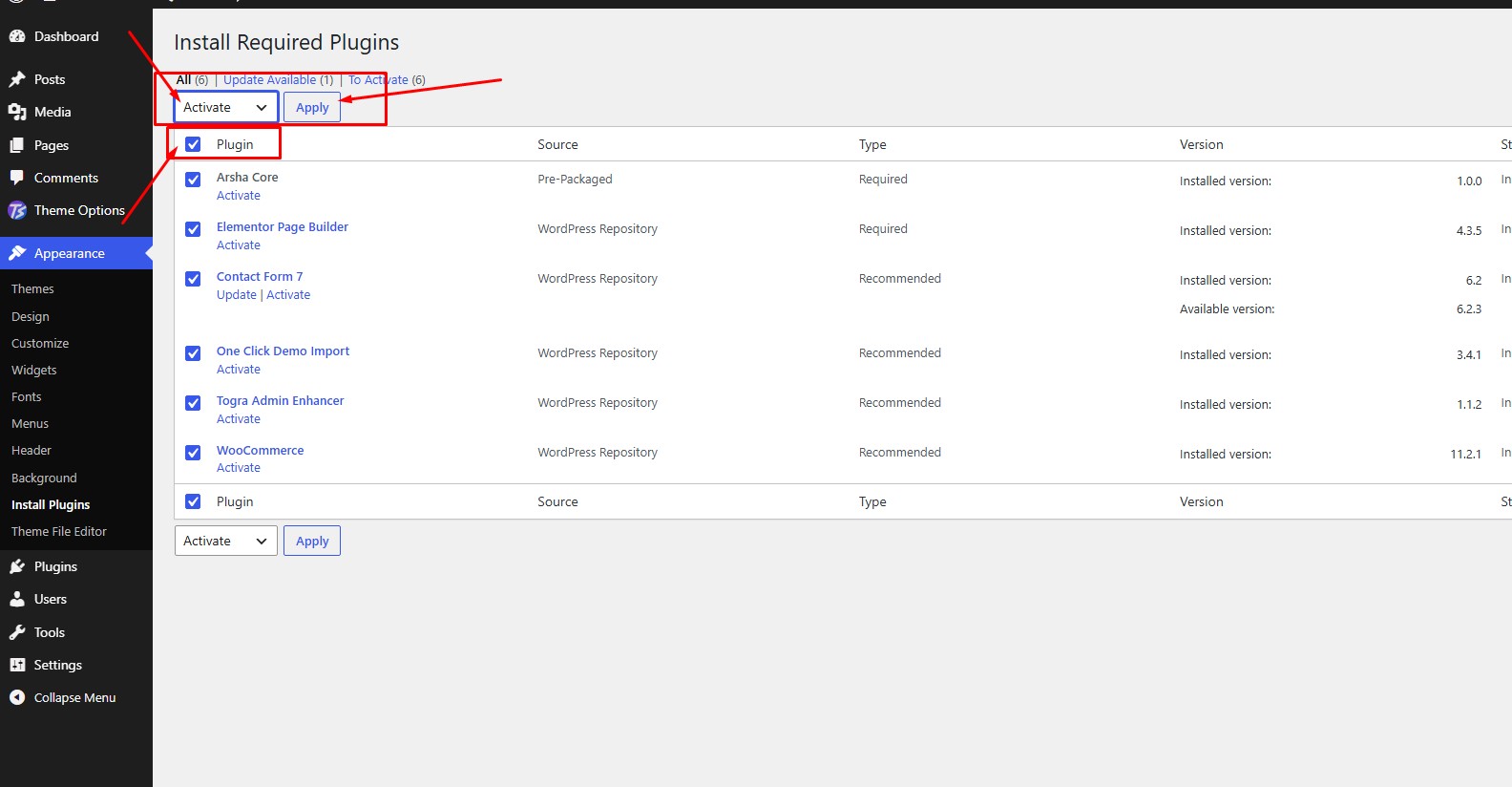
Select Activate plugins Then hit Apply
Import Demo
We provide two methods for importing demo contents: One Click (Automatic) and Manual. You can follow either method.
Importing Demo Contents
We provide two methods for importing demo contents: One Click (Automatic) and Manual. You can follow either method.
| Method | When to Use |
|---|---|
| Arsha Importer Method Recommended |
This method will remove all your existing data, so use it only on a fresh website. This procedure will be faster because you just have to do one click and then everything will happen automatically. If you want an exact clone of demo website without doing any manual configuration after importing data then this method is appropriate for you. |
| Manual Import Fallback |
Use this when the automatic import fails (only about 5% of customers hit this, usually due to hosting limits — in that case we also provide a free demo importing service if you contact us). You already have a working website with existing contents (e.g. posts, pages etc.). |
When demo import is done, some existing settings will be replaced by demo contents (menu, Customizer). It is recommended to only do this on a fresh site.
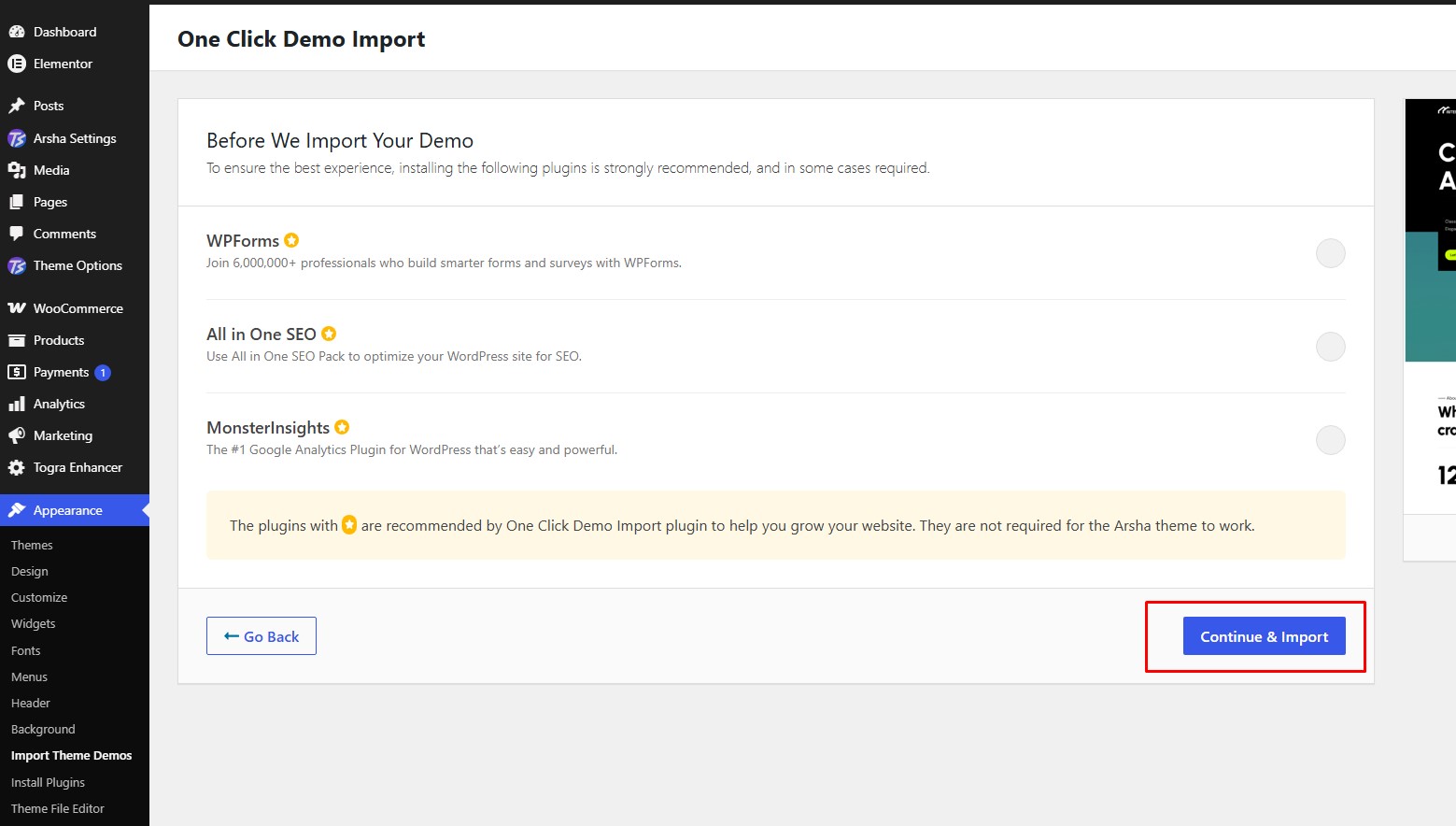
Import Theme Demos
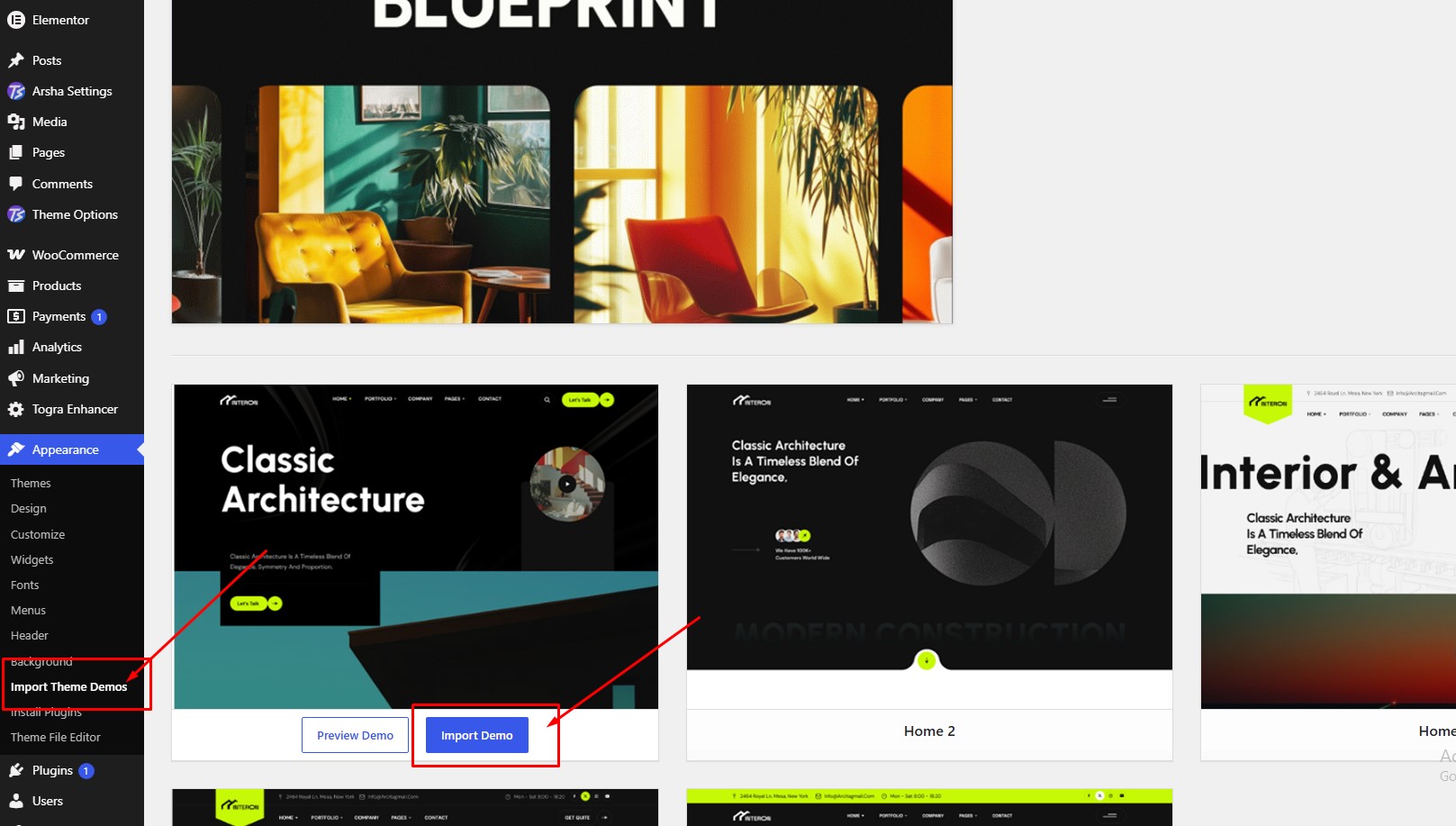
Continue to import
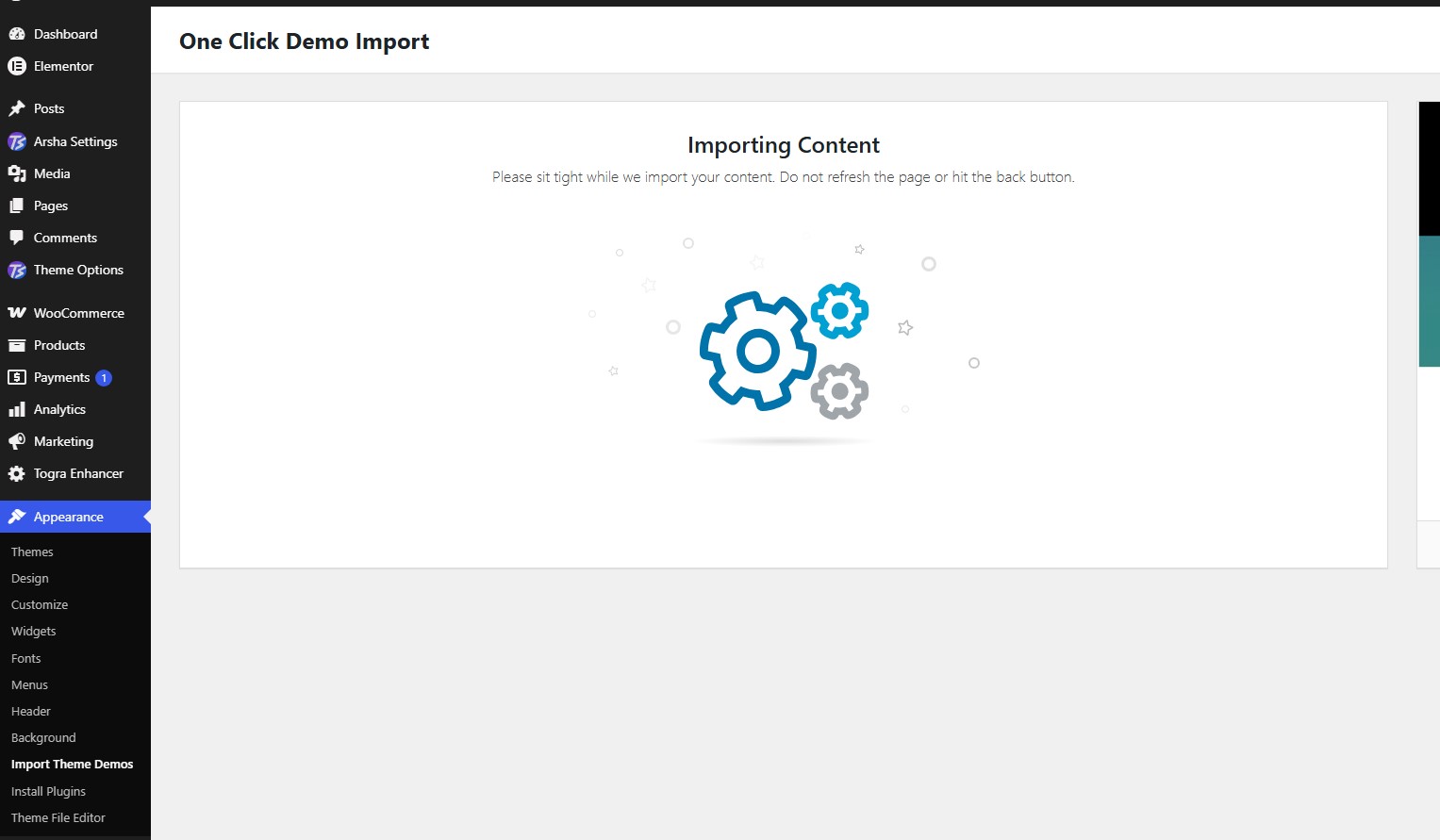
Importing Content
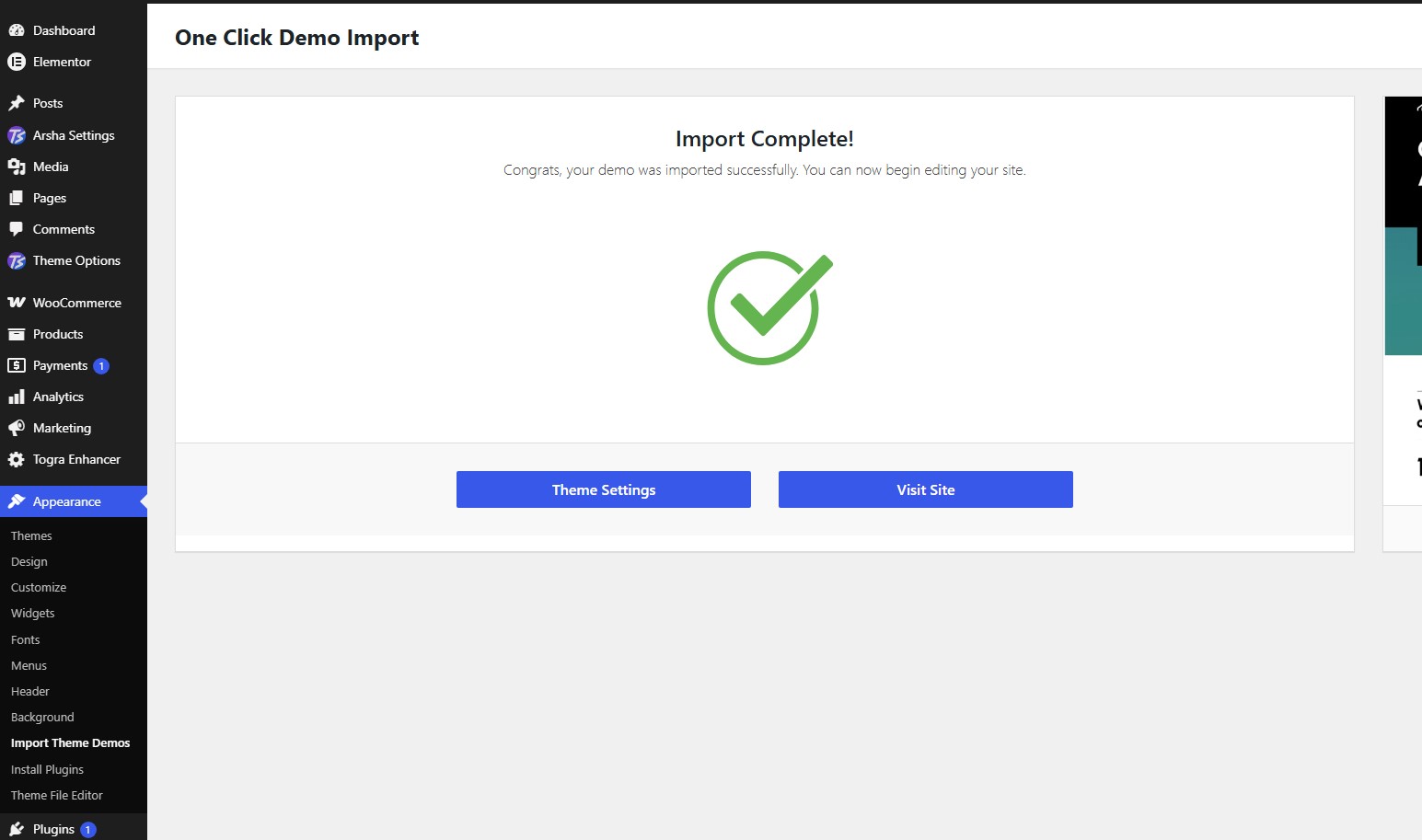
Import Complete
2. Manual Import
Please follow the instructions below to import demo data manually:
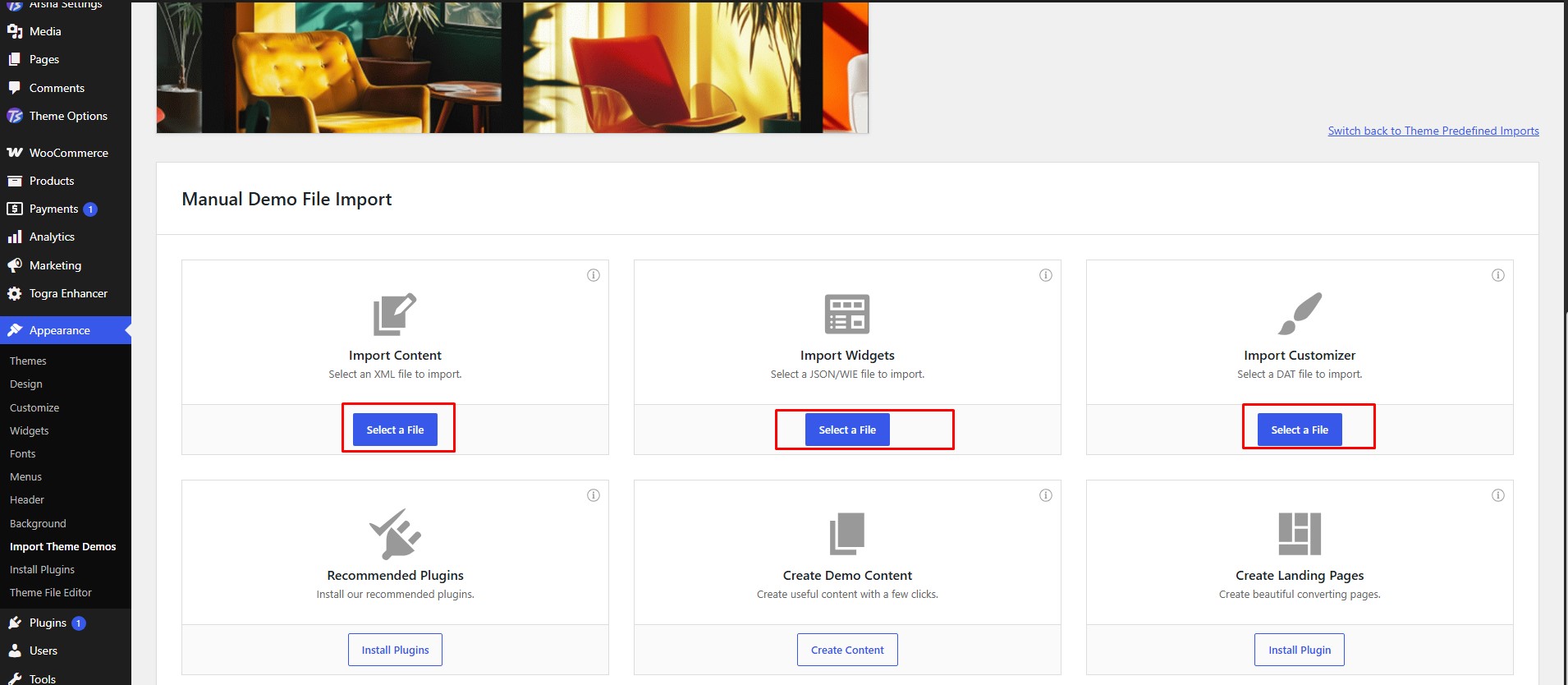
- Go to Arsha Importer from the WordPress sidebar menu.
- Click on the Manual Import tab.
- Choose
.xmlor.wxrfile for Content (posts, pages, custom post types and attachments). - Choose
.wieor.jsonfile for Widgets (widget instances and sidebar assignments). - Choose
.datfile for Customizer (theme mods, colours, logos and customizer values). - Choose
.jsonfile for Pure Metafields (post types, taxonomies, metaboxes and option panels). - Choose
.zipkit for Elementor (templates and global styles — colors, typography).
All the above files are included in the Theme package.
Switch to Manual Import
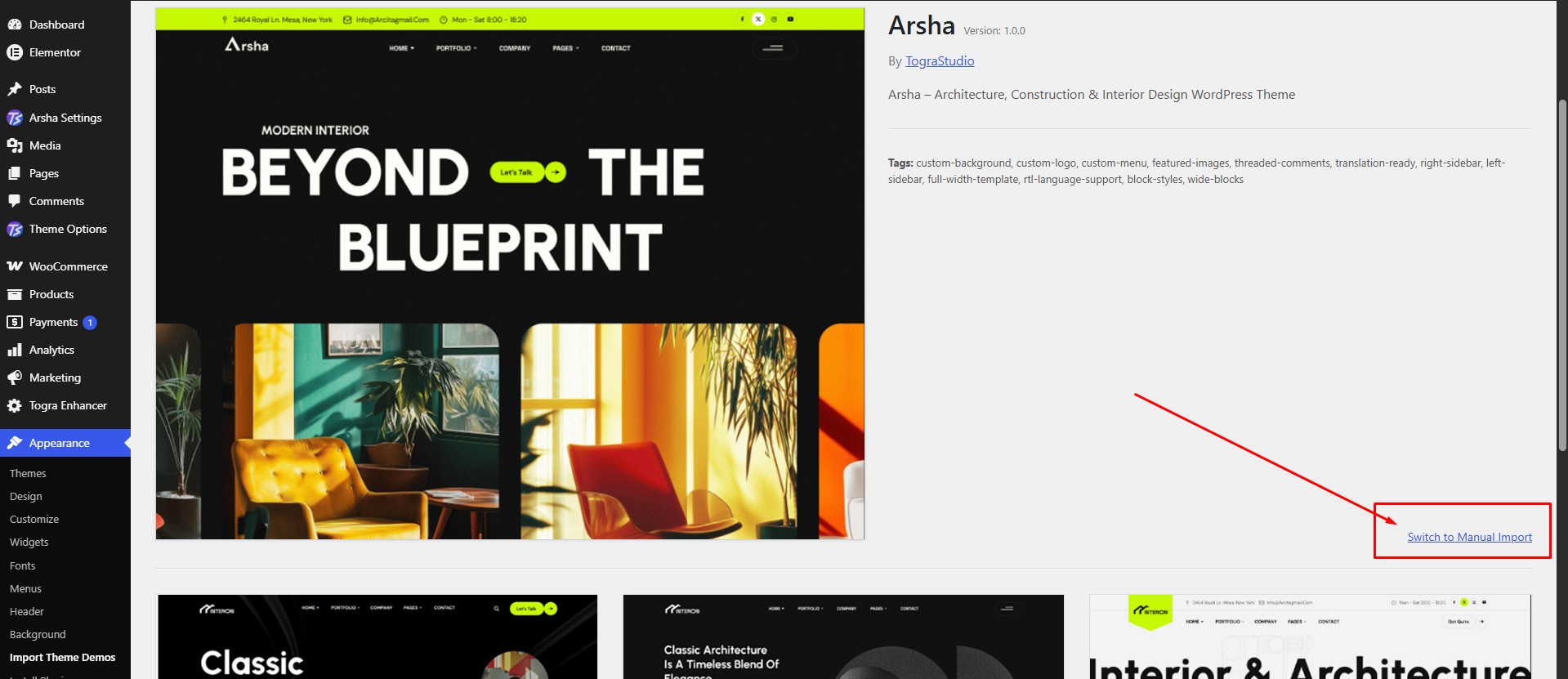
Manual Demo File Import
Where Is My Purchase Code?
To find your purchase code, when you buy a product from Envato you receive a purchase code. Visit the following link to learn how to find it:
https://help.market.envato.com/hc/en-us/articles/202822600
Customization
Configure basic site settings, header, footer, mega menu, breadcrumb, offcanvas and blog options for your Arsha theme.
Basic Site Settings
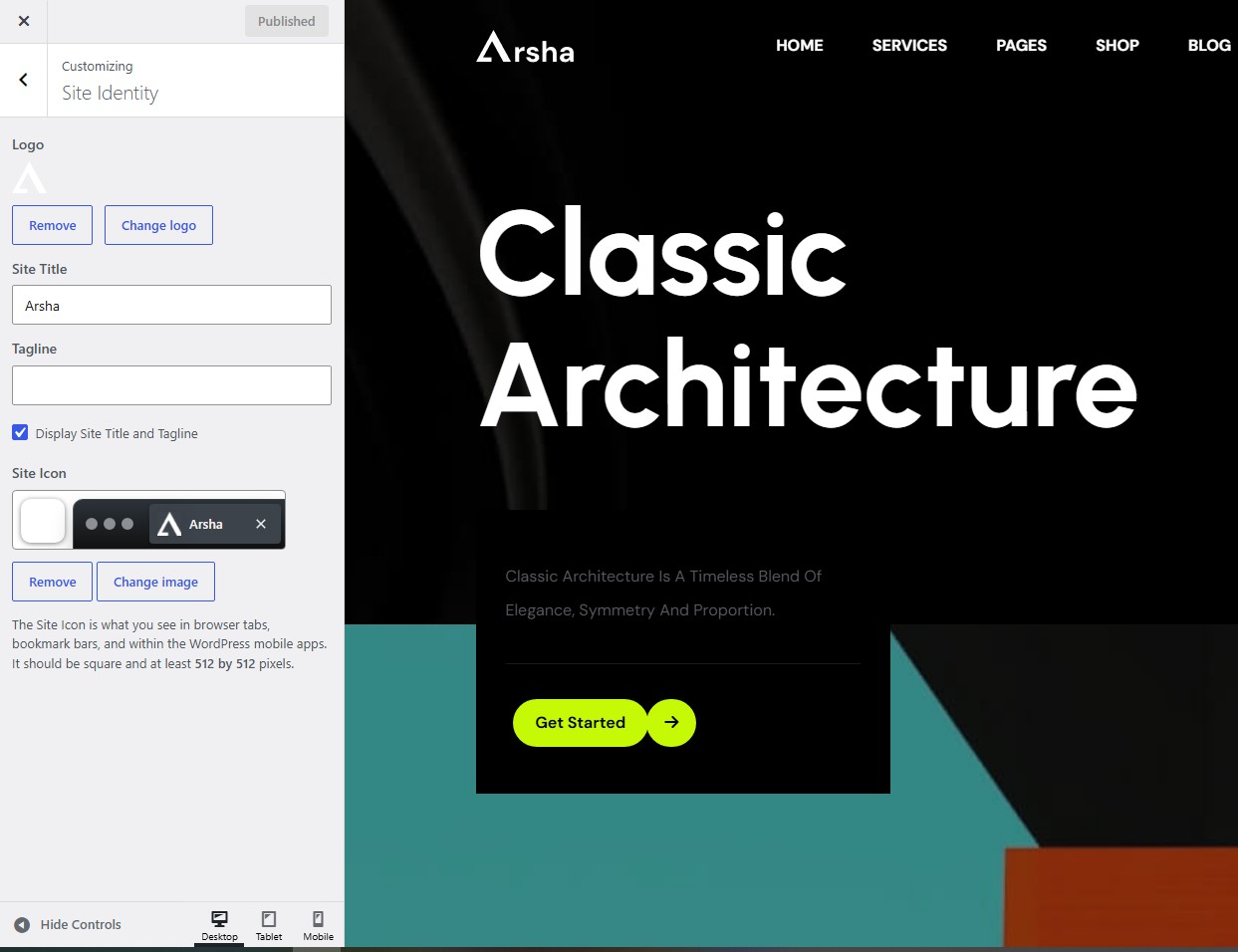
Change Site Title and Favicon
To change your Site Title and Favicon, navigate to Dashboard → Appearance → Customize → Site Identity.
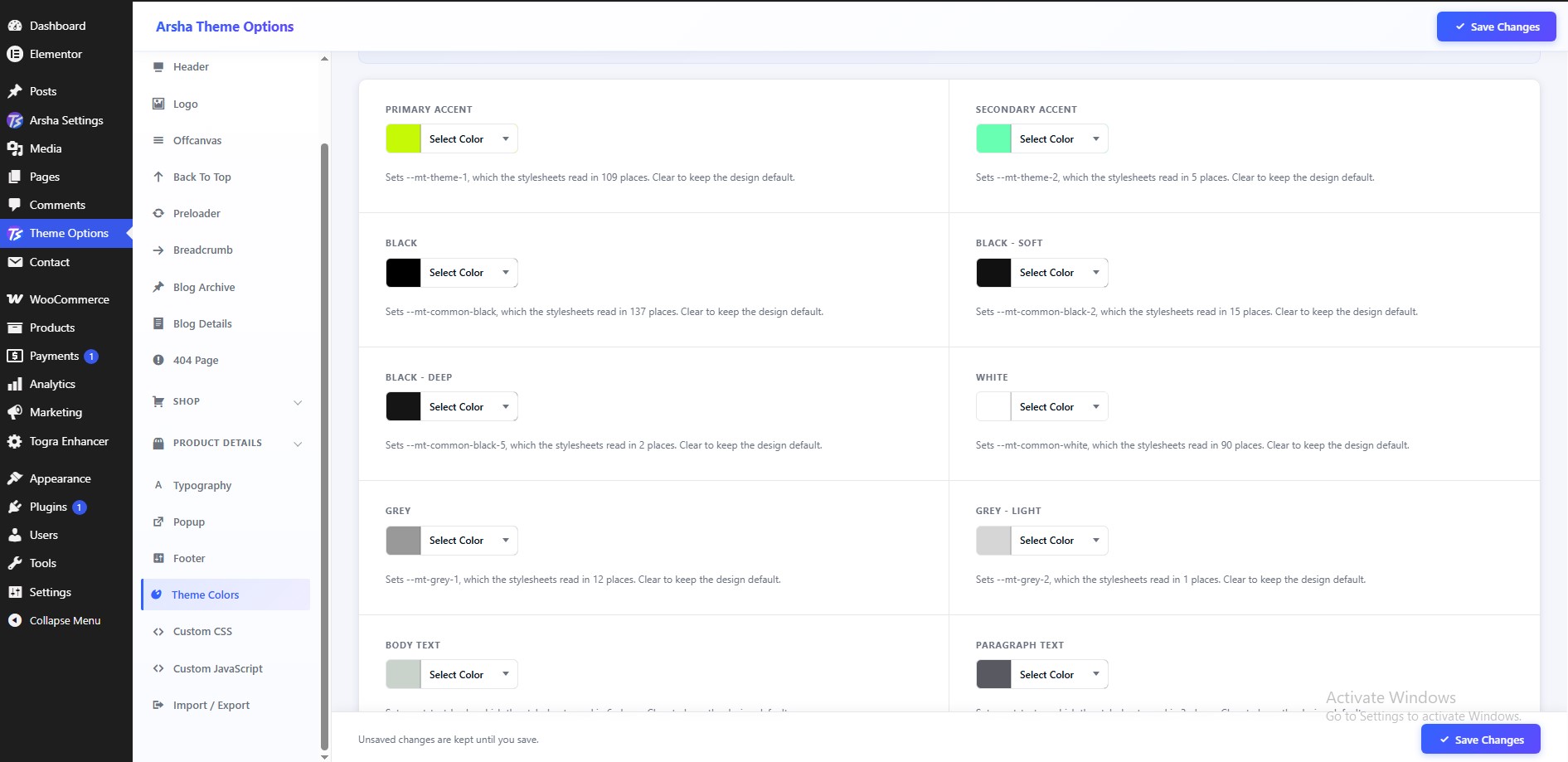
Change Global Colors
To change all global colors, navigate to Dashboard → Theme Options → Theme Colors.
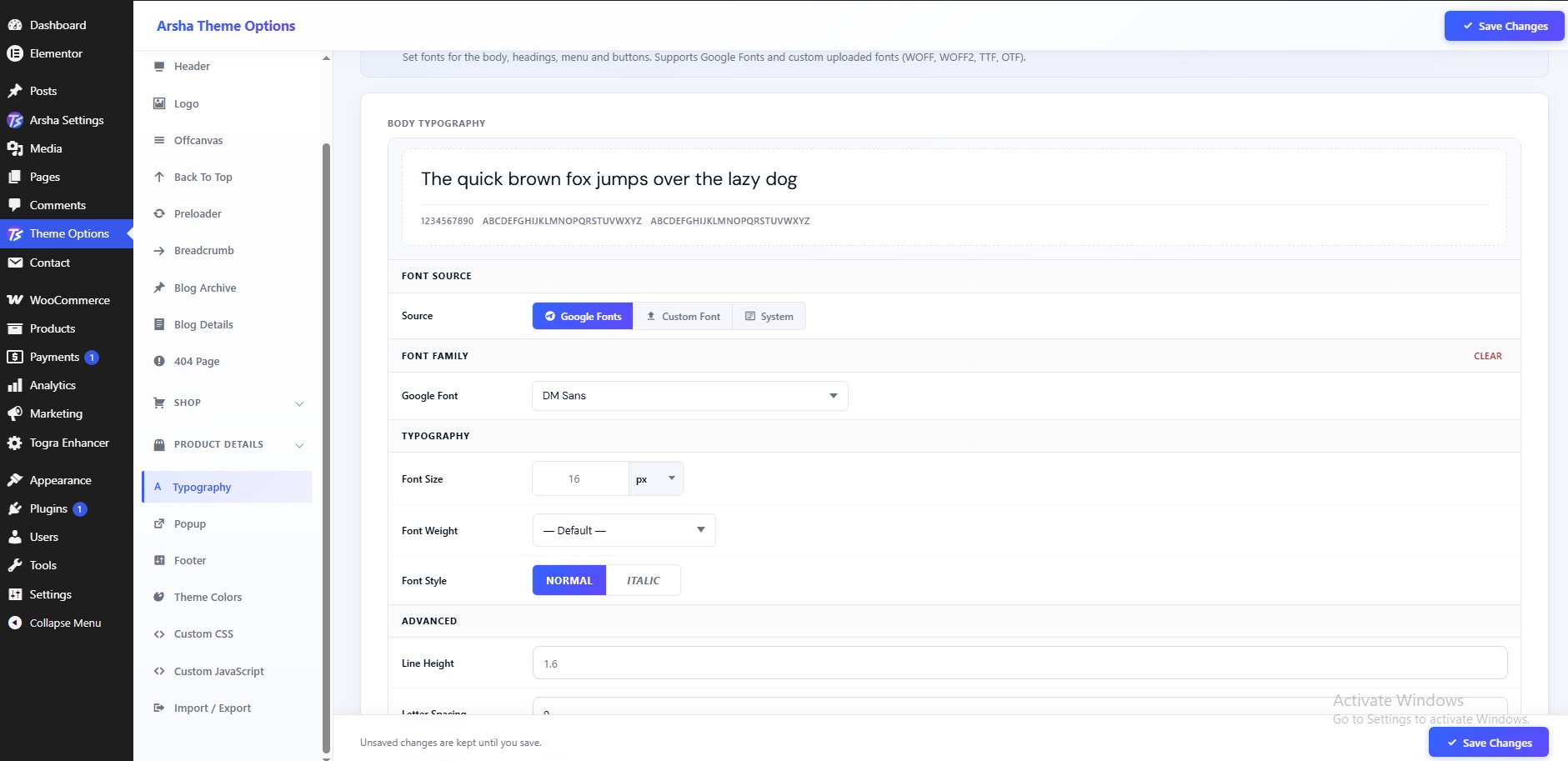
Change Typography
To change the typography of your site, navigate to Dashboard → Theme Options → Typography.
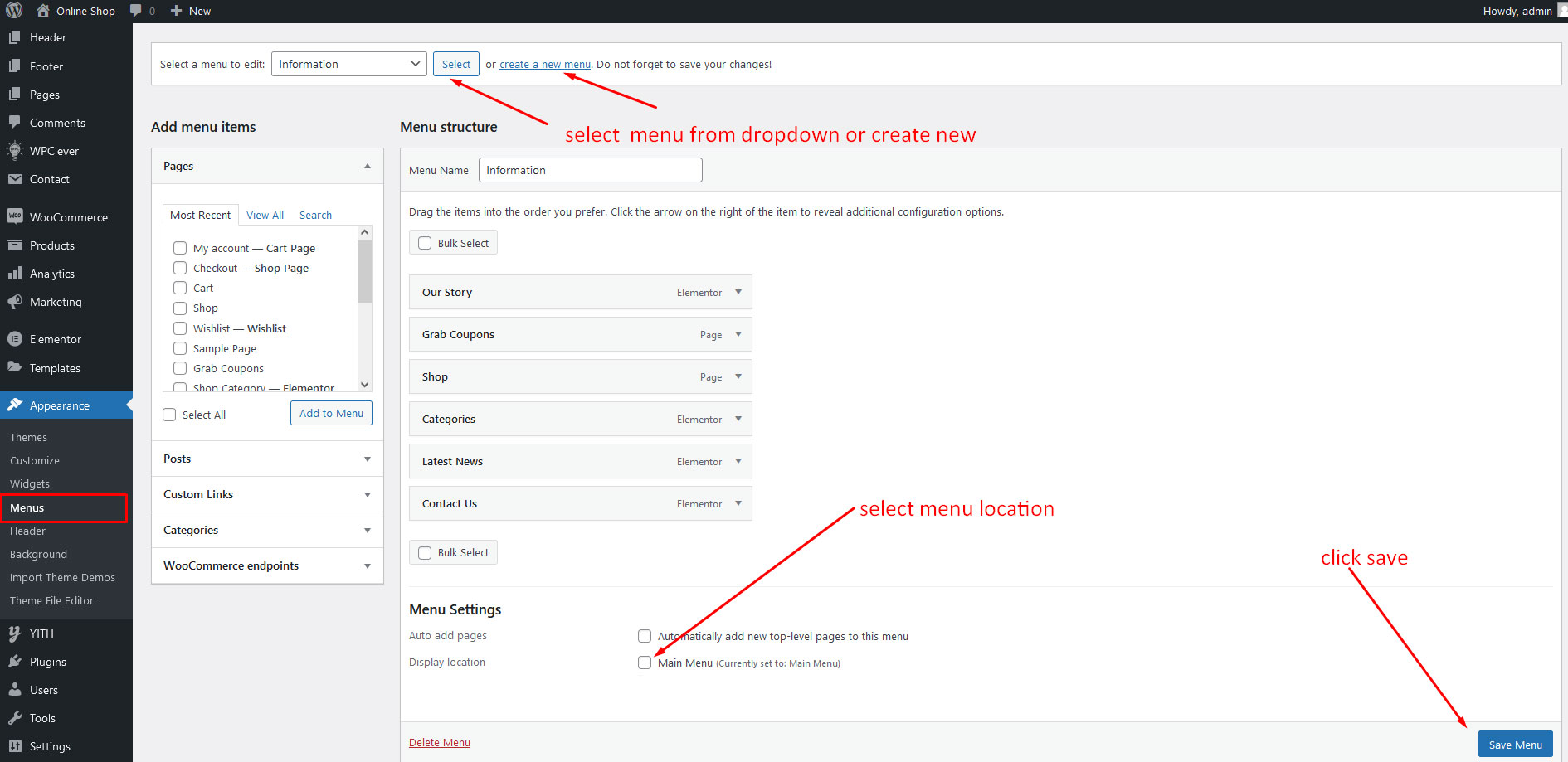
Customize Menu
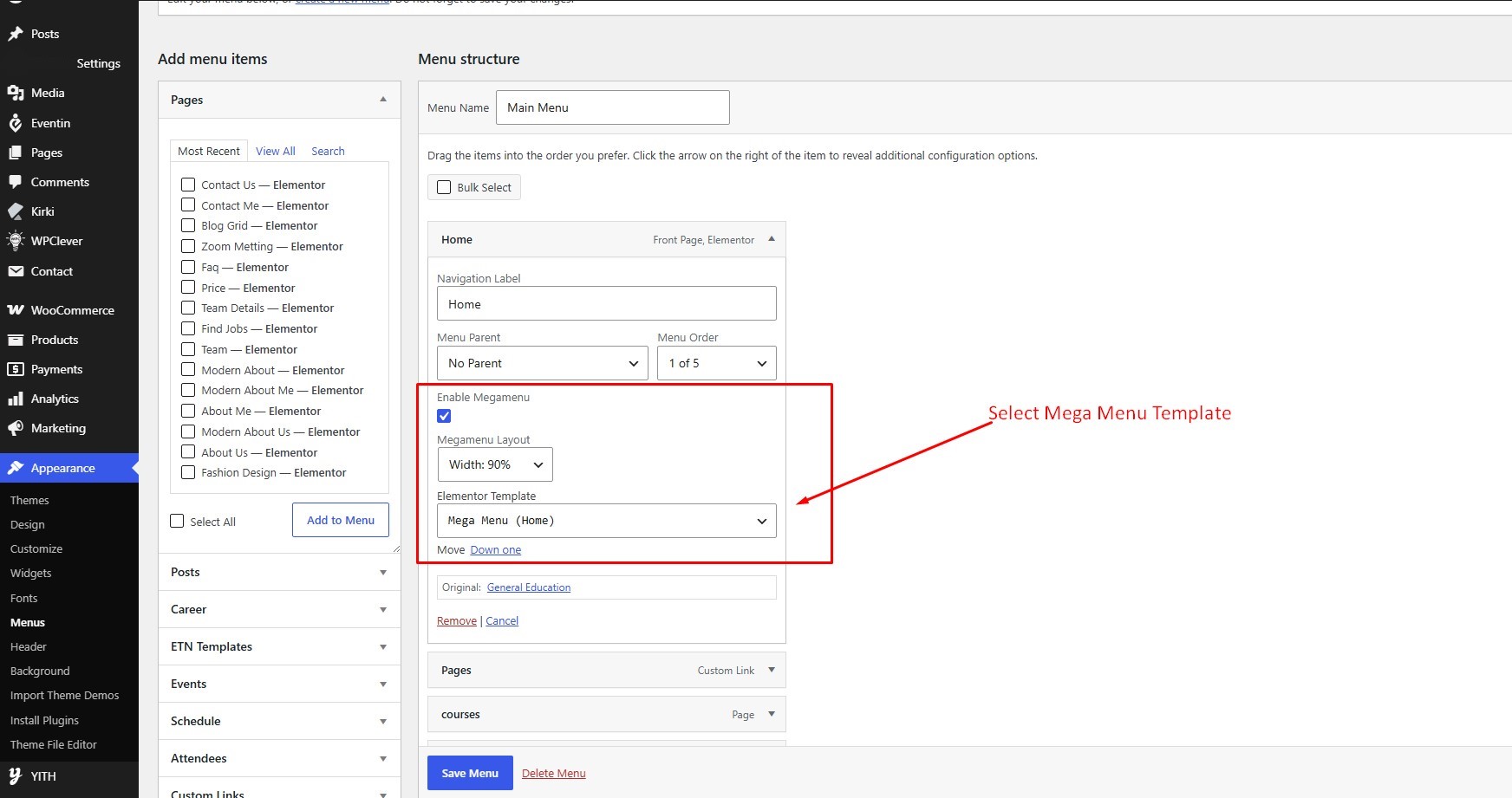
To customize the menu and mega menu, navigate to Dashboard → Appearance → Menus.
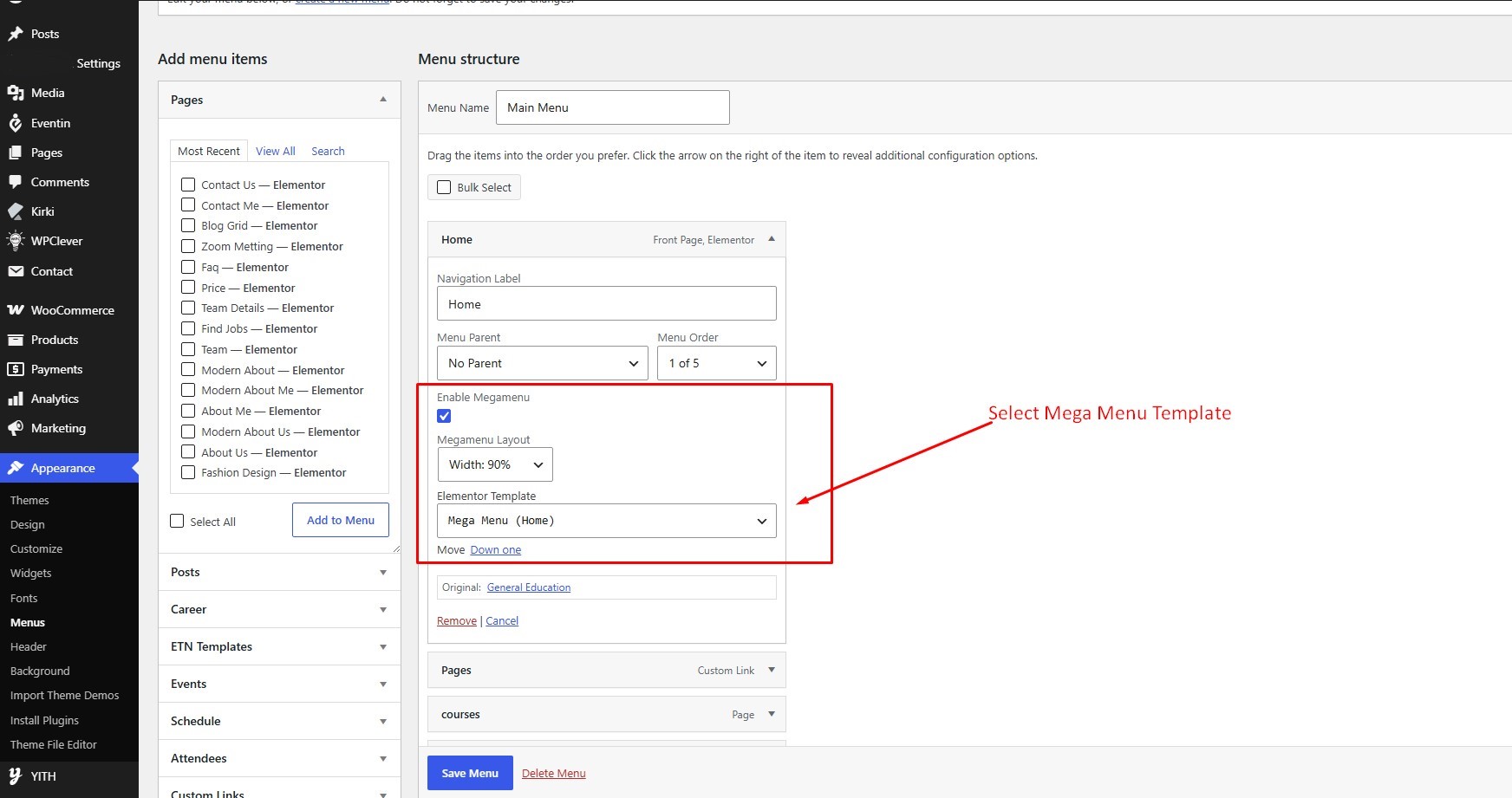
Mega Menu
To customize the mega menu, navigate to Dashboard → Appearance → Menus.
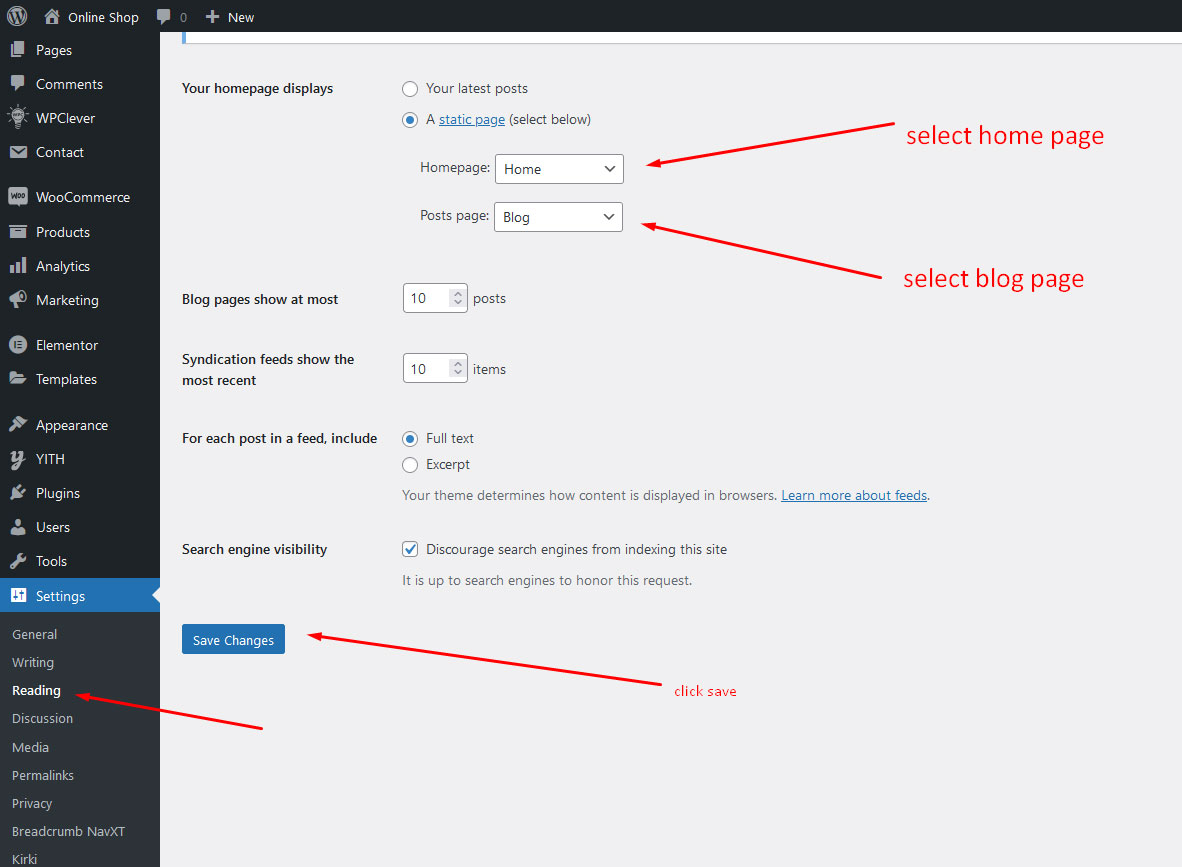
Set Home and Blog Page
To set the home and blog page, navigate to Dashboard → Settings → Reading.
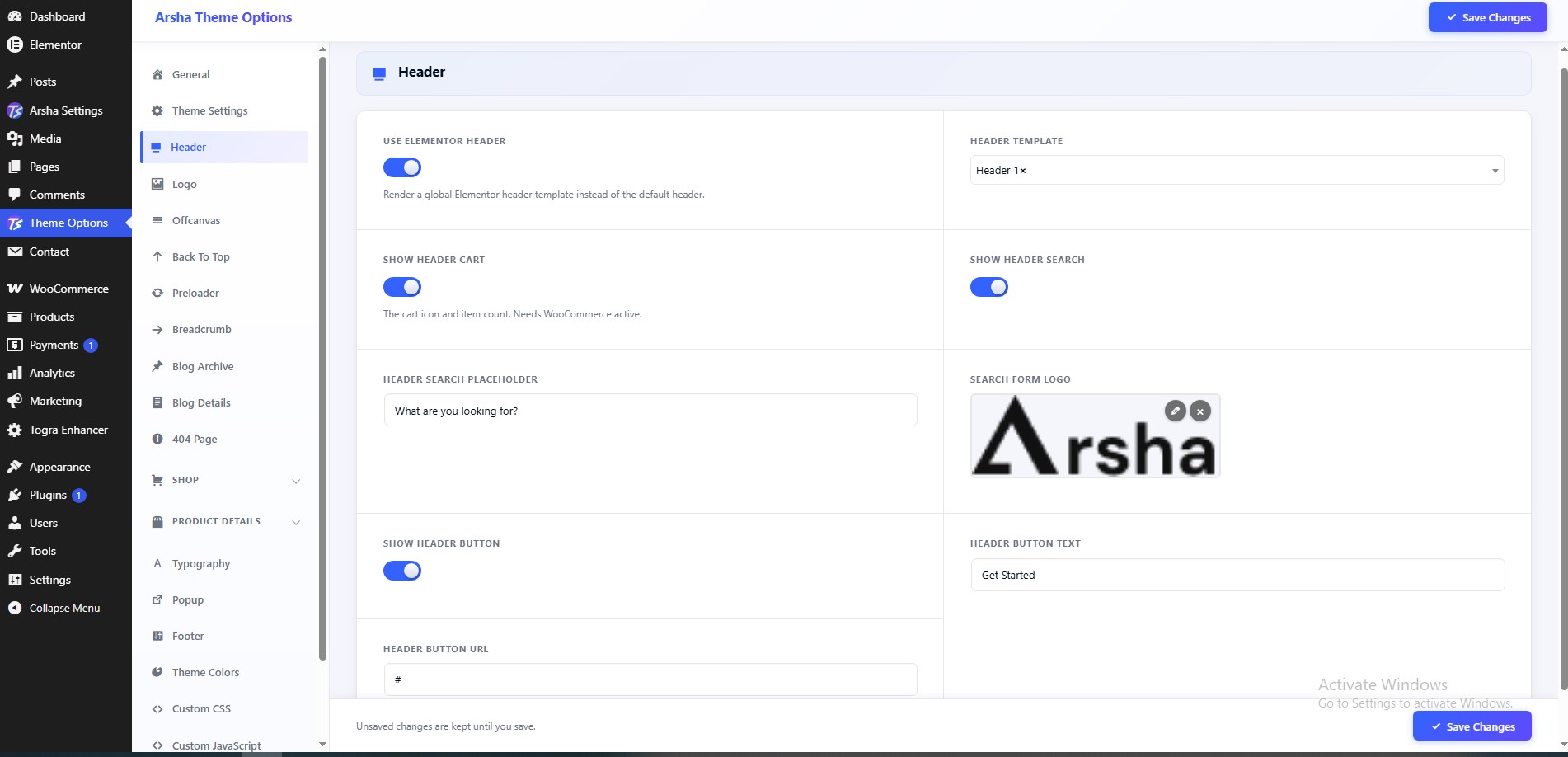
Header
Header Default Setting
To Customize Default header, navigate to Dashboard → Theme Options → Header and Customize logo and width".
Header Default Layout
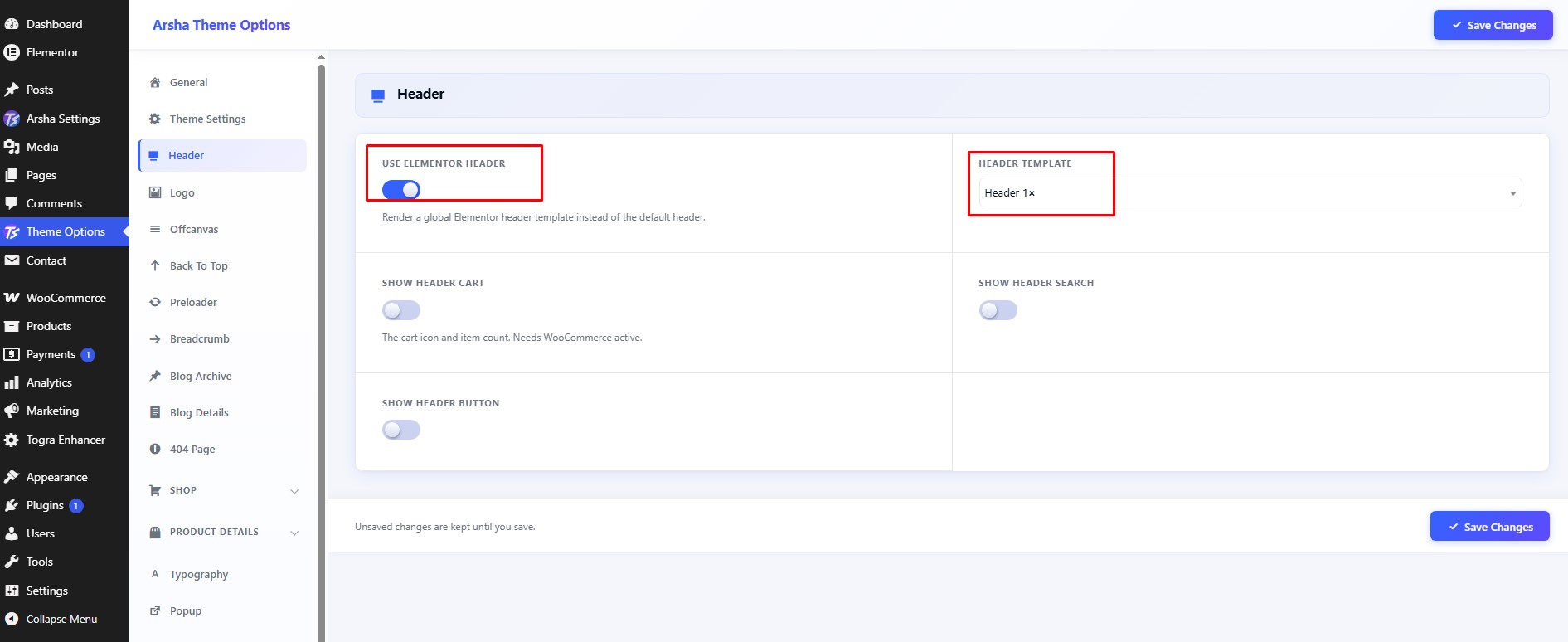
To use the default header, navigate to Dashboard → Theme Options → Header then Switch OFF "Header From Elementor? ".
Header Elementor Layout
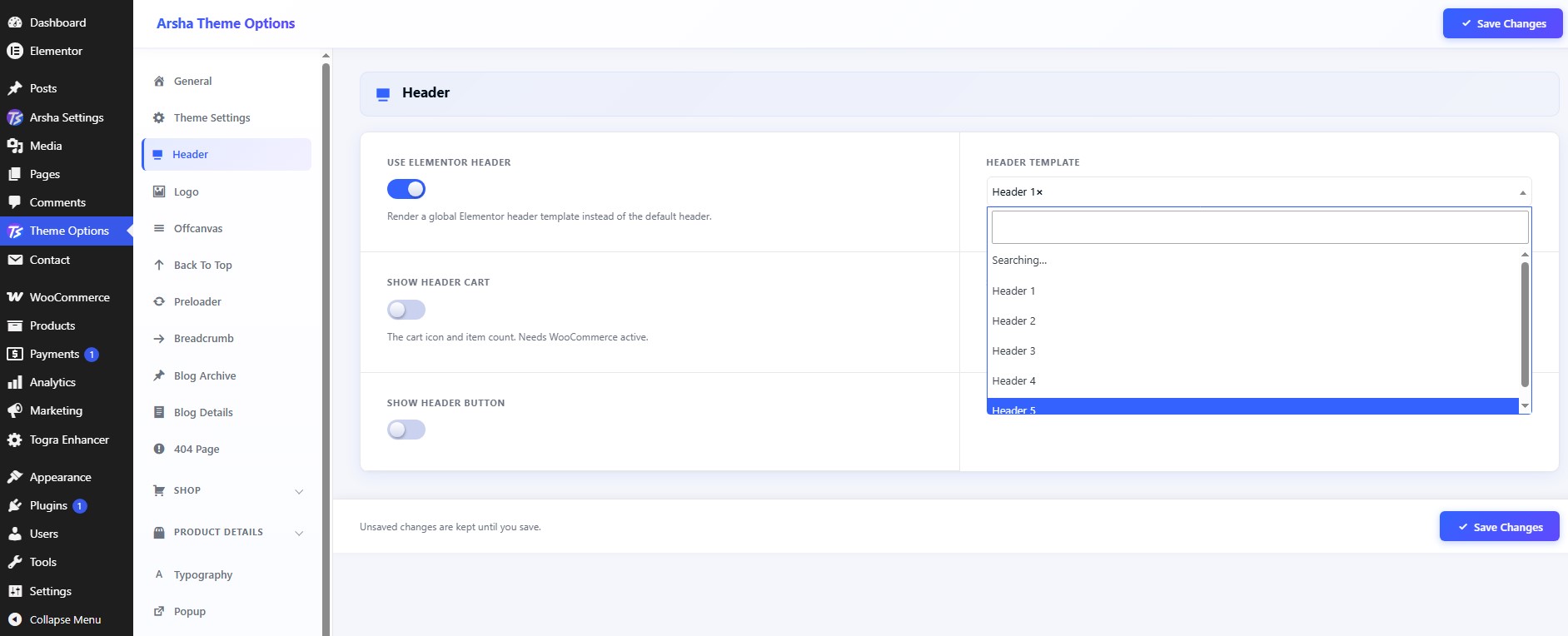
To use the Elementor header, navigate to Dashboard → Theme Options → Header then Switch ON "Header From Elementor? ". And Select Elementor Header
Header Elementor Create
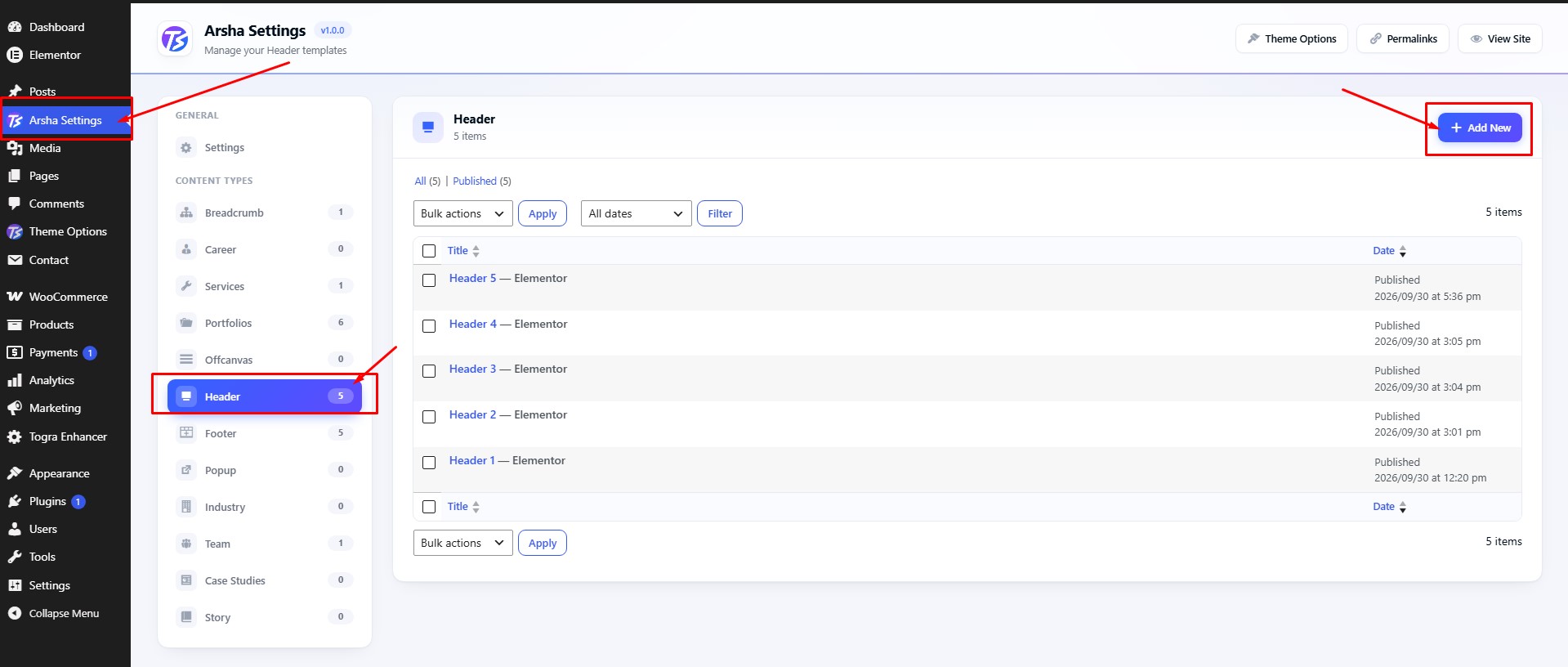
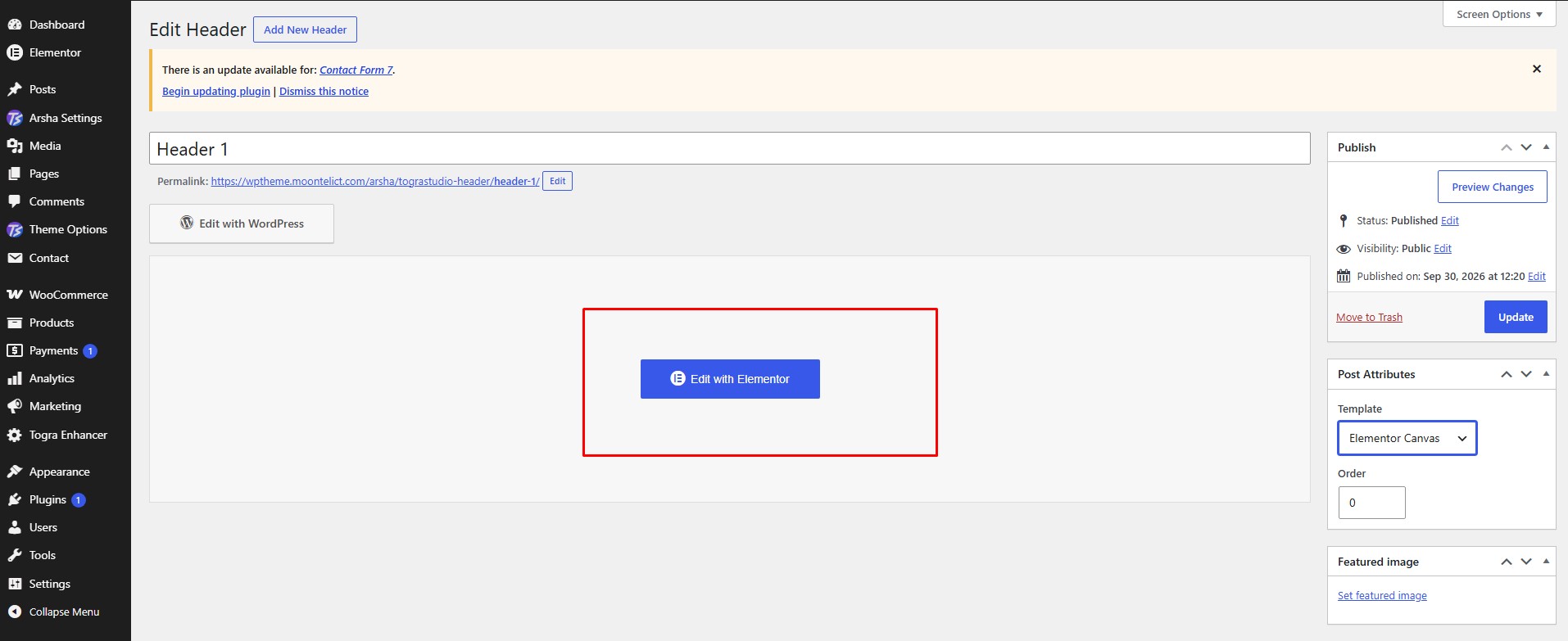
To create an Elementor header, navigate to Dashboard → Arsha Settings → Header → Add New.
Create a new Header
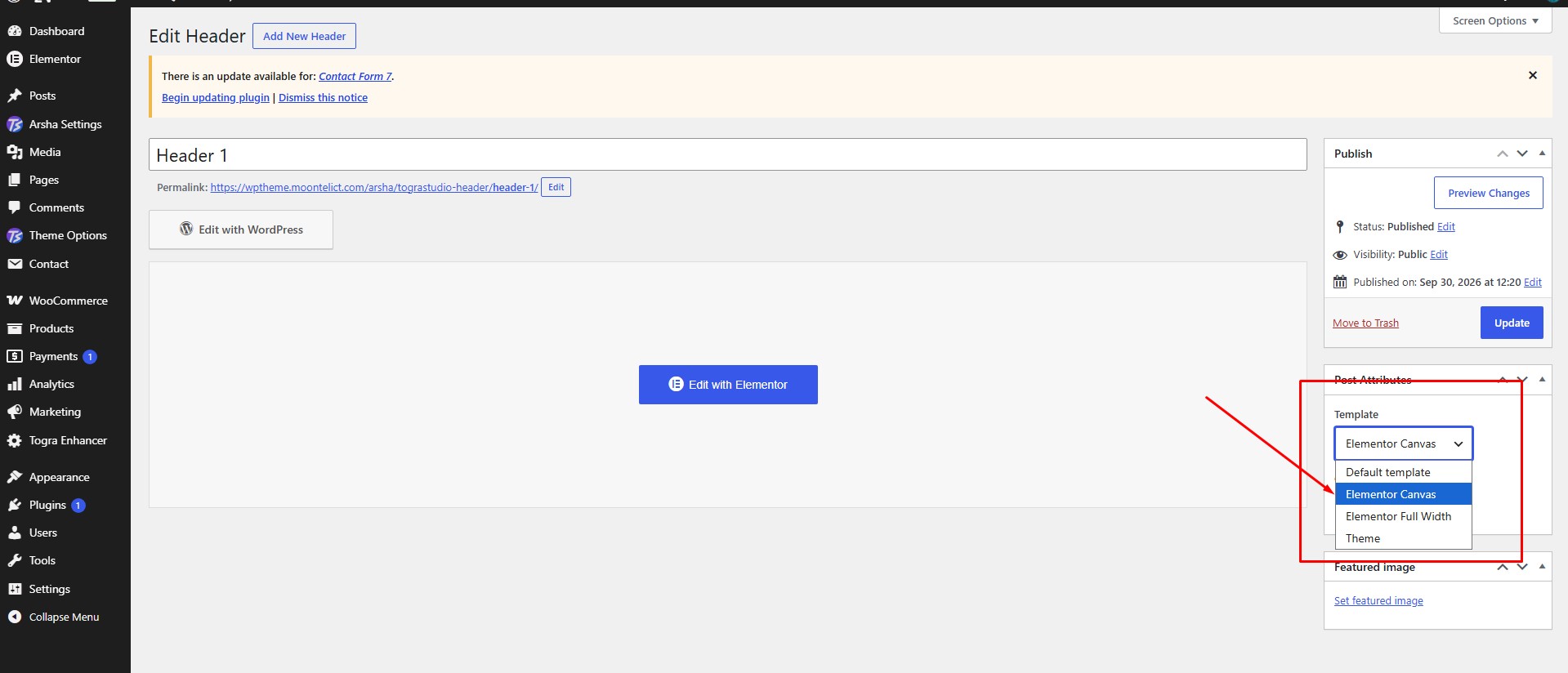
- Insert a Header Title
- Select Page Template as Elementor Canvas
- Click Publish
Edit with Elementor
Click "Edit With Elementor" and build the header layout.
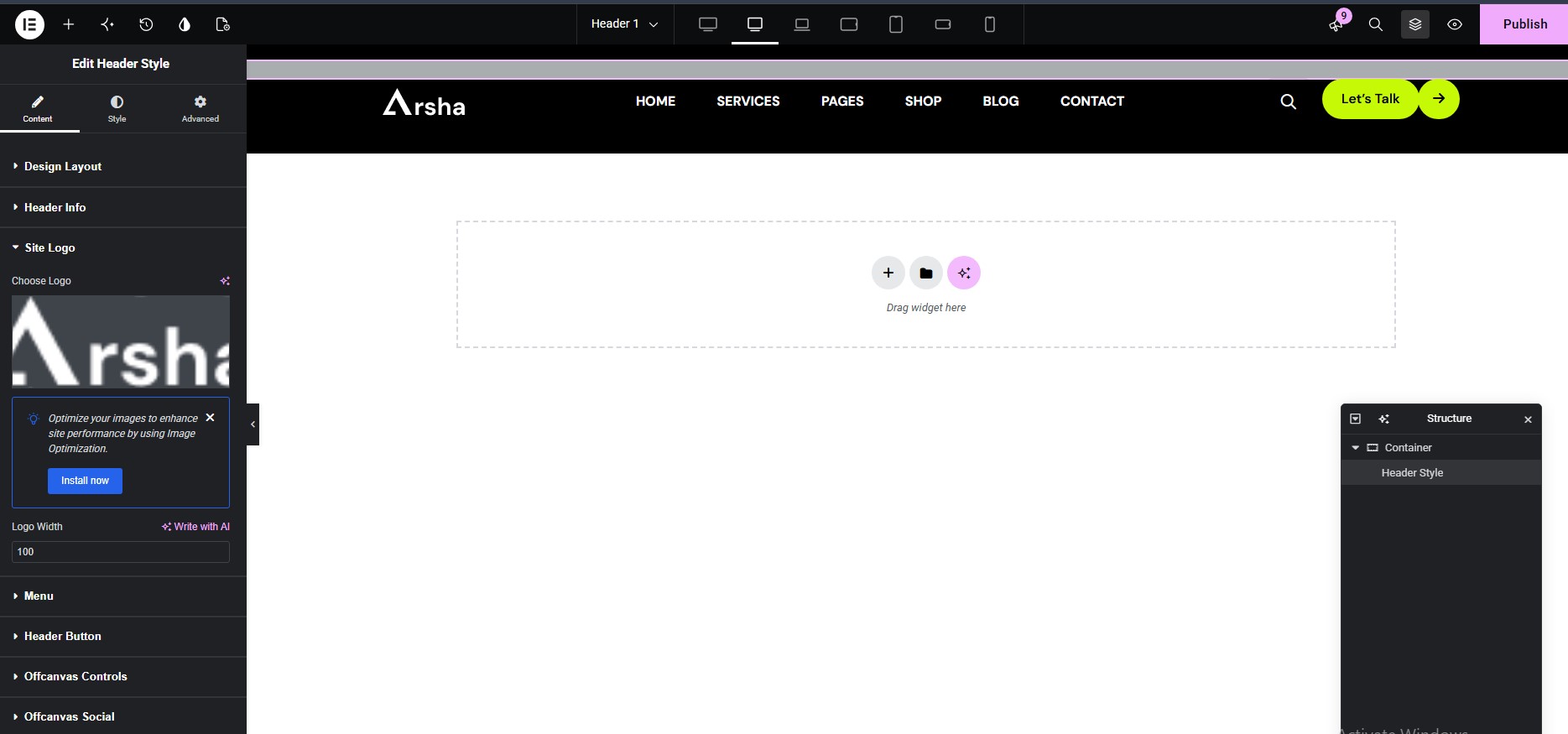
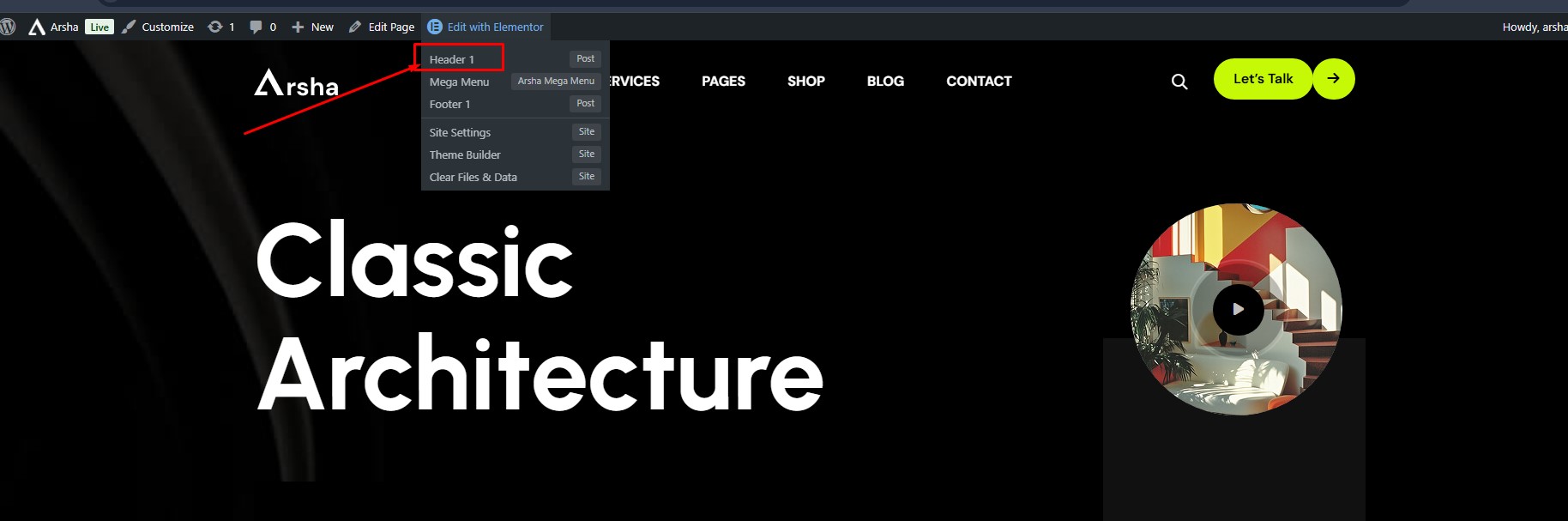
Header Style Options
To edit a specific page's header, identify the Elementor header used by that page:
Footer
Footer Default Layout
To use the Elementor Footer, navigate to Dashboard → Theme Options → Footer Then Switch Off "Footer From Elementor? "
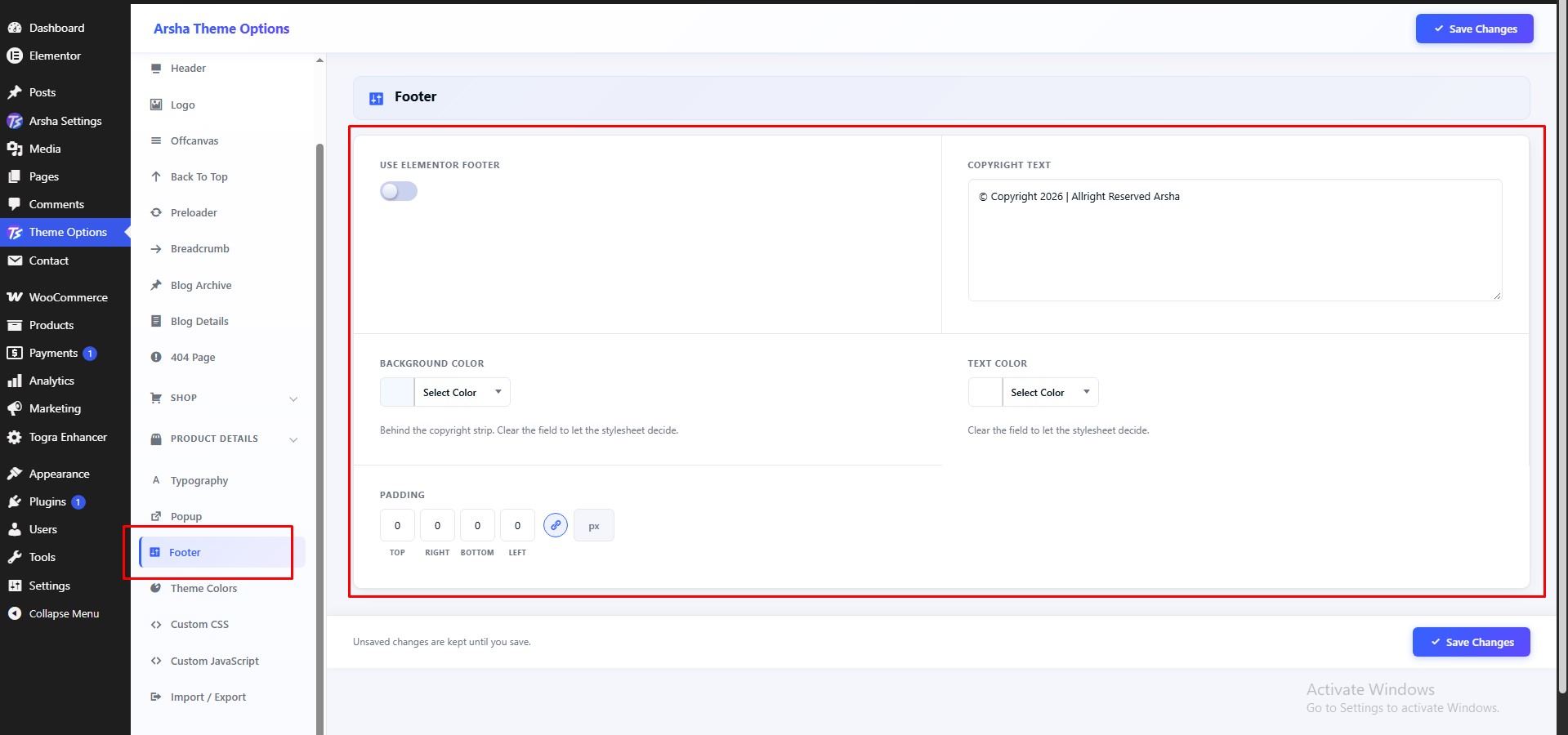
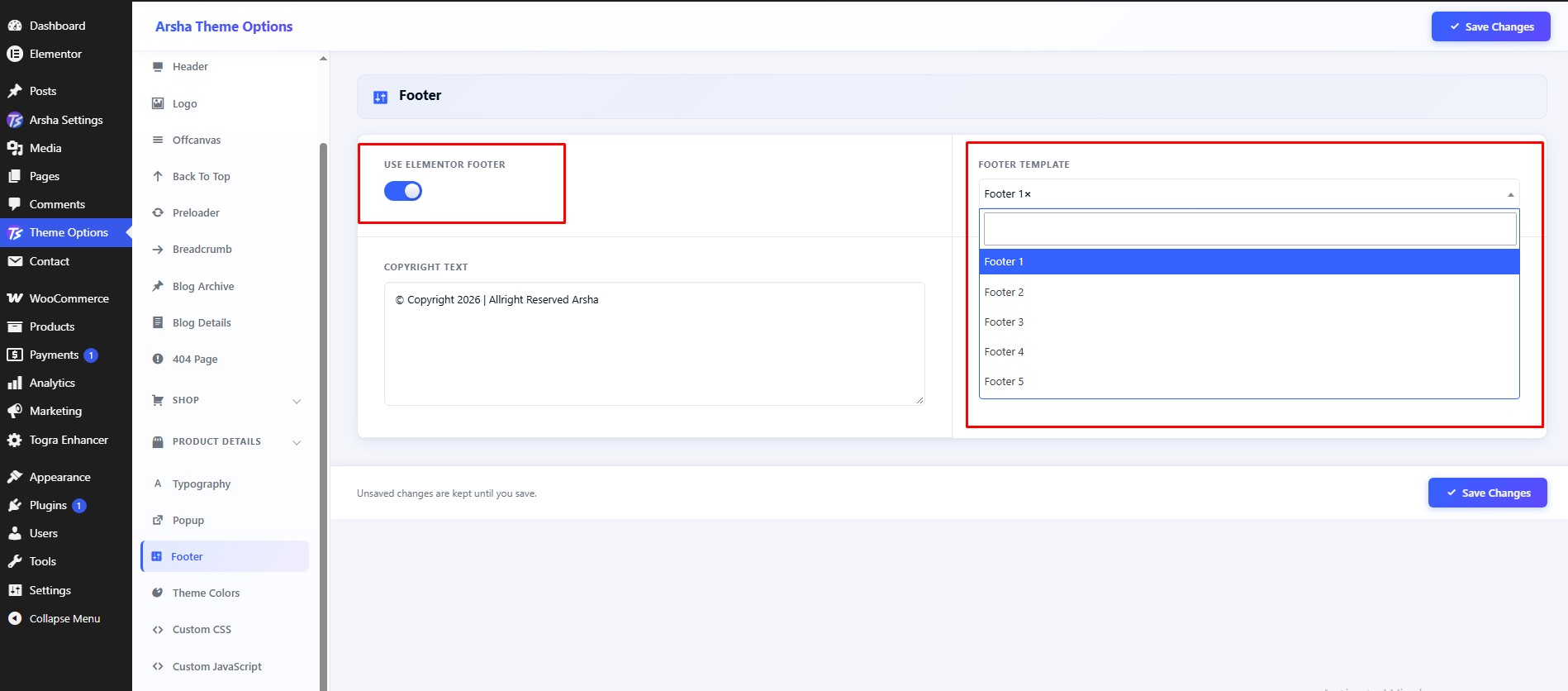
Footer Elementor Layout
To use the Elementor Footer, navigate to Dashboard → Theme Options → Footer Then Switch On "Footer From Elementor? ". And Select Elementor Footer
Footer Elementor Create
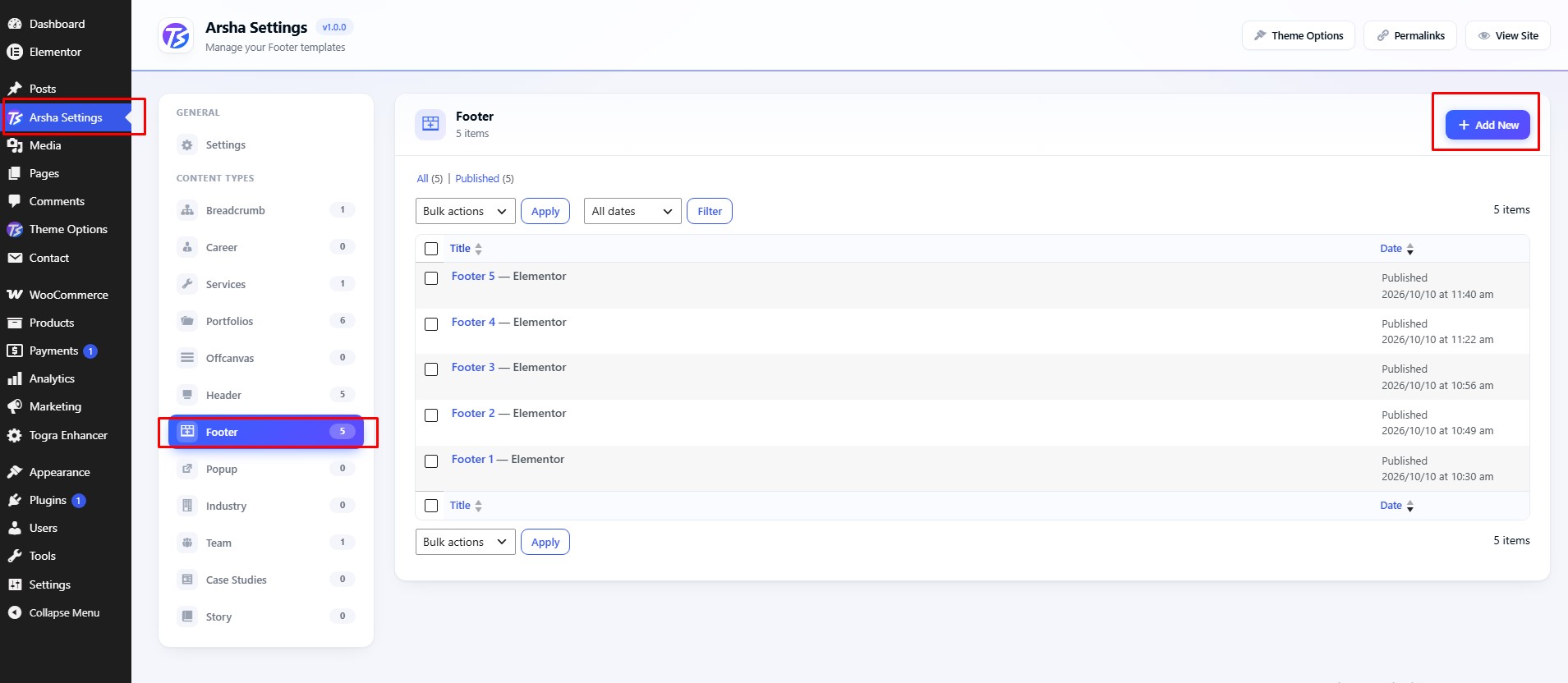
To create an Elementor footer, navigate to Dashboard → Arsha Settings → Footer → Add New.
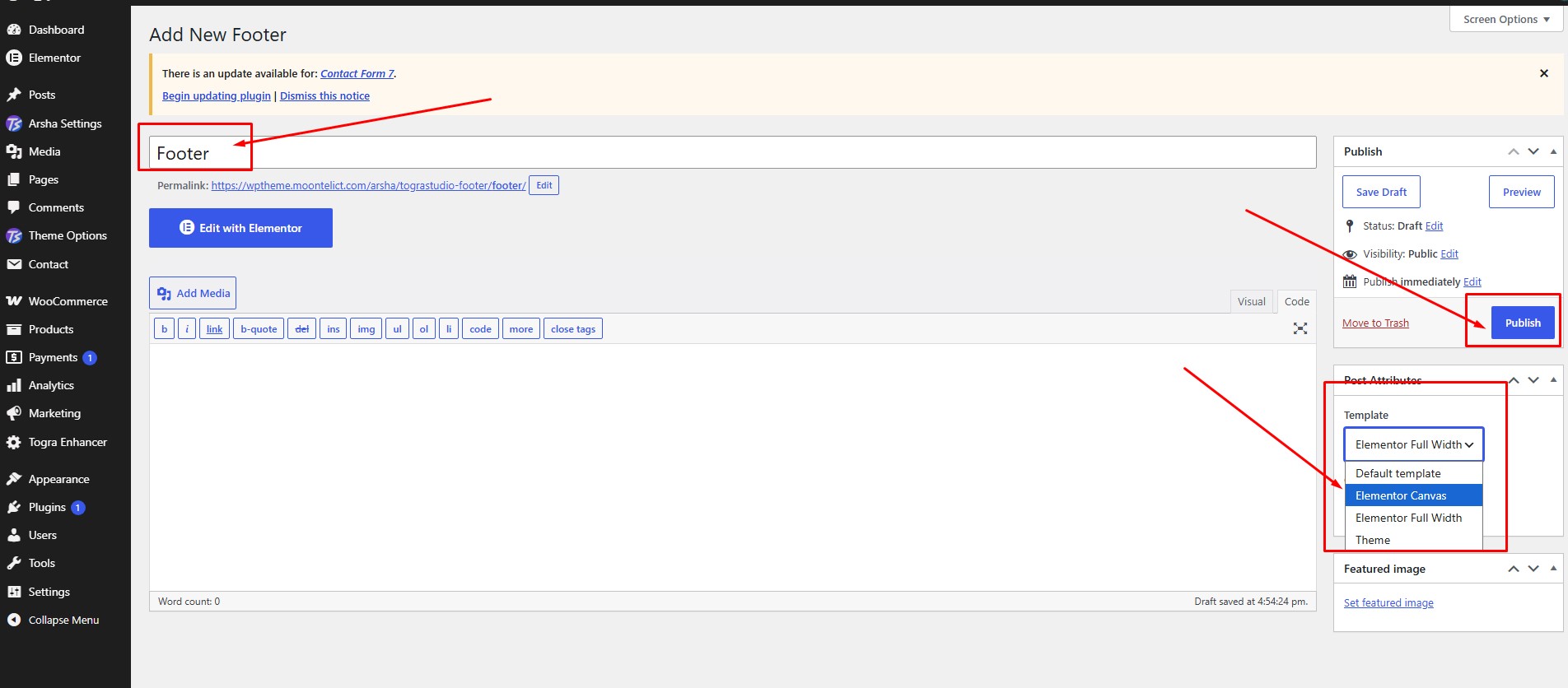
Create a new Footer post
- Insert a Footer Title
- Select Page Template as Elementor Canvas
- Click Publish
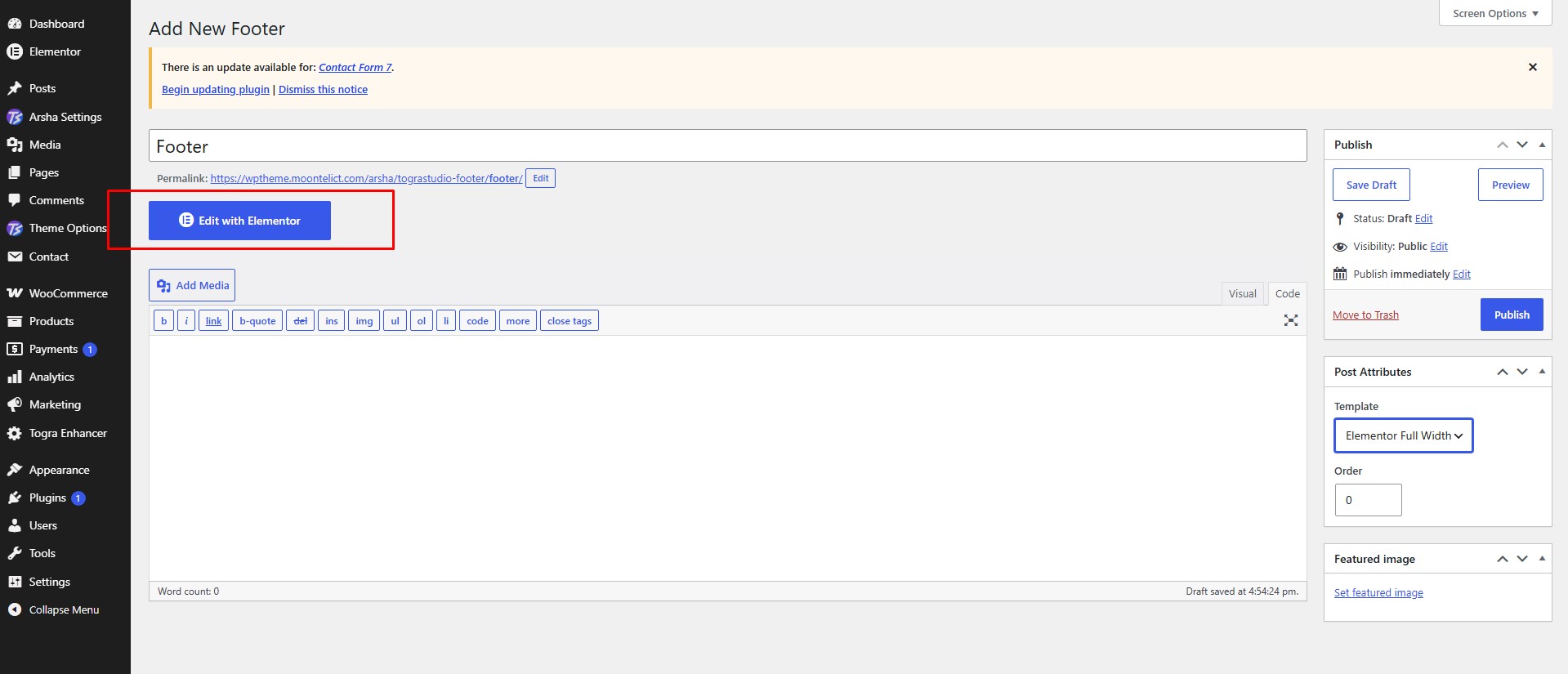
Edit with Elementor
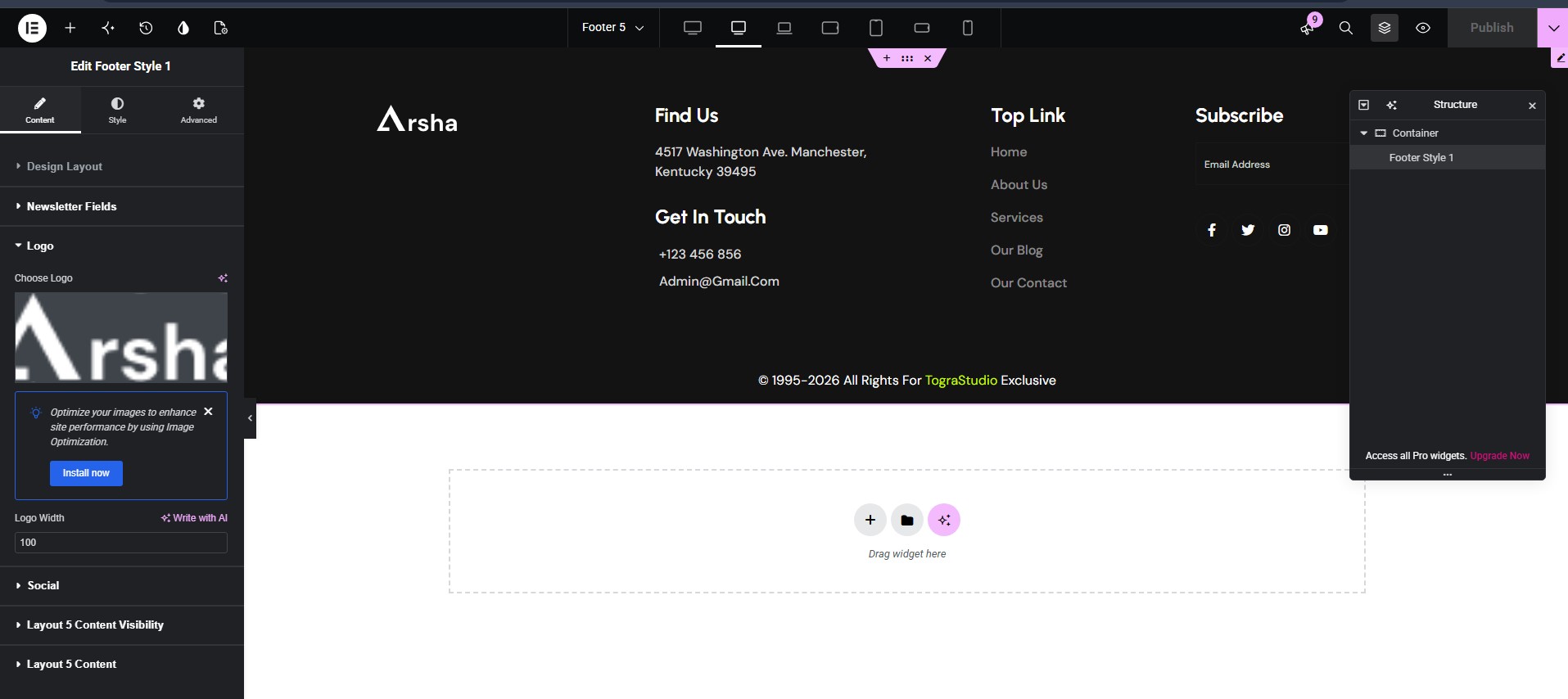
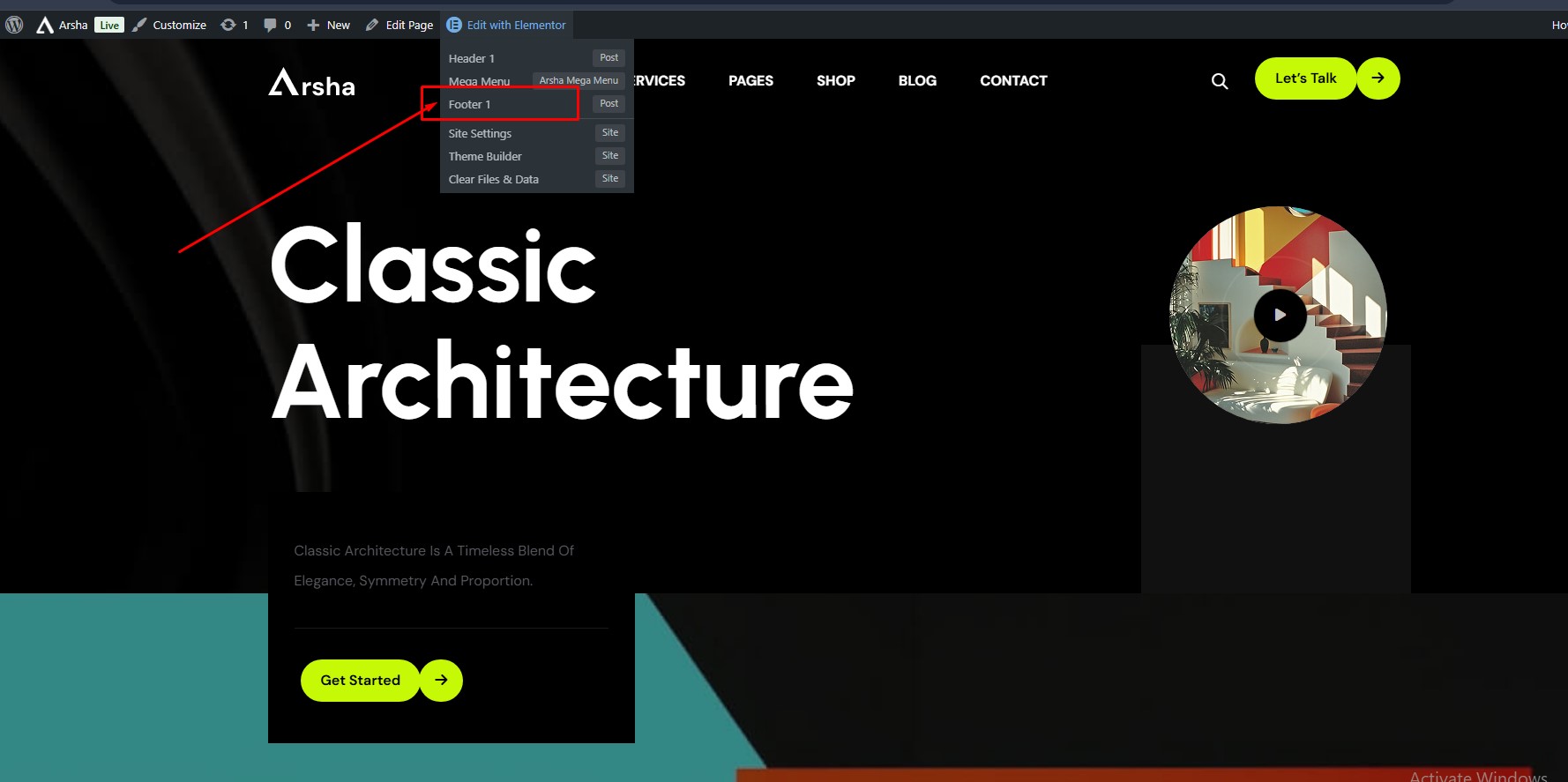
Footer Style Options
To edit a specific page's footer, identify the Elementor Footer used by that page:
Mega Menu
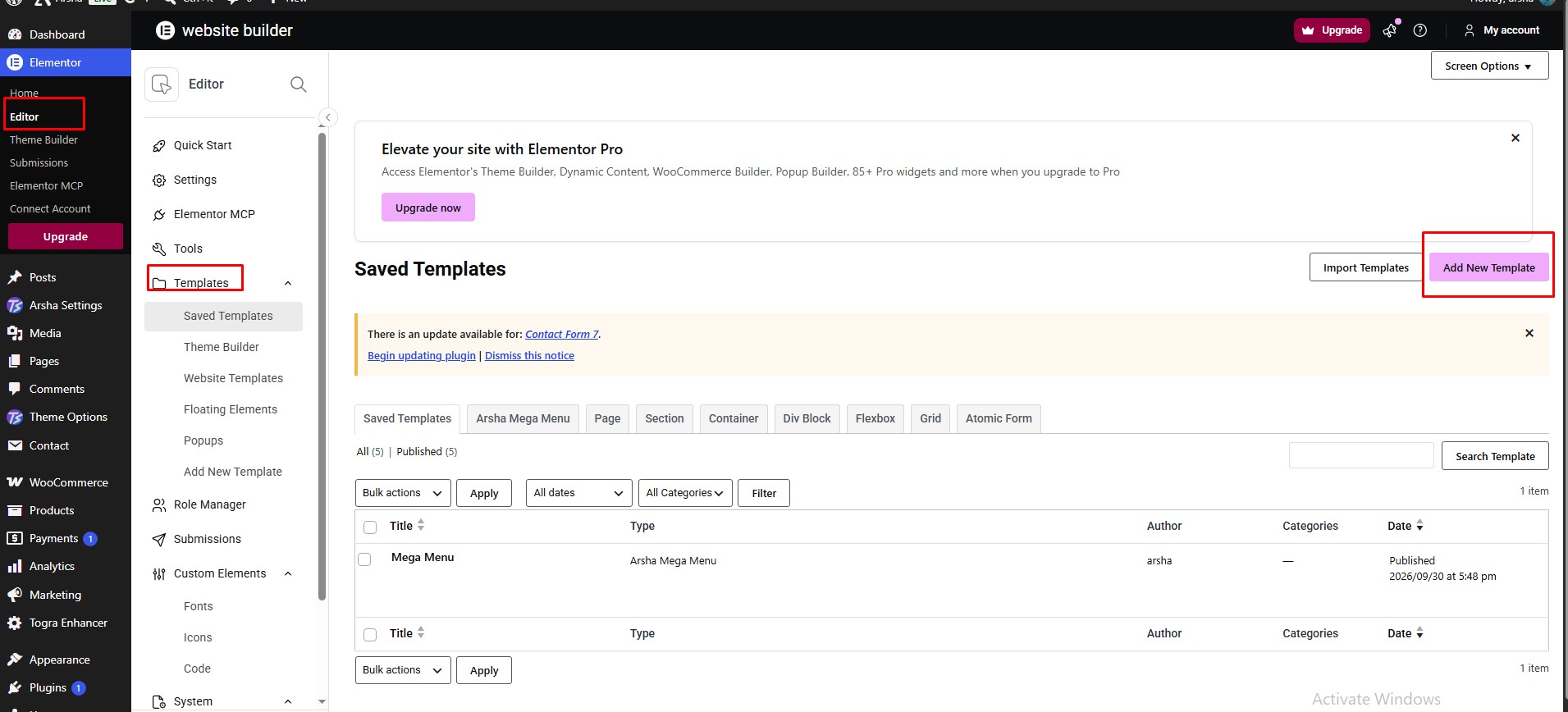
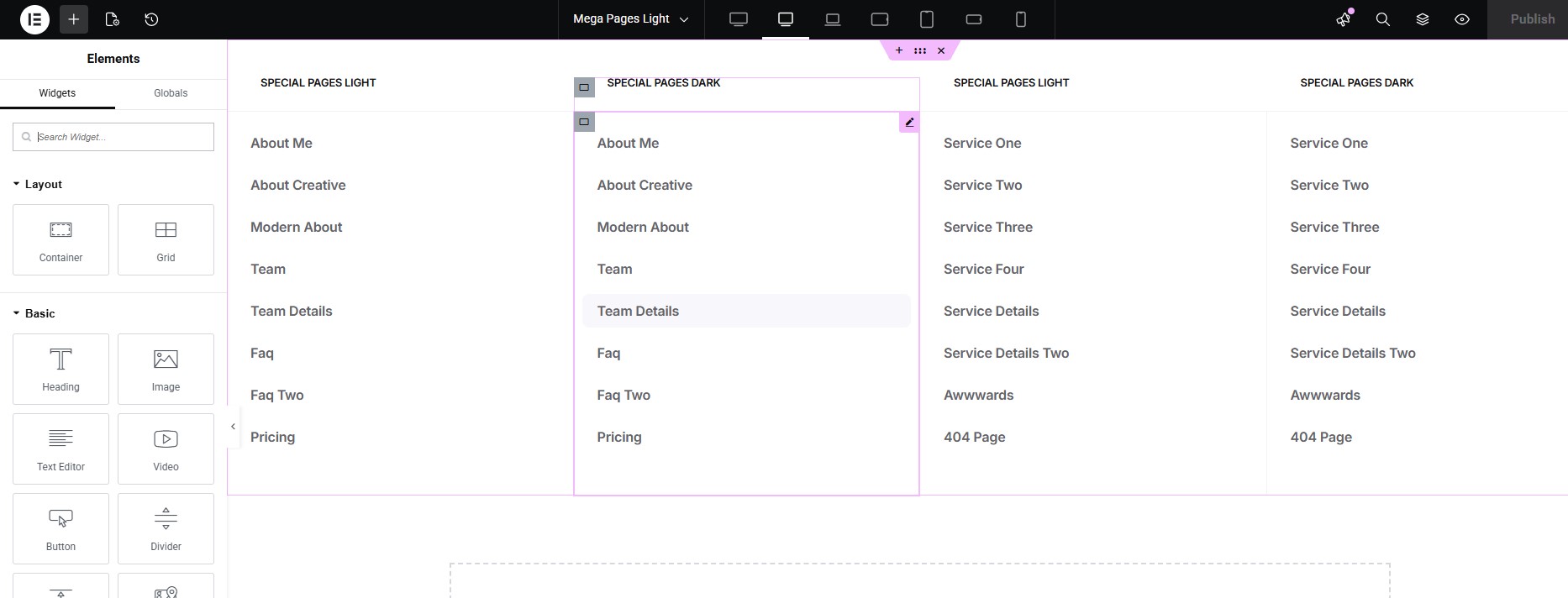
Create Arsha Mega Menu Template
To create a mega menu, navigate to Dashboard → Templates → Add New Template.
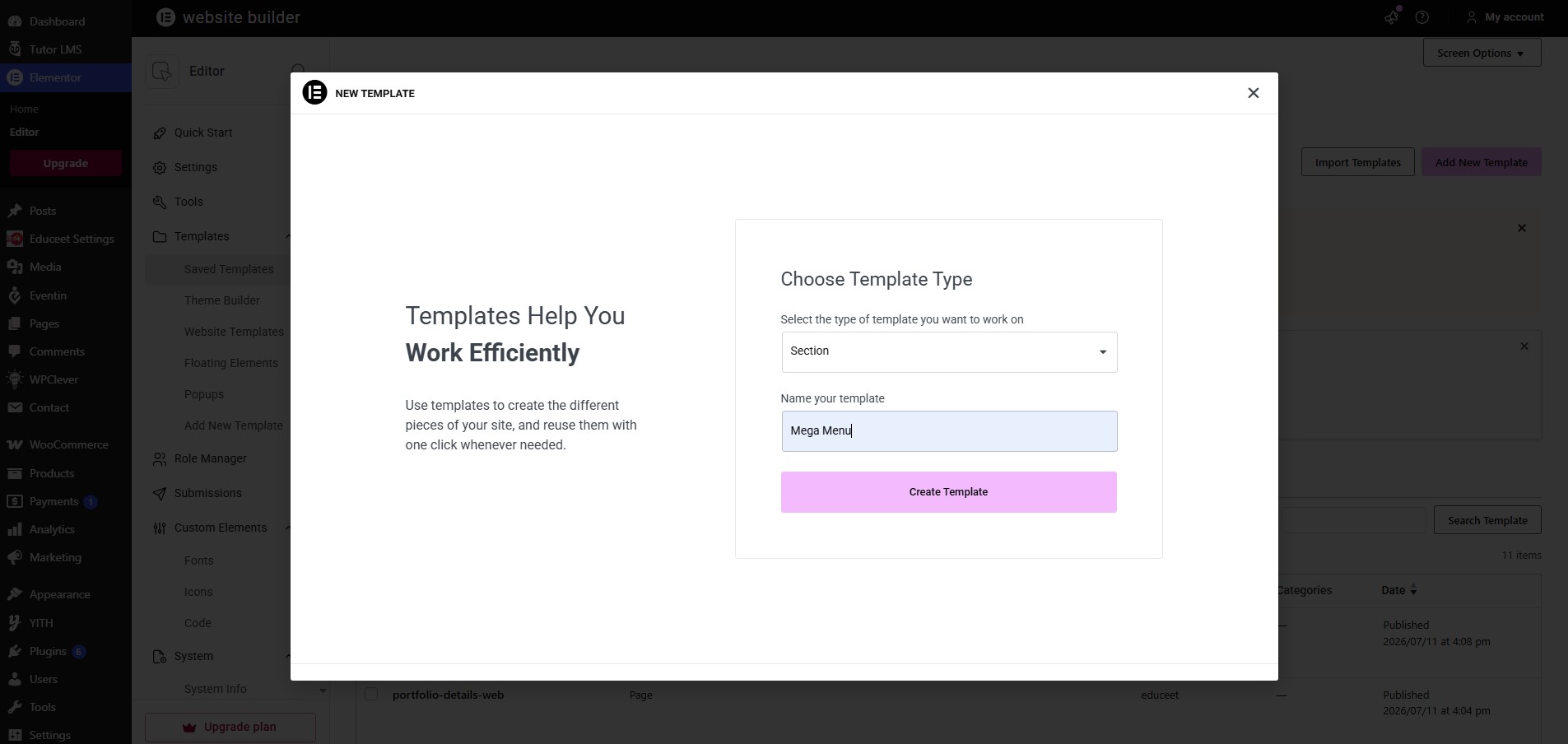
- Choose Arsha Mega Menu as the template type.
- Name your Mega Menu template.
- Click Create Mega Menu Template.
All Arsha mega menu templates are located at Dashboard → Templates → Arsha Mega Menu.
Select Mega Menu Template From Dashboard → Appearance → Menu.
Breadcrumb Settings
To change Breadcrumb settings, navigate to Dashboard → Theme Options → Breadcrumb.
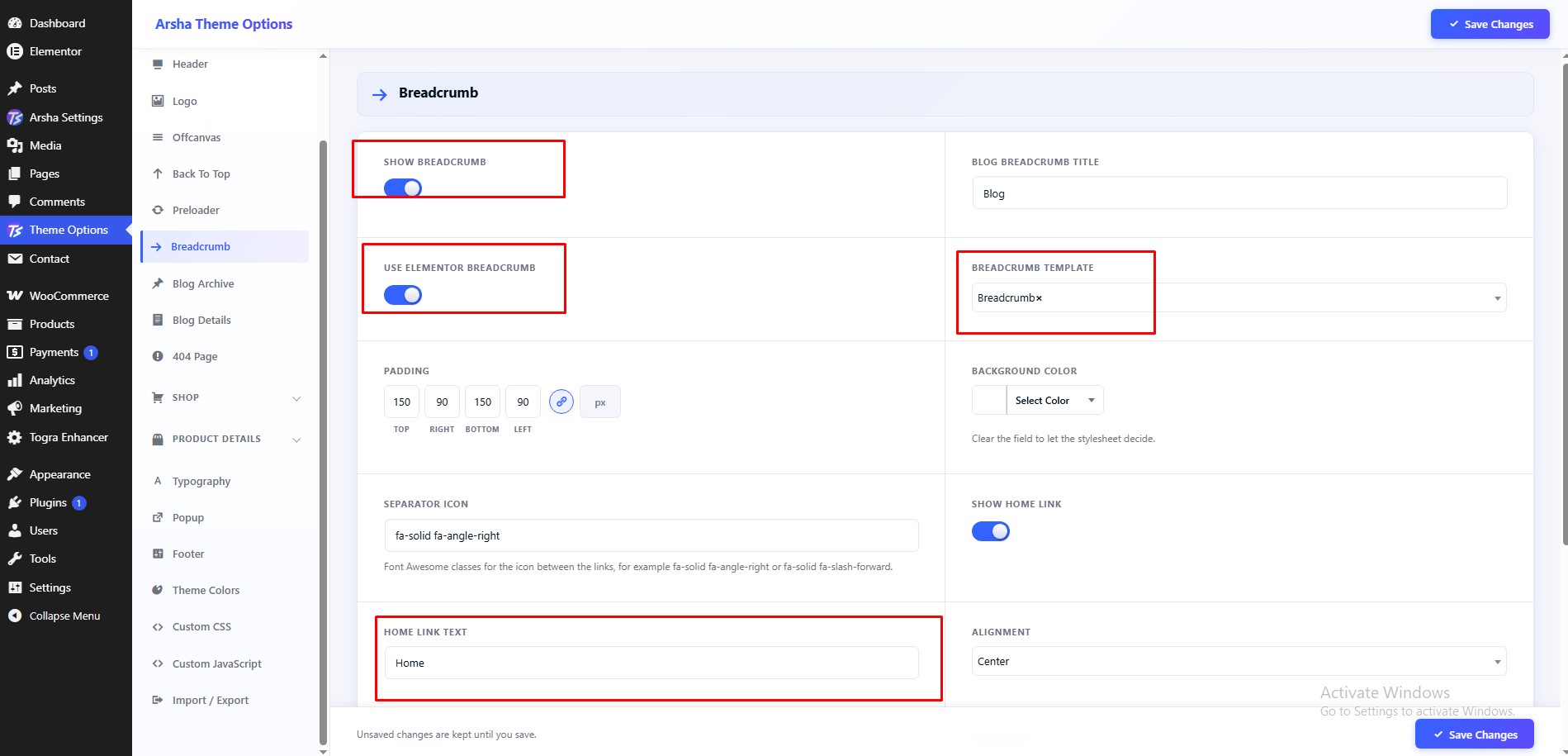
Features available in this section:
- Open Theme Options from the dashboard menu
- Select Breadcrumb
- Global Breadcrumb Switcher
- Breadcrumb Elementor Switcher
- Breadcrumb Elementor Template
Offcanvas Settings
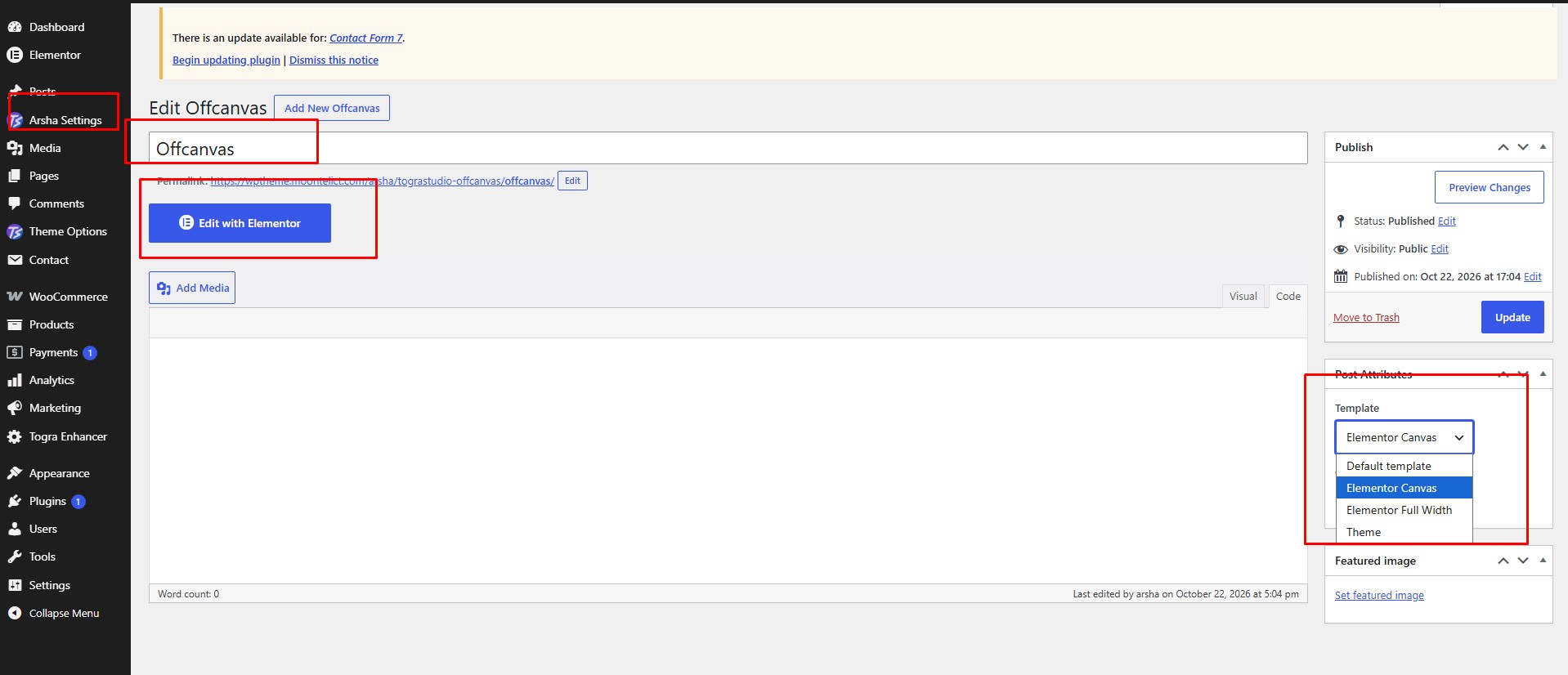
Create Offcanvas with Elementor
To create an Offcanvas, navigate to Dashboard → Arsha Settings → Offcanvas → Add New Offcanvas.
Create Offcanvas Post
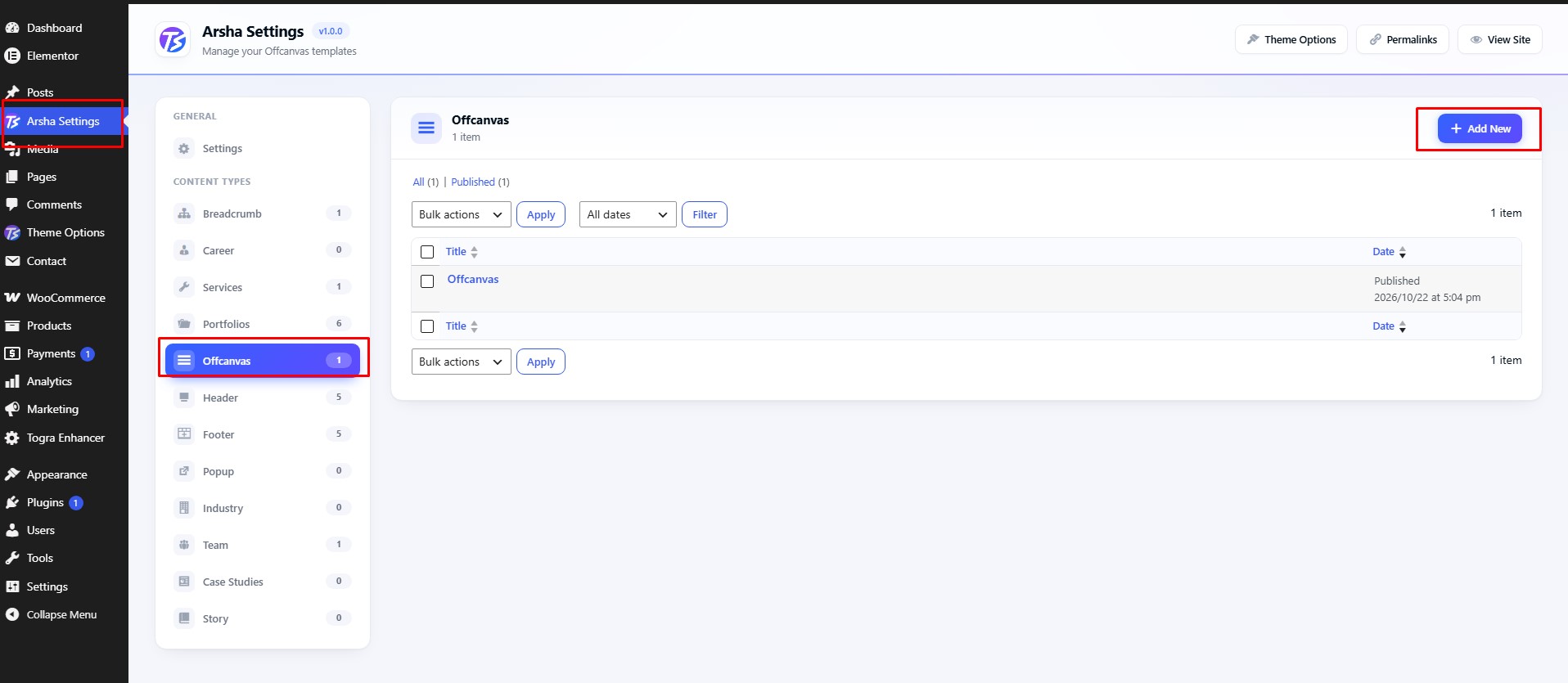
- Insert Offcanvas Title
- Select Page Template as Elementor Canvas
- Click Publish
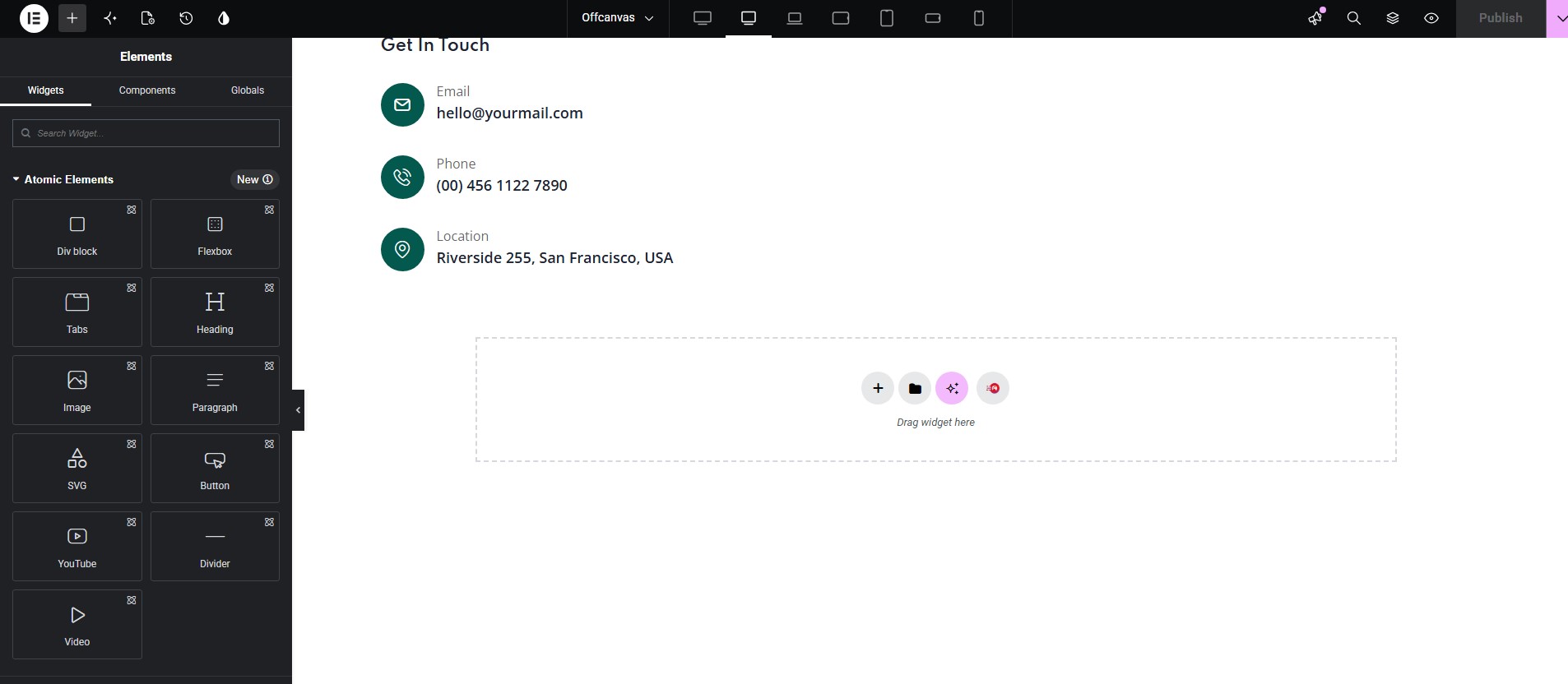
Build with Elementor
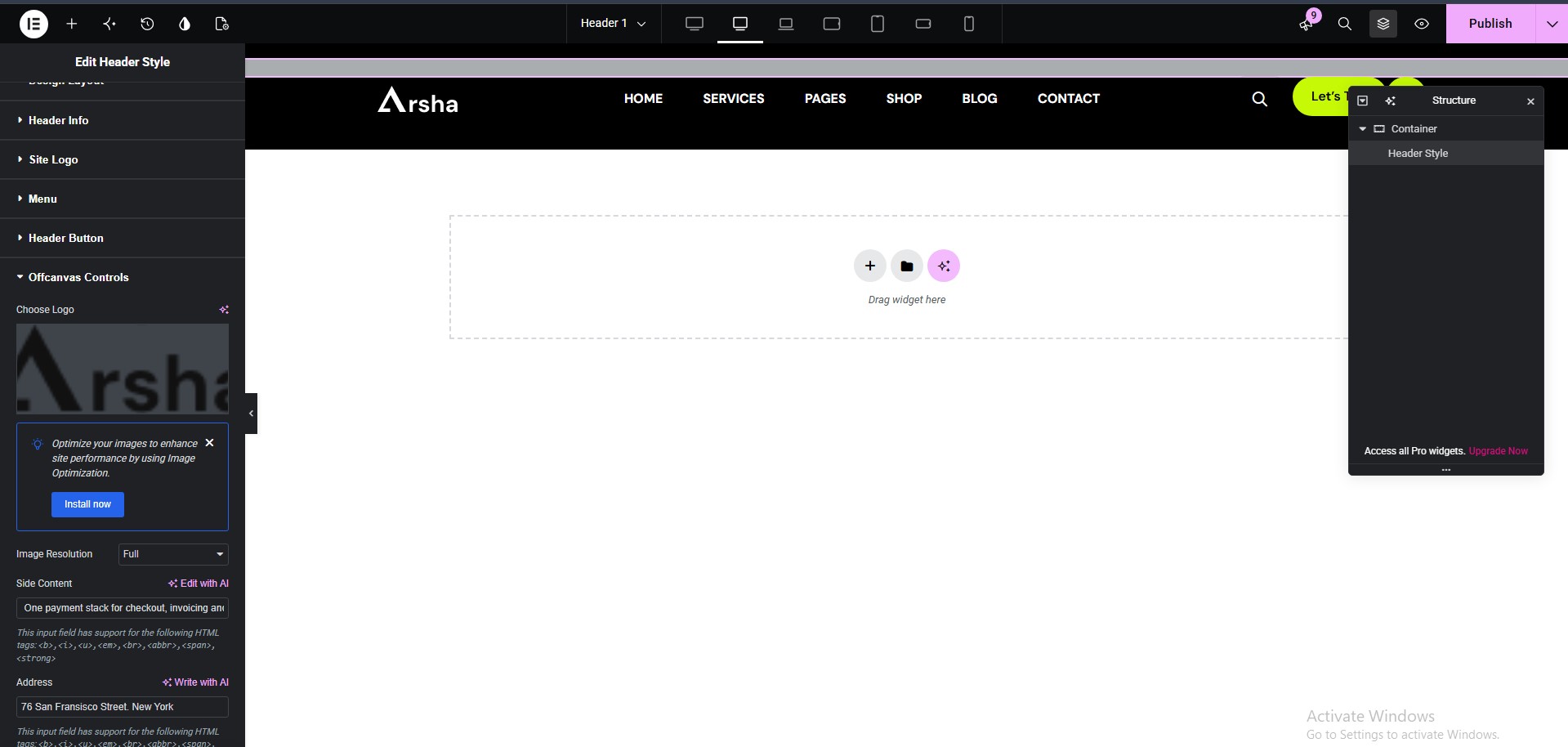
Select the Offcanvas in Header
Site Design Options
Every Theme Options setting for the parts of the site covered above.
Open Dashboard → Theme Options, pick a section on the left, change what you need and click Save Changes. Some settings only appear after the setting they depend on is turned on. Options may vary depending on the active theme and installed plugins.
Theme Settings
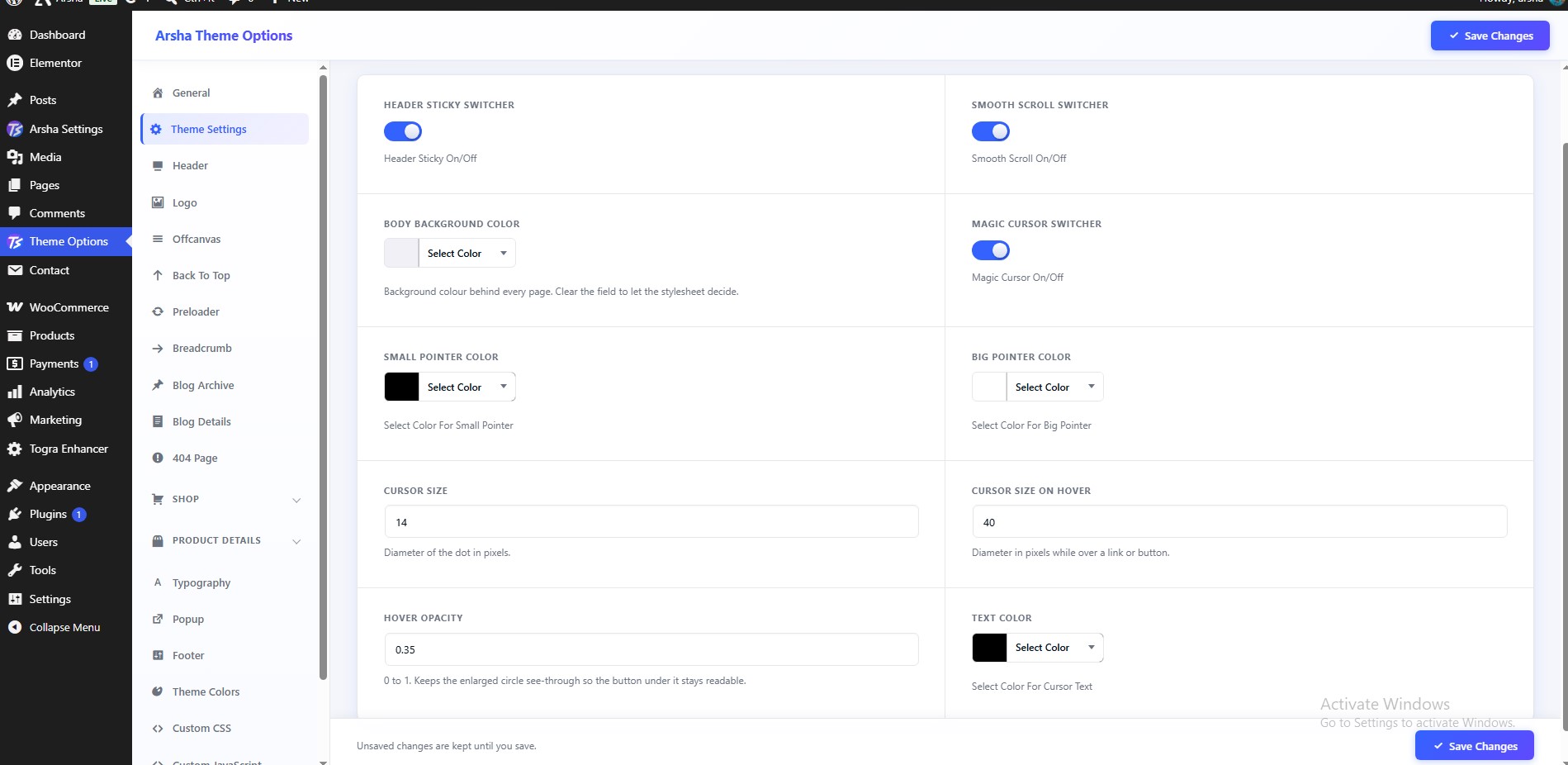
To configure Theme Settings, navigate to Dashboard → Theme Options → Theme Settings.
Theme Controls.
Features available:
- Header Sticky Switcher — Header Sticky On/Off
- Smooth Scroll Switcher — Smooth Scroll On/Off
- Magic Cursor Switcher — Magic Cursor On/Off
- Small Pointer Color — Select Color For Small Pointer
- Big Pointer Color — Select Color For Big Pointer
- Text Color — Select Color For Cursor Text
Logo
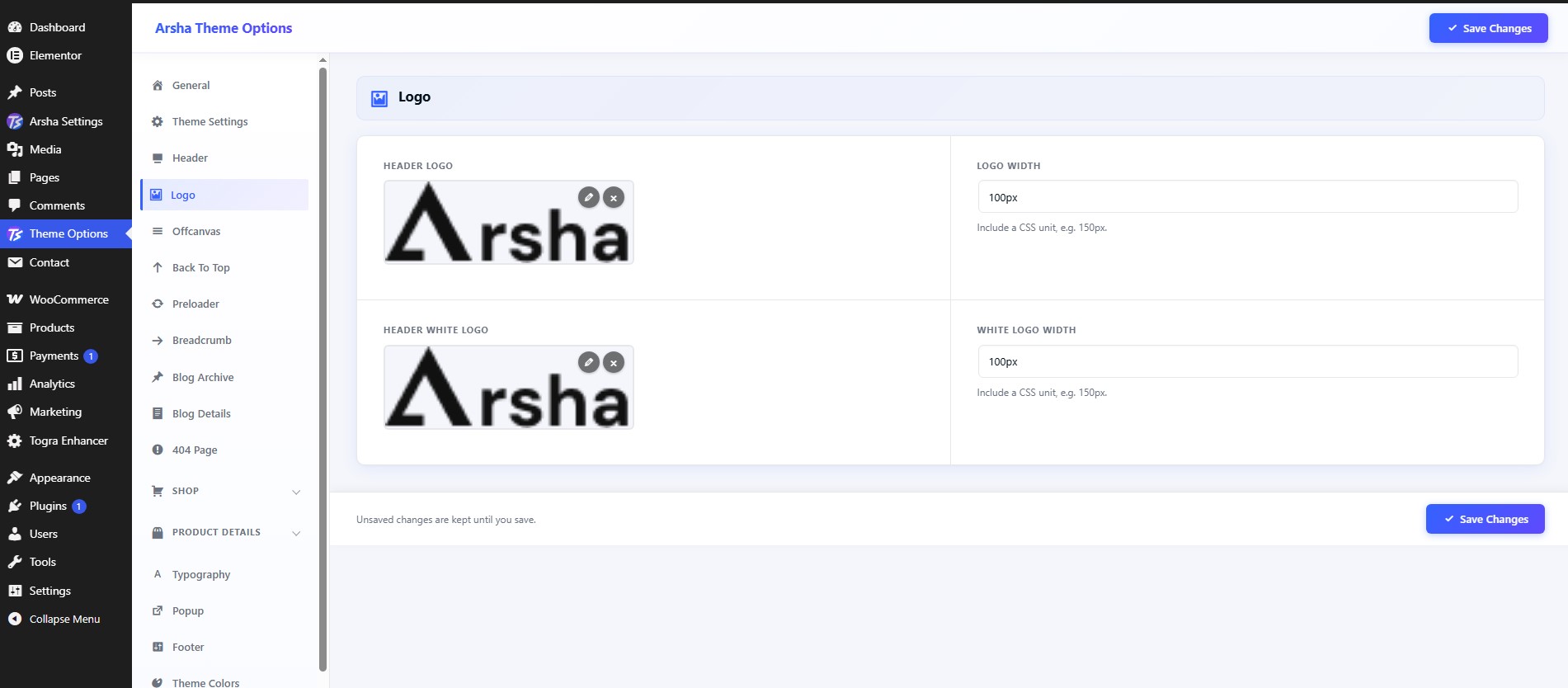
To configure Logo, navigate to Dashboard → Theme Options → Logo.
Features available:
- Header Logo
- Logo Width — Include a CSS unit, e.g. 150px.
- Header White Logo
- White Logo Width — Include a CSS unit, e.g. 150px.
Header
To configure Header, navigate to Dashboard → Theme Options → Header.
Features available:
- Use Elementor Header — Render a global Elementor header template instead of the default header.
- Header Template
- Show Header Search
- Header Search Placeholder
- Search Form Logo
- Show Header Button
- Header Button Text
- Header Button URL
Offcanvas
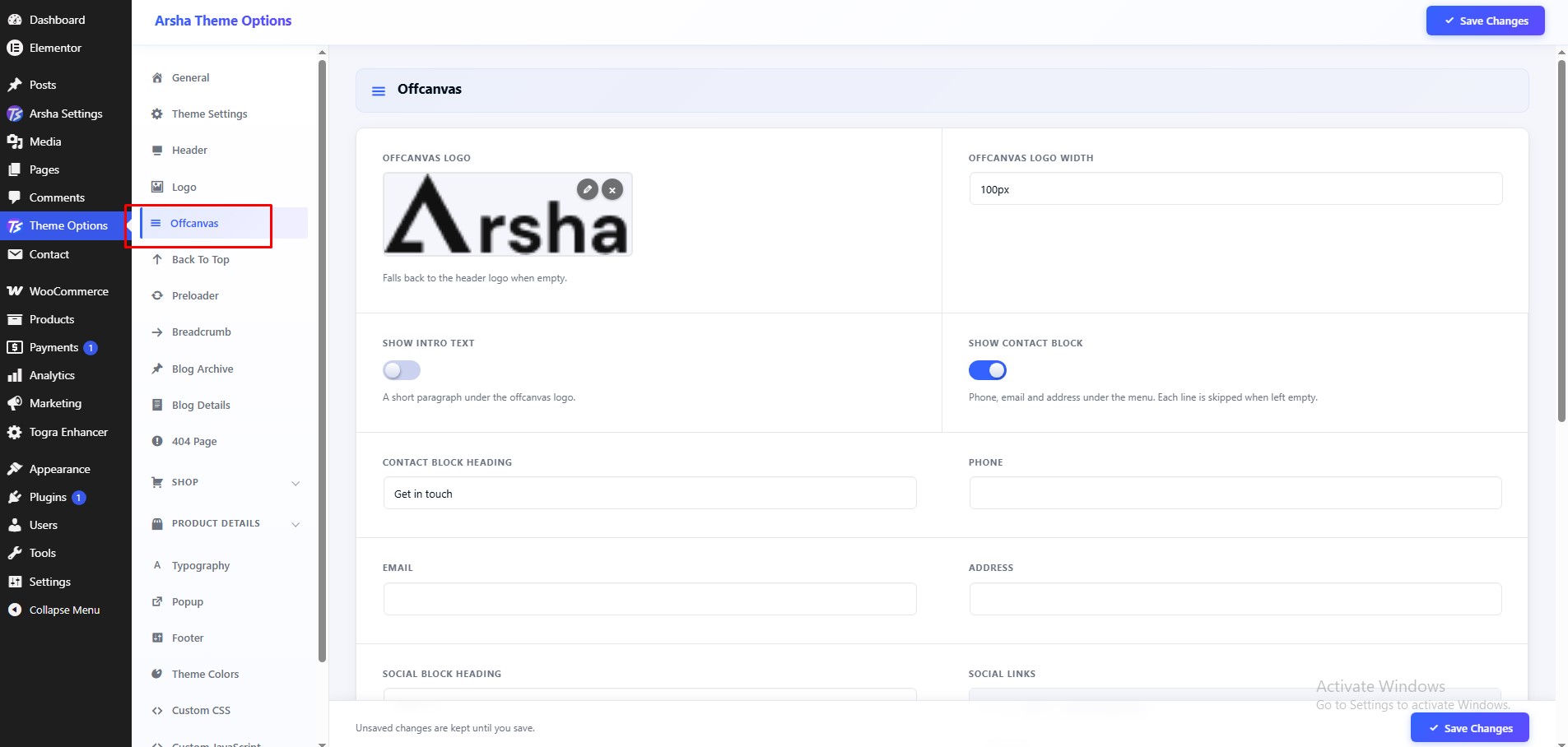
To configure Offcanvas, navigate to Dashboard → Theme Options → Offcanvas.
Features available:
- Offcanvas Logo — Falls back to the header logo when empty.
- Offcanvas Logo Width
- Show Intro Text — A short paragraph under the offcanvas logo.
- Intro Text
Breadcrumb
To configure Breadcrumb, navigate to Dashboard → Theme Options → Breadcrumb.
Features available:
- Show Breadcrumb
- Blog Breadcrumb Title
- Use Elementor Breadcrumb
- Breadcrumb Template
- Padding
- Background Color
Footer
To configure Footer, navigate to Dashboard → Theme Options → Footer.
Features available:
- Use Elementor Footer
- Footer Template
- Copyright Text
Typography
To configure Typography, navigate to Dashboard → Theme Options → Typography.
Set fonts for the body, headings, menu and buttons. Supports Google Fonts and custom uploaded fonts (WOFF, WOFF2, TTF, OTF).
Features available:
- Body Typography
- Heading H1
- Heading H2
- Heading H3
- Heading H4
- Heading H5
- Heading H6
- Menu Typography
- Button Typography
Theme Colors
To configure Theme Colors, navigate to Dashboard → Theme Options → Theme Colors.
Features available:
- Theme Color 1 — Overrides the theme primary accent (--oit-clr-green). Leave empty to keep the default.
- Theme Color 2 — Overrides the theme secondary accent (--oit-clr-yellow).
- Theme Color 3 — Overrides the theme secondary accent (--oit-clr-teal-2).
- Theme Color 4 — Overrides the theme secondary accent (--oit-clr-blue).
- Theme Color 5 — Overrides the theme secondary accent (--oit-clr-green-dark).
- Theme Color 6 — Overrides the theme secondary accent (--oit-clr-green-soft).
- Theme Color 7 — Overrides the theme secondary accent (--oit-clr-forest-rich).
- Theme Color 8 — Overrides the theme secondary accent (--oit-clr-green-neon).
- Theme Color 9 — Overrides the theme secondary accent (--oit-clr-teal).
- Theme Color 10 — Overrides the theme secondary accent (--oit-clr-deep-teal).
- Theme Color 11 — Overrides the theme secondary accent (--oit-clr-olive).
- Theme Color 12 — Overrides the theme secondary accent (--oit-clr-purple).
- Theme Color 13 — Overrides the theme secondary accent (--oit-clr-dark-navy).
- Theme Color 14 — Overrides the theme secondary accent (--oit-gray-1).
- Theme Color 15 — Overrides the theme secondary accent (--oit-gray-2).
- Theme Color 16 — Overrides the theme secondary accent (--oit-text-body).
- Theme Color 17 — Overrides the theme secondary accent (--oit-clr-white).
- Theme Color 18 — Overrides the theme secondary accent (--oit-clr-black).
Popup
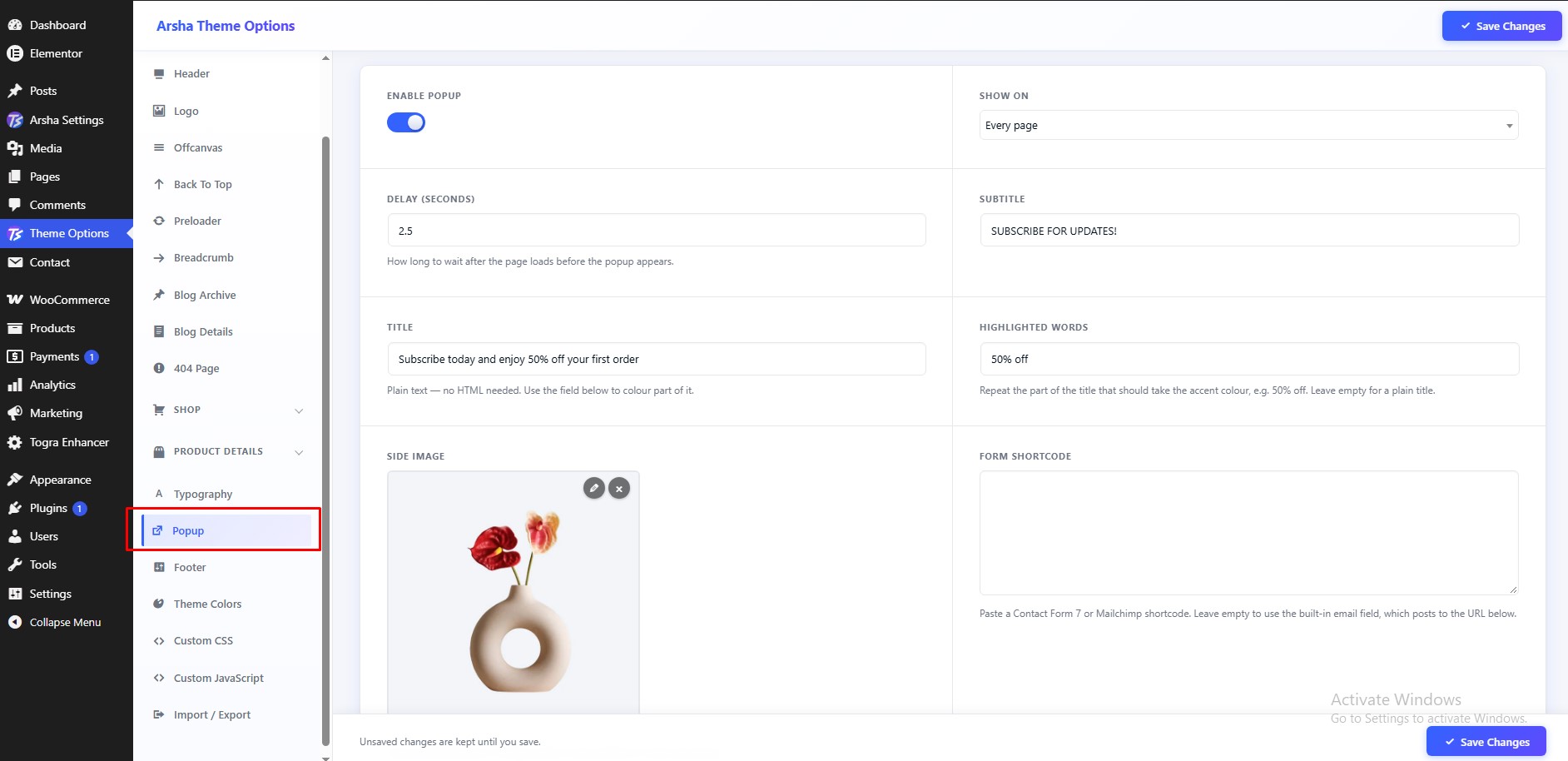
To configure Popup, navigate to Dashboard → Theme Options → Popup.
The newsletter modal that slides in a few seconds after the page loads.
Features available:
- Enable Popup
- Show On
- Delay (seconds) — How long to wait after the page loads before the popup appears.
- Subtitle
- Title — Plain text — no HTML needed. Use the field below to colour part of it.
- Highlighted Words — Repeat the part of the title that should take the accent colour, e.g. 50% off. Leave empty for a plain title.
- Side Image — Shown beside the form on large screens. Leave empty for a text-only popup.
- Form Shortcode — Paste a Contact Form 7 or Mailchimp shortcode. Leave empty to use the built-in email field, which posts to the URL below.
- Built-in Form Action URL — Where the built-in email field submits to — a Mailchimp or Brevo list URL, for example. Only used when no shortcode is set.
- Email Placeholder
- Button Text
- Social Links — Leave empty to hide the row entirely.
- Show "Don't show this again"
- Checkbox Label
- Remember For (days) — How long the popup stays hidden after the visitor ticks the box.
Blog Archive
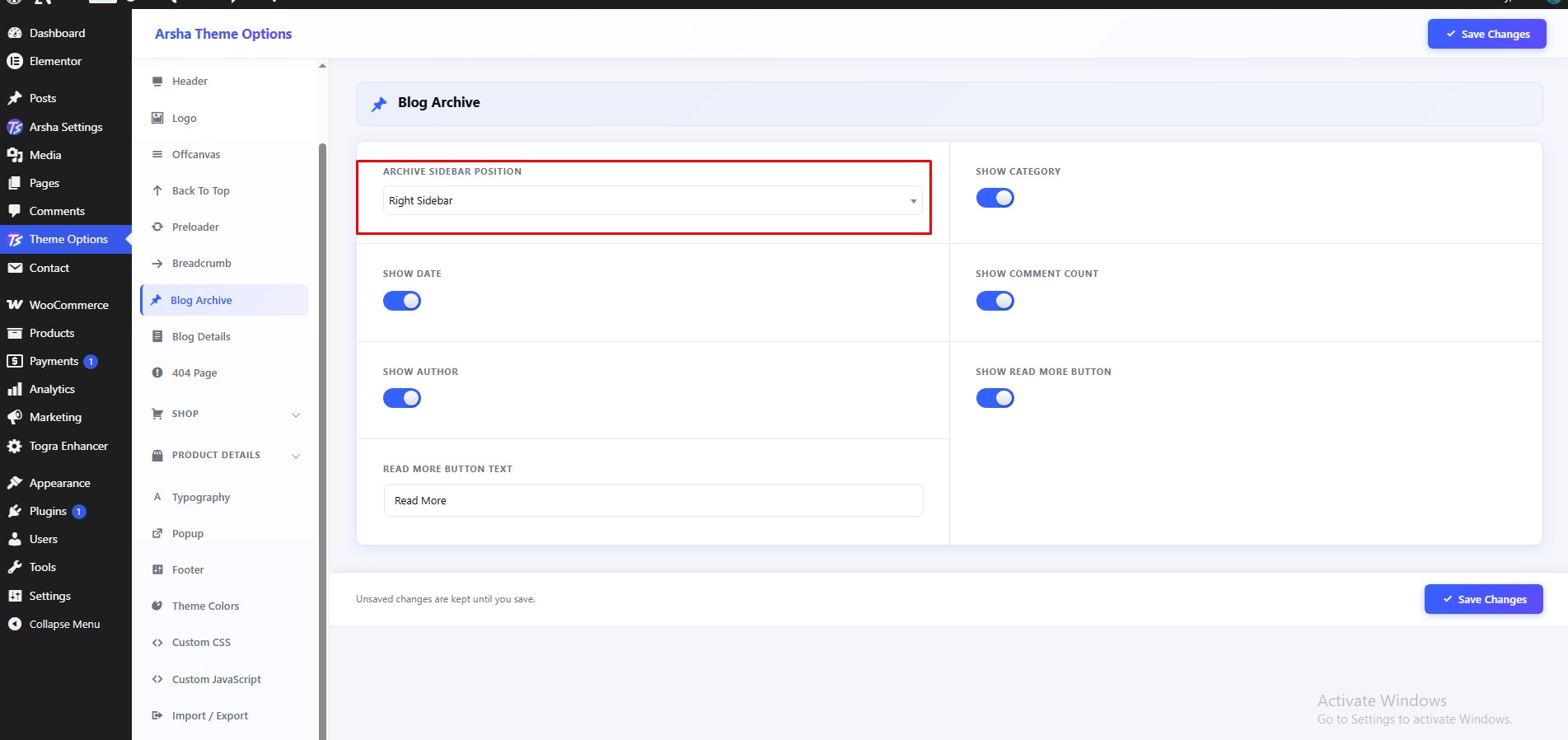
To configure Blog Archive, navigate to Dashboard → Theme Options → Blog Archive.
Features available:
- Archive Sidebar Position
- Show Category
- Show Date
- Show Comment Count
- Show Author
- Show Read More Button
- Read More Button Text
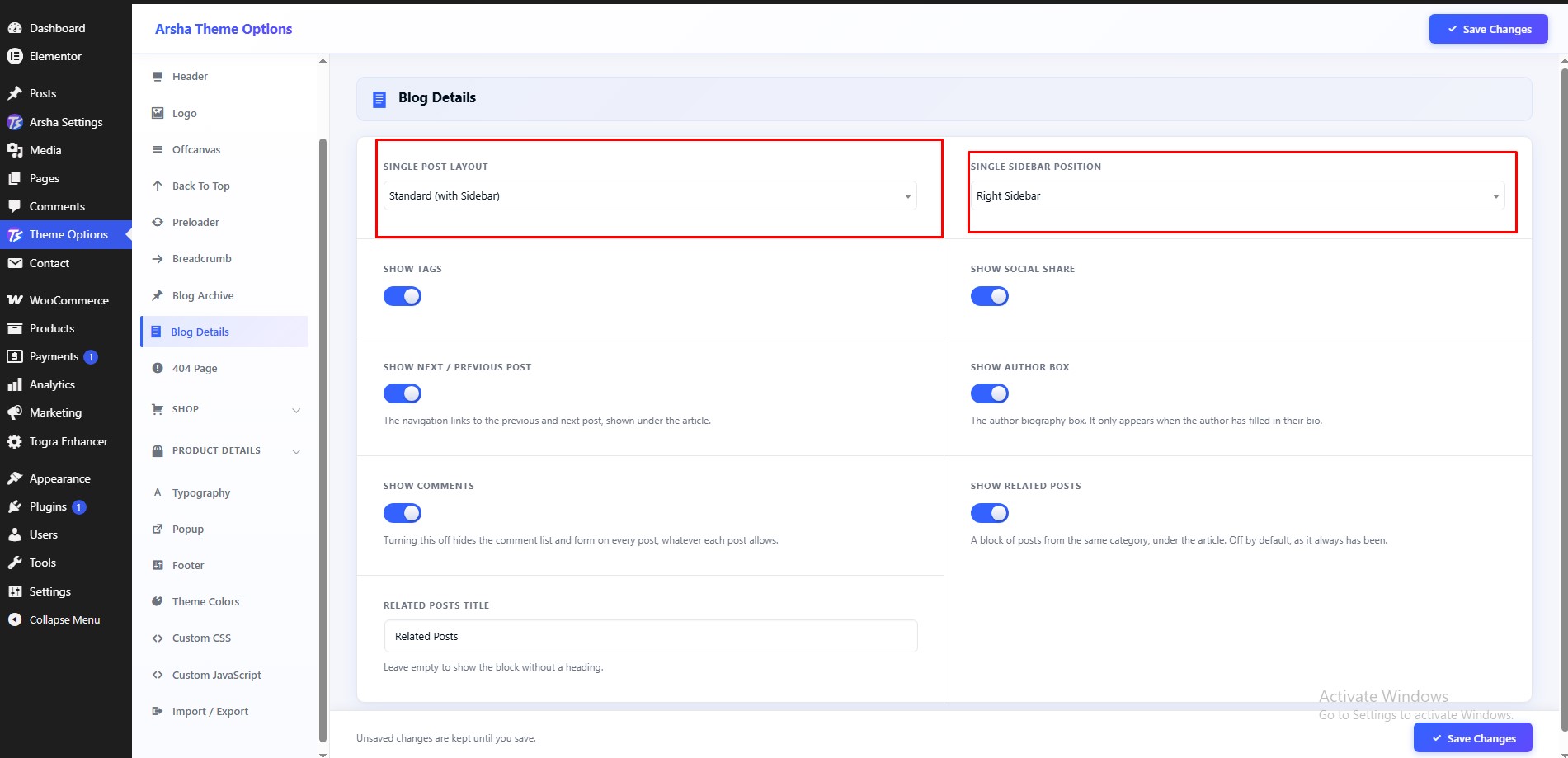
Blog Details
To configure Blog Details, navigate to Dashboard → Theme Options → Blog Details.
Features available:
- Single Post Layout
- Single Sidebar Position
- Show Tags
- Show Social Share
- Show Next / Previous Post — The navigation links to the previous and next post, shown under the article.
- Show Author Box — The author biography box. It only appears when the author has filled in their bio.
- Show Comments — Turning this off hides the comment list and form on every post, whatever each post allows.
- Show Related Posts — A block of posts from the same category, under the article. Off by default, as it always has been.
- Related Posts Title — Leave empty to show the block without a heading.
Theme Options
Back to top, preloader, 404 page and slug settings. For every option in the panel, with defaults and choices, see Theme Options reference below.
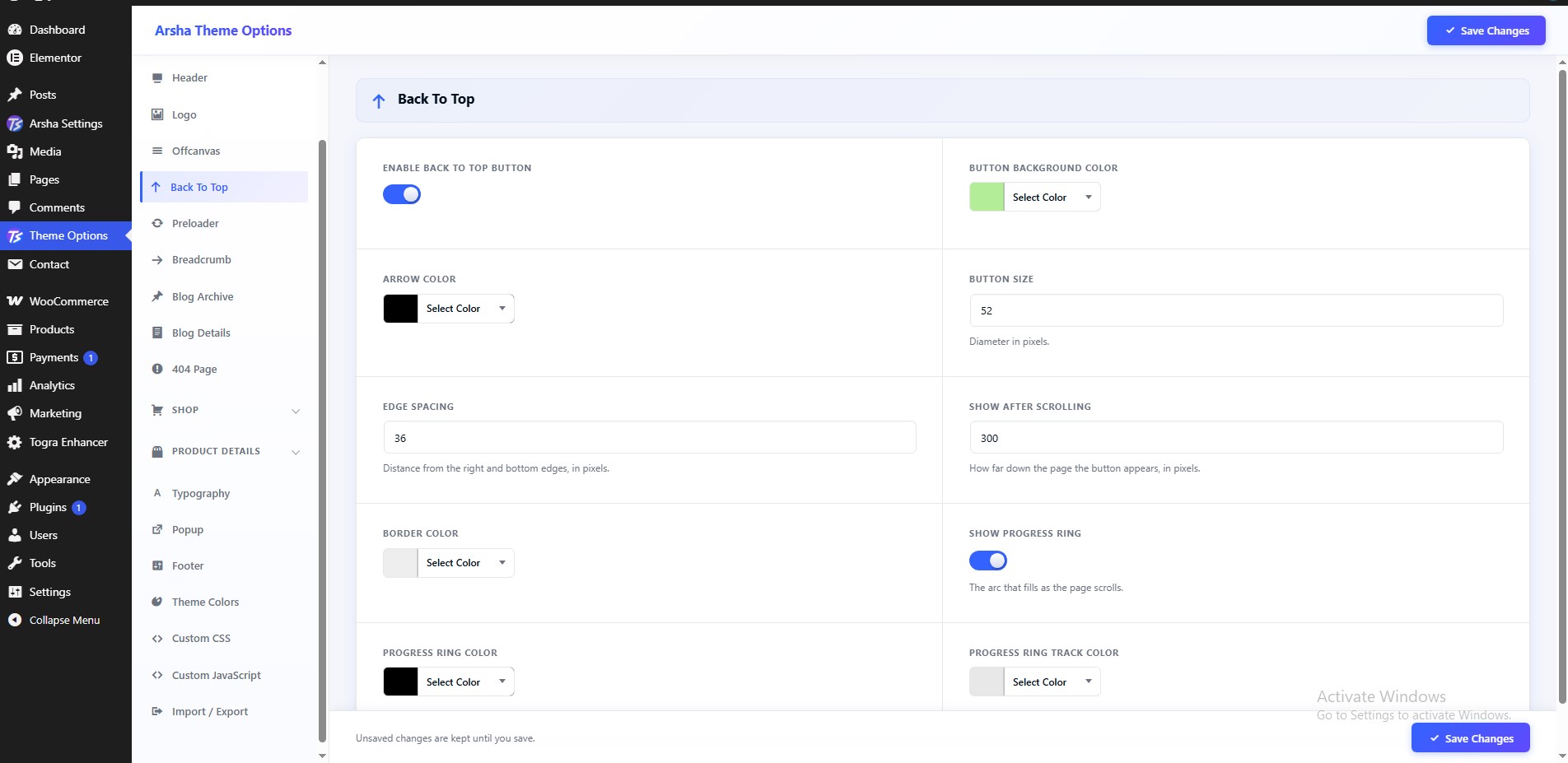
Back To Top
To configure Back To Top, navigate to Dashboard → Theme Options → Back To Top.
Features available:
- Enable Back To Top Button
- Button Background Color
- Arrow Color
Preloader
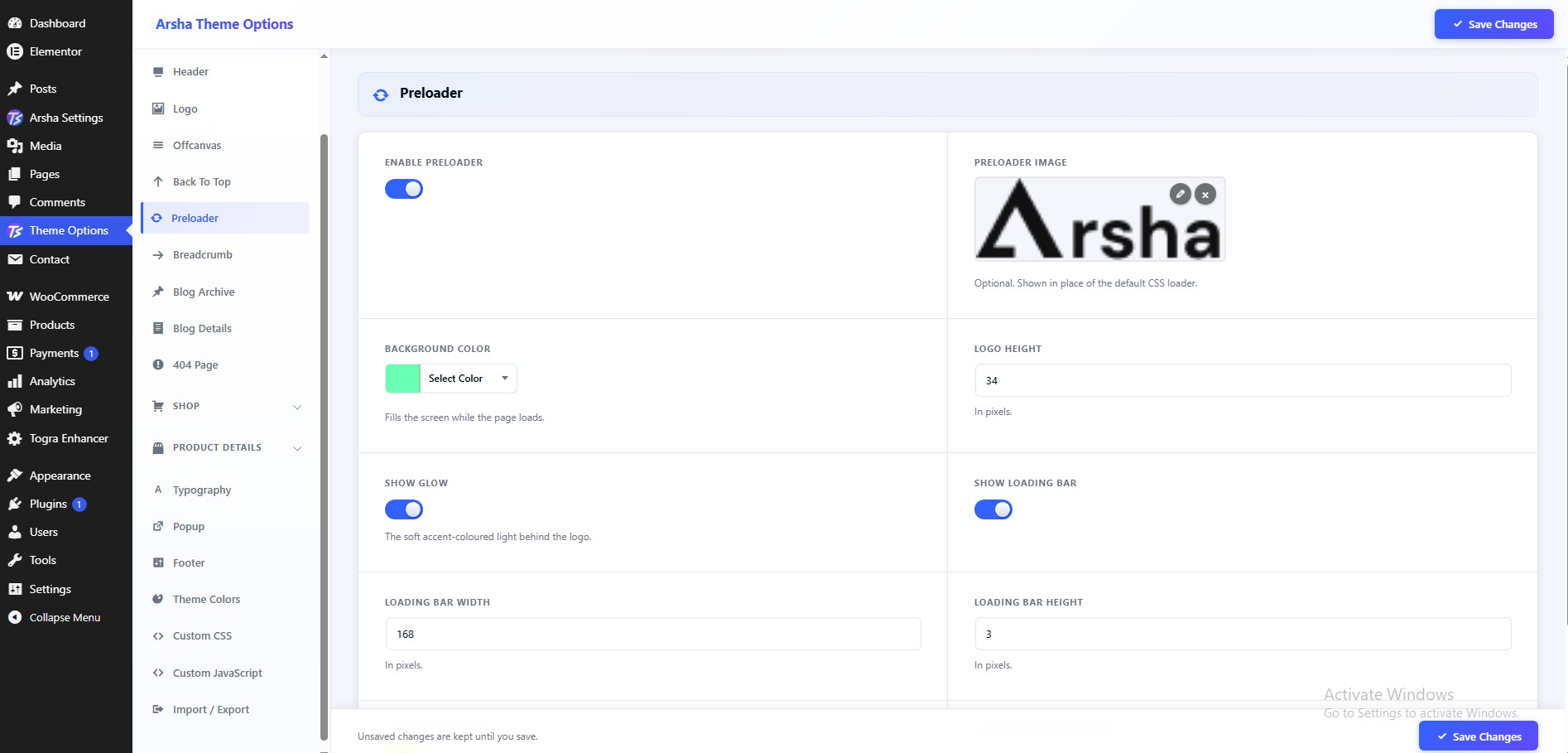
To configure Preloader, navigate to Dashboard → Theme Options → Preloader.
Features available:
- Enable Preloader
- Preloader Image — Optional. Shown in place of the default CSS loader.
- Preloader Image — Optional. Shown in place of the default CSS loader.
- Preloader Title
404 Page
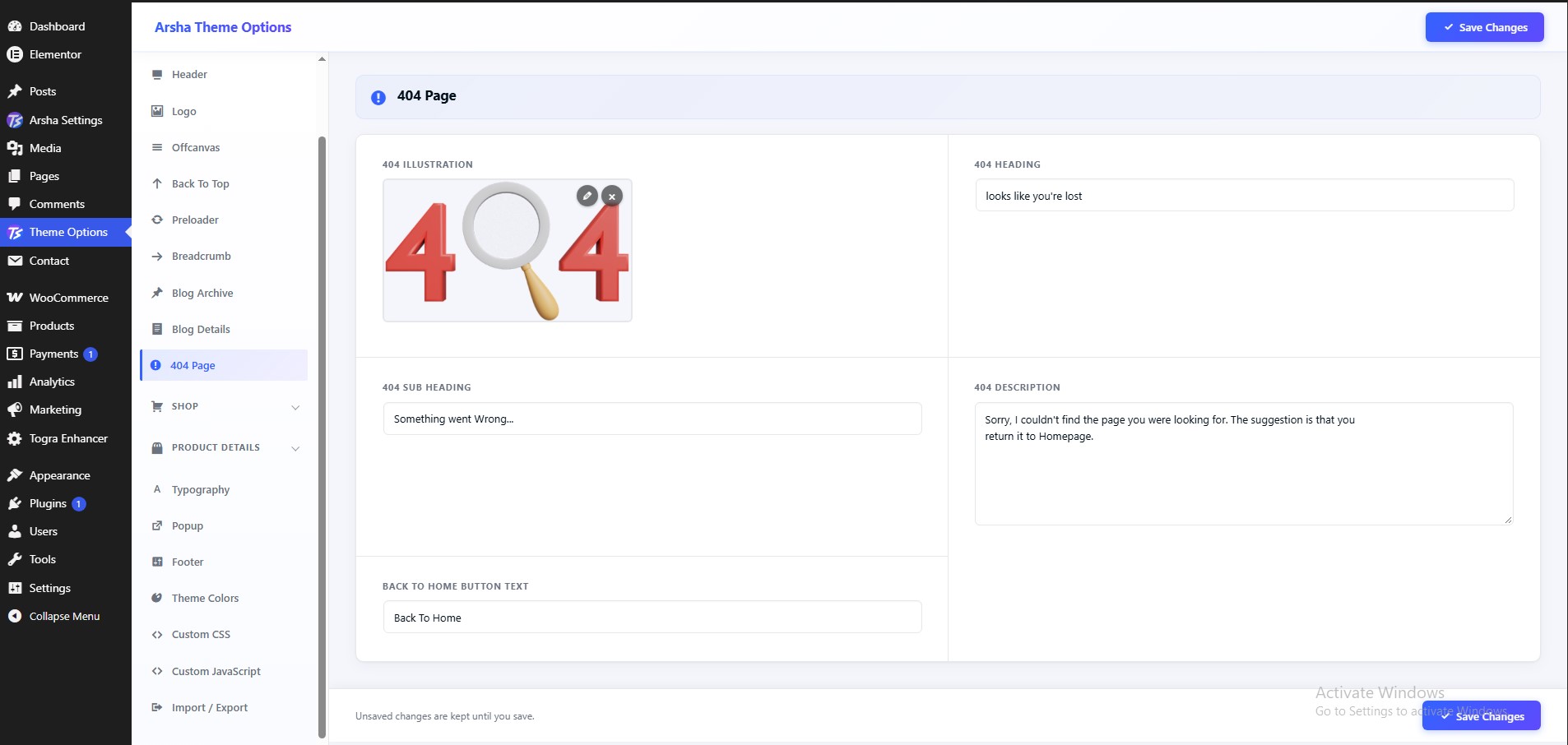
To configure 404 Page, navigate to Dashboard → Theme Options → 404 Page.
Features available:
- 404 Illustration
- 404 Heading
- 404 Sub Heading
- 404 Description
- Back To Home Button Text
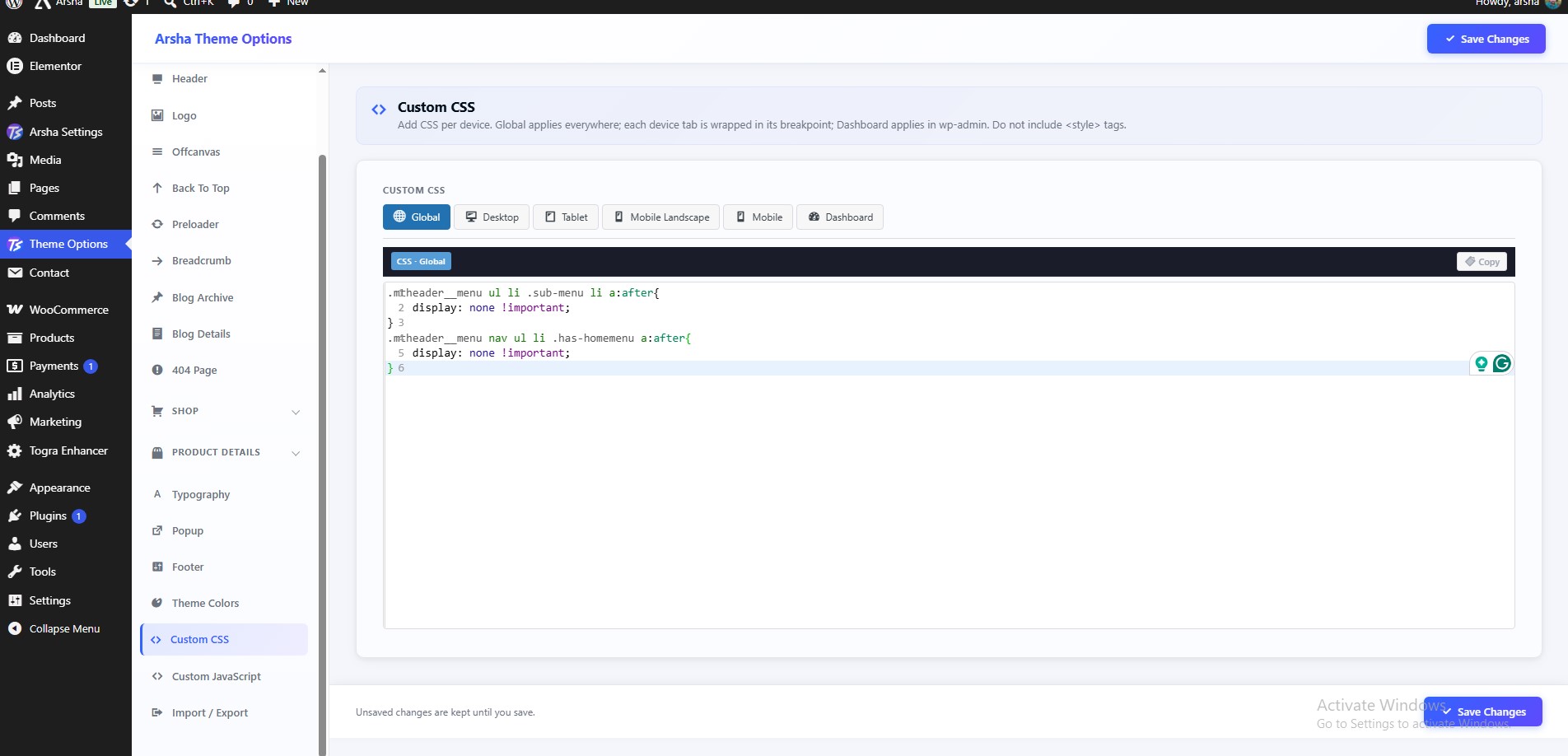
Custom CSS
To configure Custom CSS, navigate to Dashboard → Theme Options → Custom CSS.
Add CSS per device. Global applies everywhere; each device tab is wrapped in its breakpoint; Dashboard applies in wp-admin. Do not include <style> tags.
Features available:
- Custom CSS
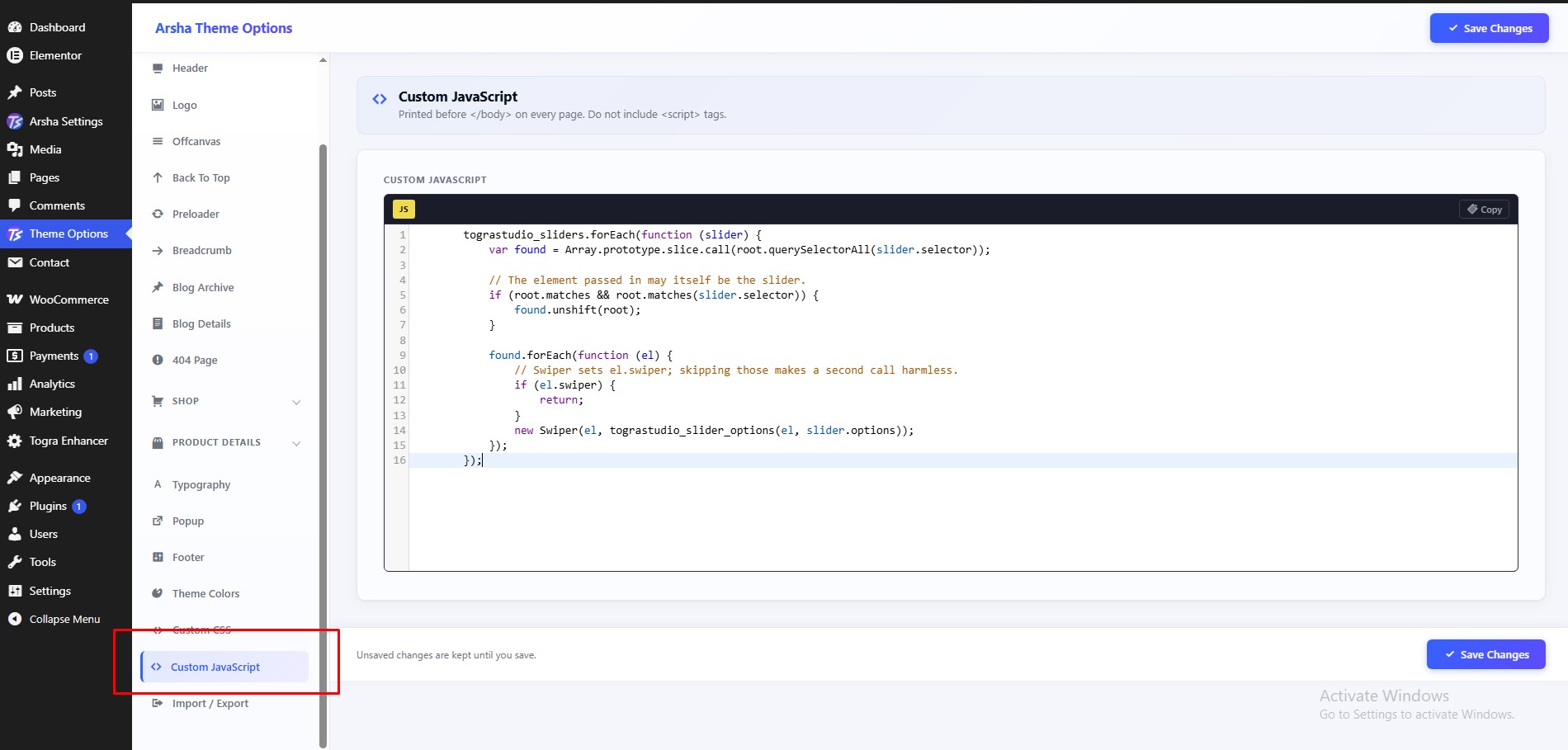
Custom JavaScript
To configure Custom JavaScript, navigate to Dashboard → Theme Options → Custom JavaScript.
Printed before </body> on every page. Do not include <script> tags.
Features available:
- Custom JavaScript
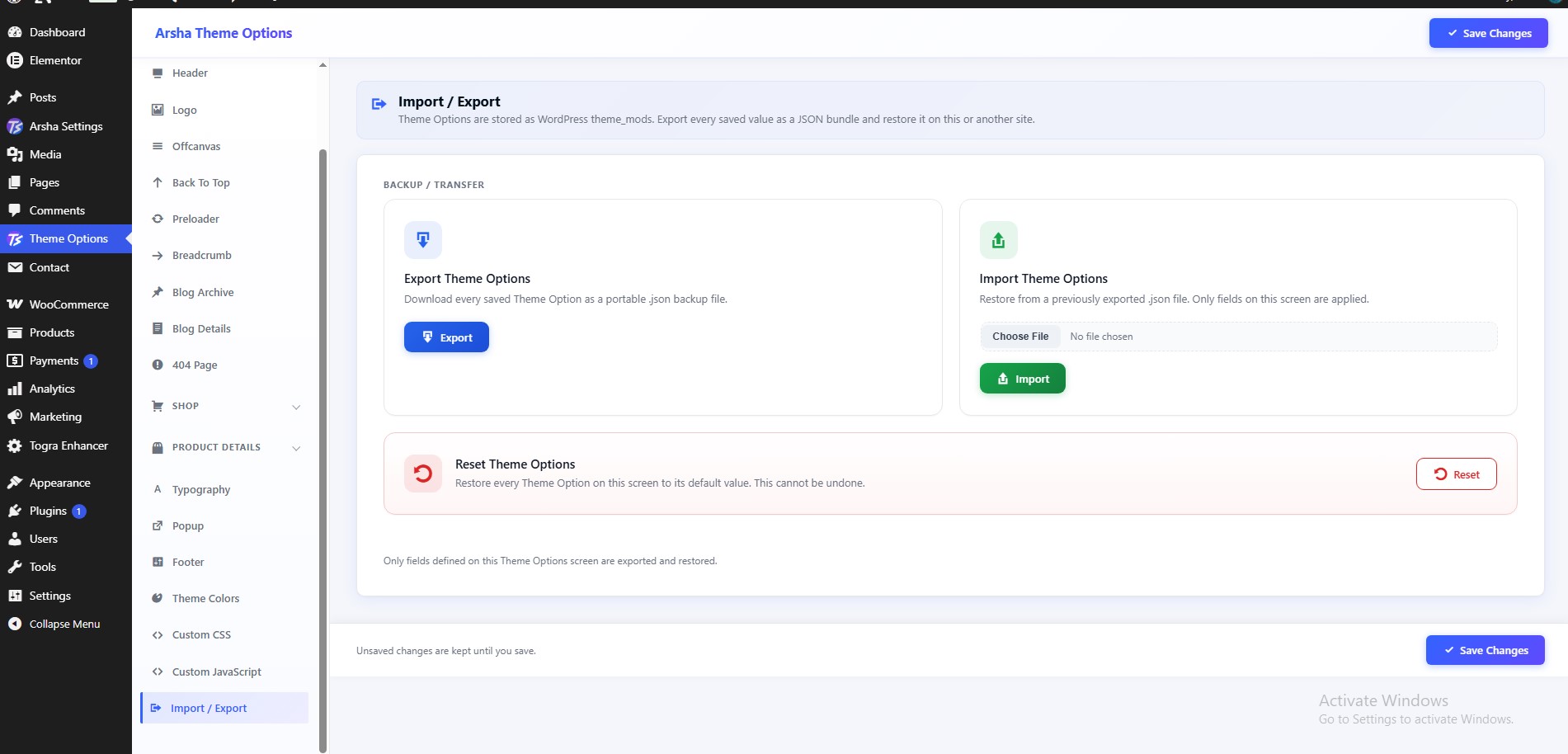
Import / Export
To configure Import / Export, navigate to Dashboard → Theme Options → Import / Export.
Theme Options are stored as WordPress theme_mods. Export every saved value as a JSON bundle and restore it on this or another site.
Features available:
- Backup / Transfer — Only fields defined on this Theme Options screen are exported and restored.
Portfolio
Showcase completed architecture, construction, and interior design projects with Arsha portfolio content and Elementor layouts.
Creating a Portfolio
- From the dashboard, open Portfolio → All Items → Add New.
- Add the project title, description, featured image, and portfolio details, then publish the item.
- Select Edit with Elementor to customize the project page.
Portfolio entries are managed by Arsha Core. Use the portfolio widgets to display selected projects on a page.
Creating a Portfolio Page
- Create a page from Pages → Add New.
- Choose the Elementor Full Width page template and publish the page.
- Edit the page with Elementor and add the Portfolio Projects widget.
For the complete Arsha setup guide, visit Arsha Documentation.
Arsha Settings
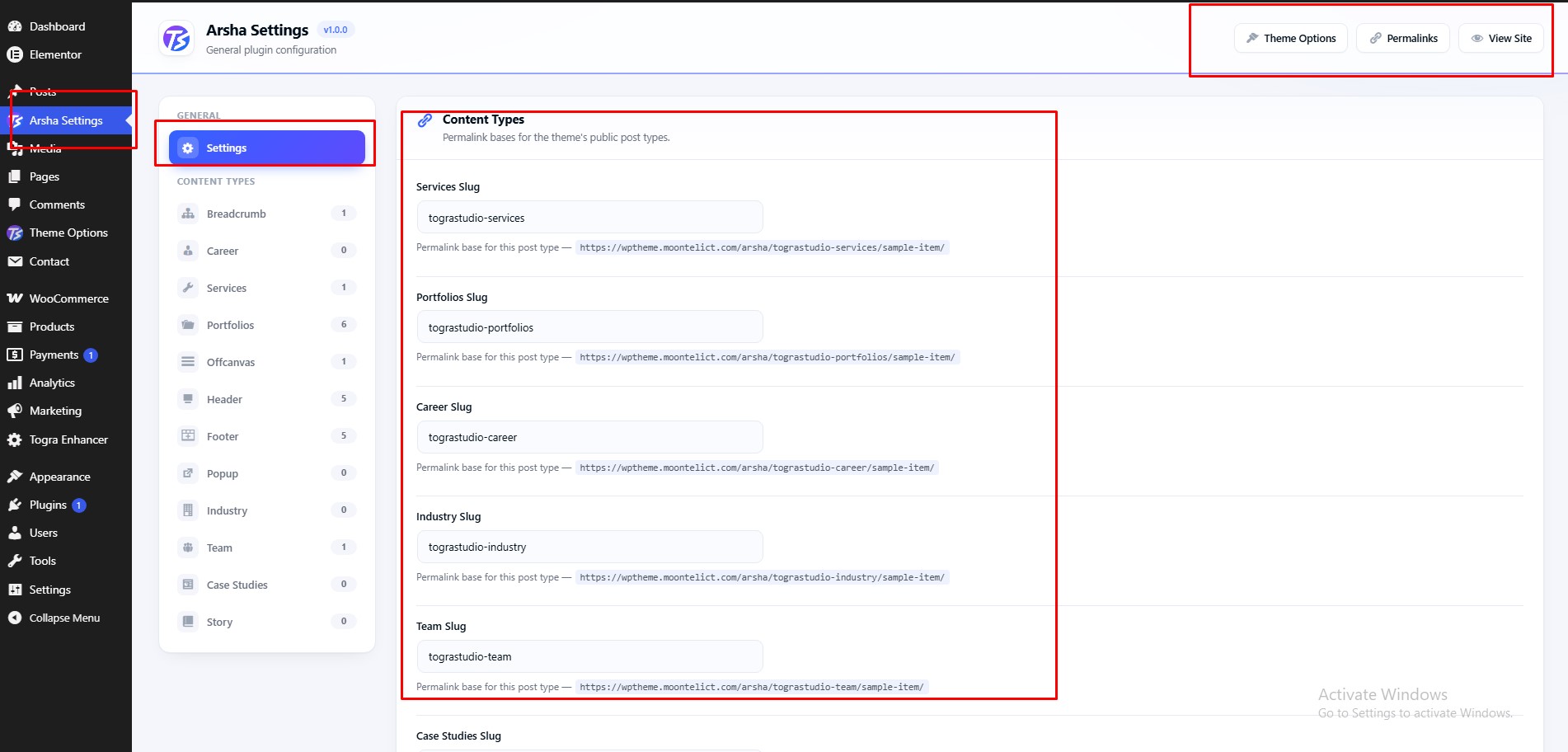
The Arsha Core plugin screen, where you set URL slugs and manage your Elementor templates and custom content in one place.
Settings Screen Overview
To open the screen, navigate to Dashboard → Arsha Settings. It is available when the Arsha Core plugin is active, to administrators.
Features available:
- Settings — the URL slugs for the theme's content types and Elementor templates.
- Content Types — one tab each for Breadcrumb, Offcanvas, Header, Footer, Services, Portfolios and Career. The number beside a tab is how many published and draft items it holds.
- Theme Options button — opens Dashboard → Theme Options. Shown when the Arsha theme is active.
- Permalinks button — opens Settings → Permalinks.
- View Site button — opens your website in a new tab.
General Settings
To change URL slugs, navigate to Dashboard → Arsha Settings → Settings.
A slug is the part of the web address in front of an item's name, for example
yoursite.com/od-services/web-design/. Under each field the screen shows the full
address with the slug you entered.
Content Types:
- Services Slug — web address base for Services items.
- Portfolios Slug — web address base for Portfolios items.
- Career Slug — web address base for Career items.
Template Types:
- Header Slug — web address base for Elementor header templates.
- Footer Slug — web address base for Elementor footer templates.
- Offcanvas Slug — web address base for Elementor offcanvas templates.
- Breadcrumb Slug — web address base for Elementor breadcrumb templates.
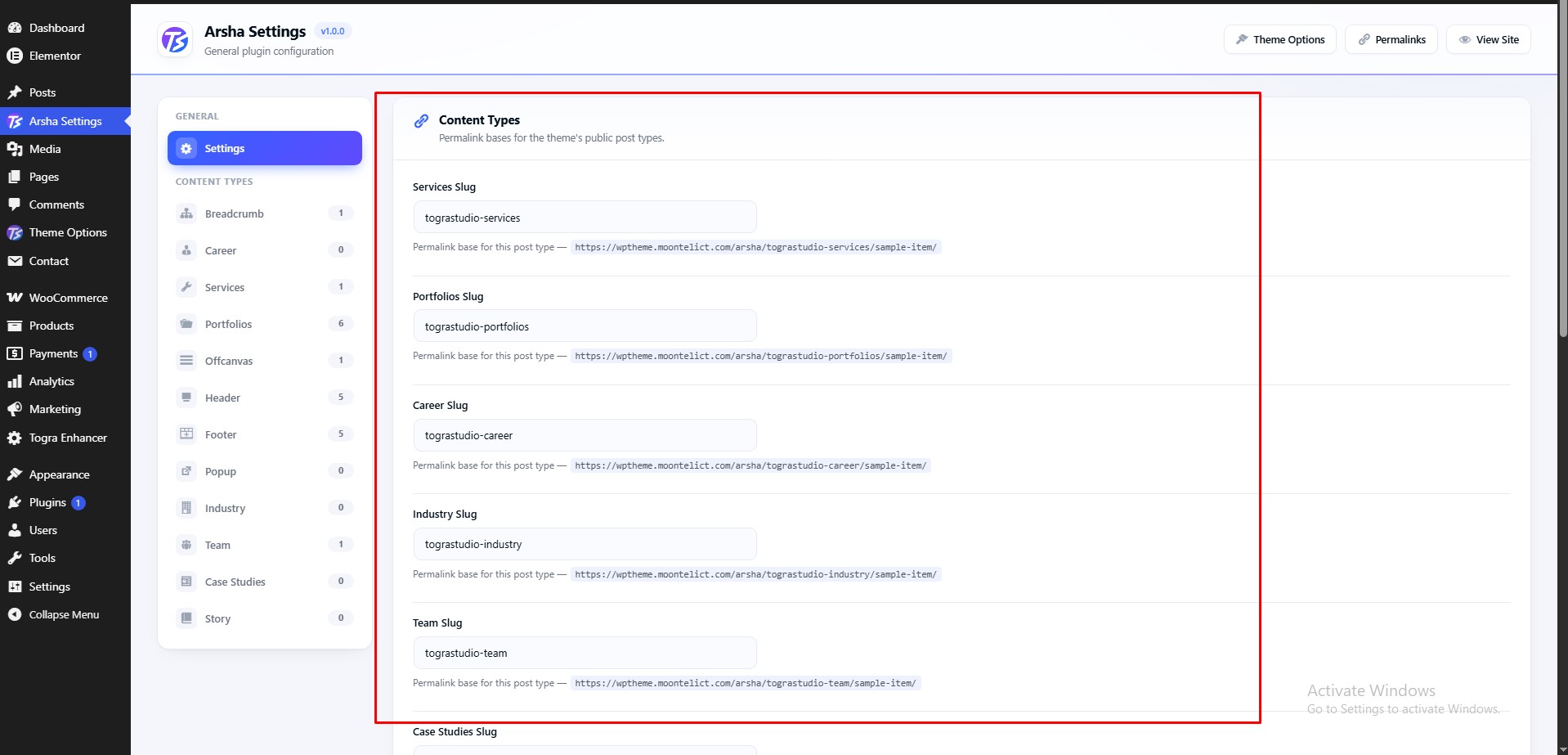
Click Save Settings to apply your changes.
Leave a field empty to go back to its default slug. Two types cannot share the same slug — if you try, that field keeps its previous value and a message tells you which type already uses it. If an address shows a 404 after a change, open Settings → Permalinks and click Save Changes.
Content Types
Each tab lists the items of one type and lets you add new ones. Templates are designed with Elementor, then chosen in Theme Options or on a single page.
Services
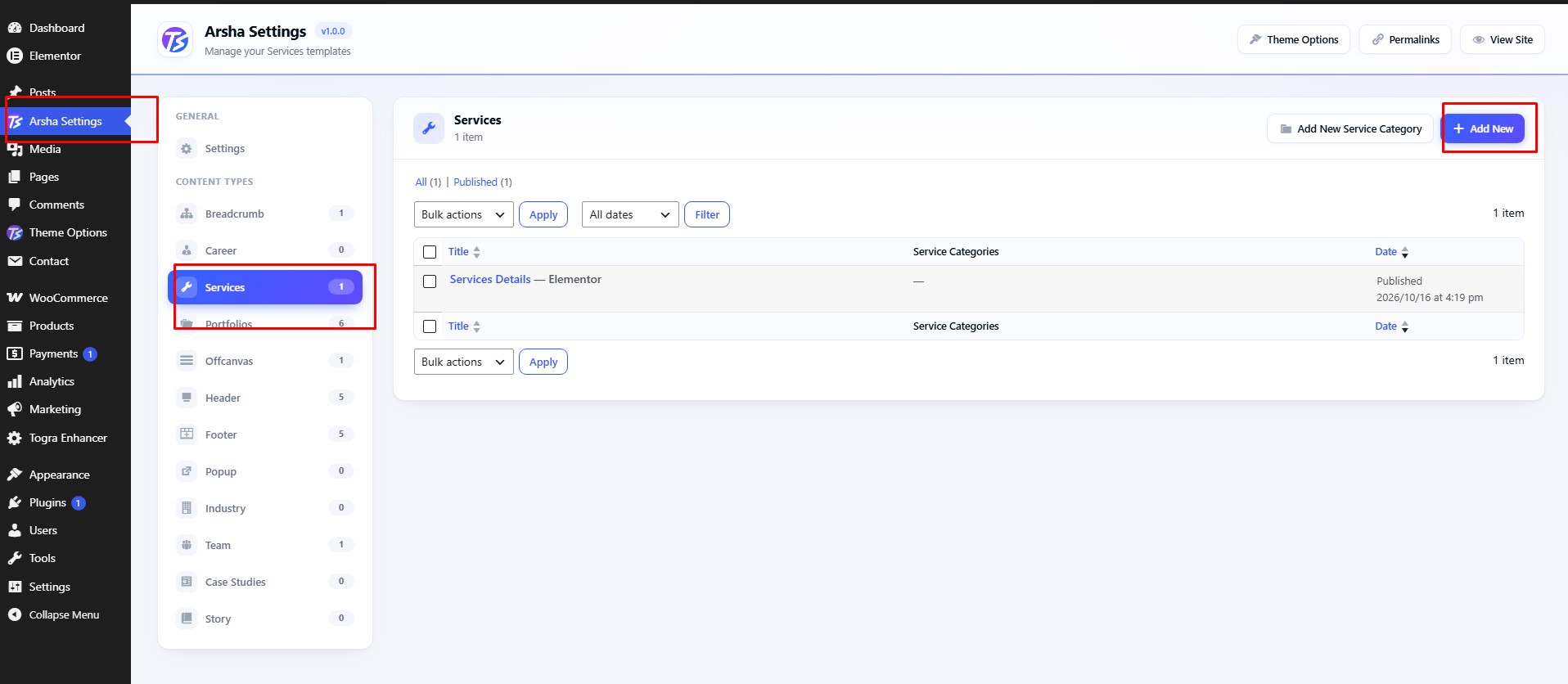
To manage your services, navigate to Dashboard → Arsha Settings → Services.
Features available:
- Add New — create a service with its own page.
- Item list — search, filter by date, and edit, quick edit, trash or restore items, the same way as the WordPress Pages screen.
- Web address — each service lives under the Services slug set in General Settings.
- Page settings — each service has the same Breadcrumb and Header & Footer settings as a page.
Portfolios
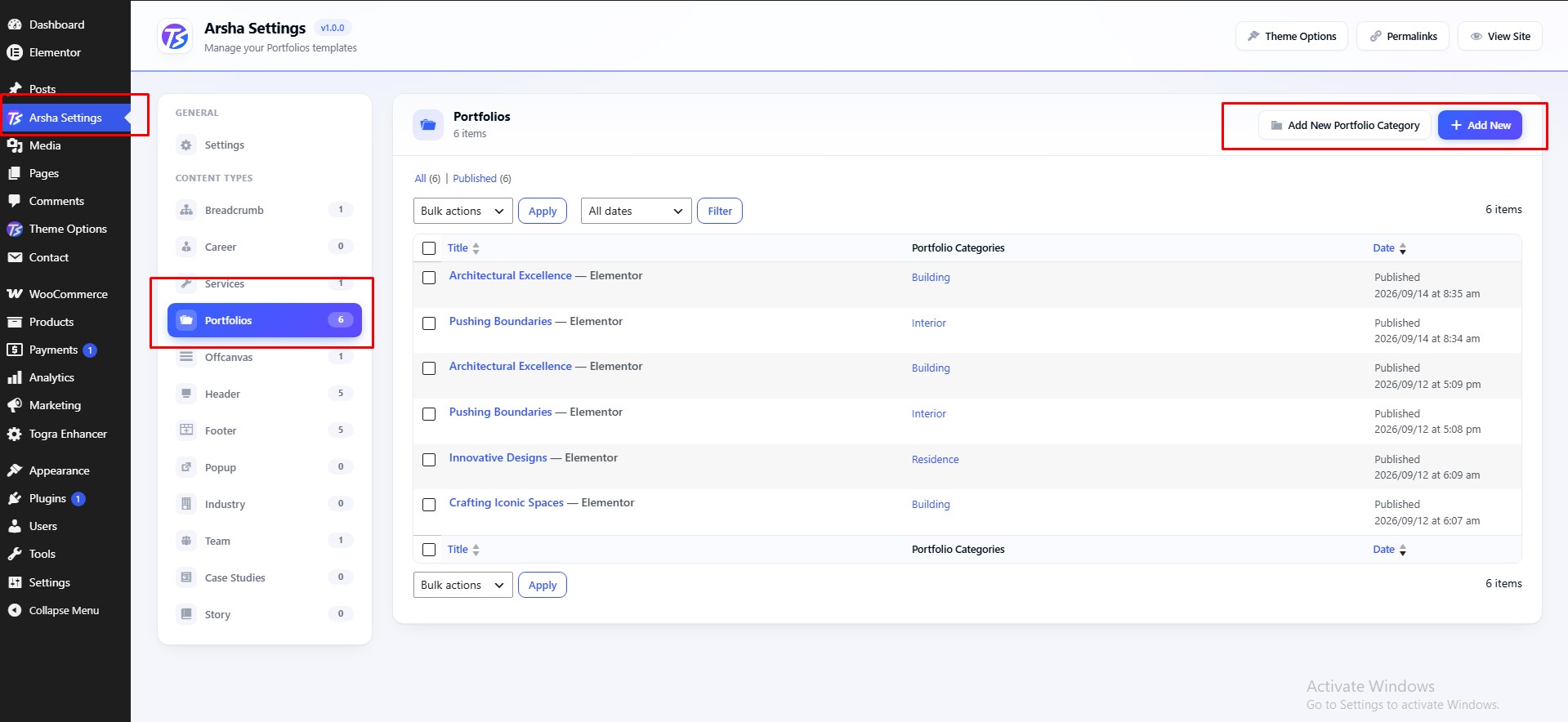
To manage your portfolio items, navigate to Dashboard → Arsha Settings → Portfolios.
Features available:
- Add New — create a portfolio item with its own page.
- Item list — search, filter by date, and edit, quick edit, trash or restore items, the same way as the WordPress Pages screen.
- Web address — each item lives under the Portfolios slug set in General Settings.
- Page settings — each item has the same Breadcrumb and Header & Footer settings as a page.
Career
To manage your career posts, navigate to Dashboard → Arsha Settings → Career.
Features available:
- Add New — create a career or job post with its own page.
- Item list — search, filter by date, and edit, quick edit, trash or restore items, the same way as the WordPress Pages screen.
- Web address — each post lives under the Career slug set in General Settings.
- Page settings — each post has the same Breadcrumb and Header & Footer settings as a page.
Elementor Page Builder Options
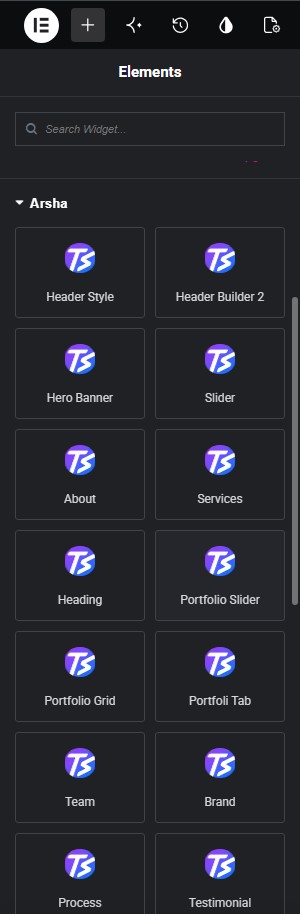
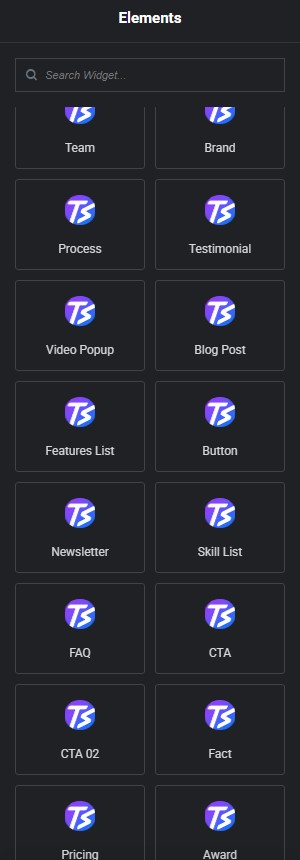
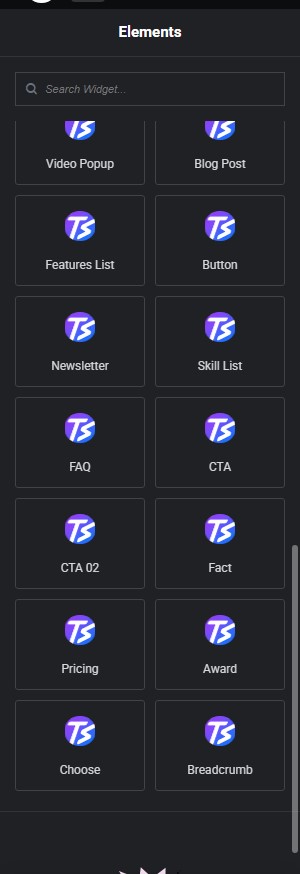
Arsha includes a collection of custom Elementor widgets to help you build your website with ease. All widgets are available under the Arsha Core section in the Elementor widget panel.
Elementor Widgets
Elementor Page Builder has many built-in widgets by default.Arsha provides several custom Elementor Widgets you can use to extend your website's functionality. You can find them under the Arsha Core section in Elementor's widget panel.
Elementor Big Icon Issue
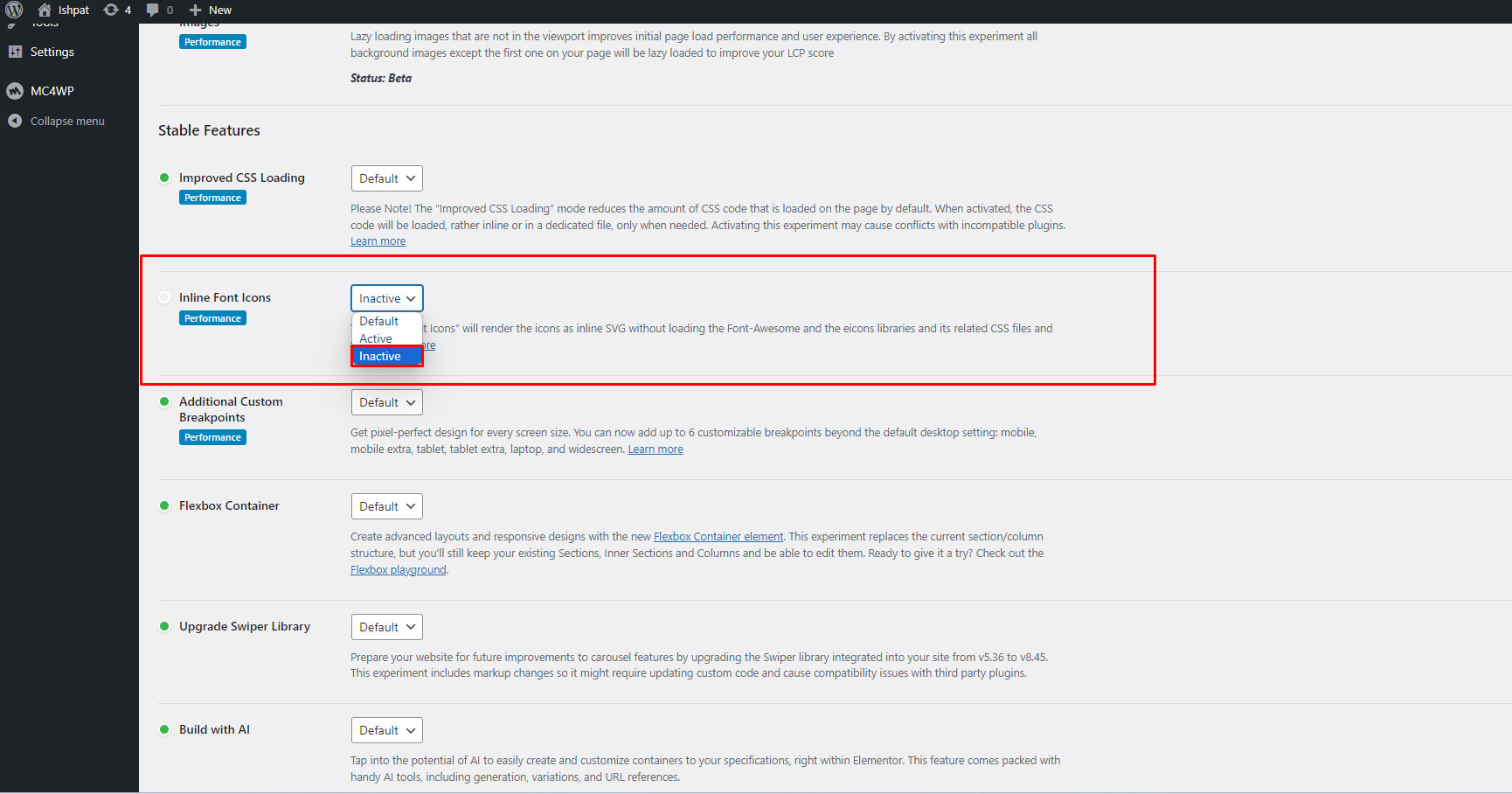
To solve the Elementor Icon SVG size issue, navigate to Dashboard → Elementor → Settings → Features → Inline Font Icons and make it inactive.
Elementor Template Library Usage
The template library offers an extensive collection of versatile and modern templates designed for a variety of projects. Each template is designed with a focus on flexibility, ensuring compatibility with different industries and purposes.
You can follow the video guidline to template library:
Help & Support
Translation guide, common error fixes, changelog and direct support channels for Arsha WordPress Theme.
Translating Theme
You can translate the Arsha theme to another language easily. You need to translate the following:
- Theme: Arsha
- Plugin: Arsha Core
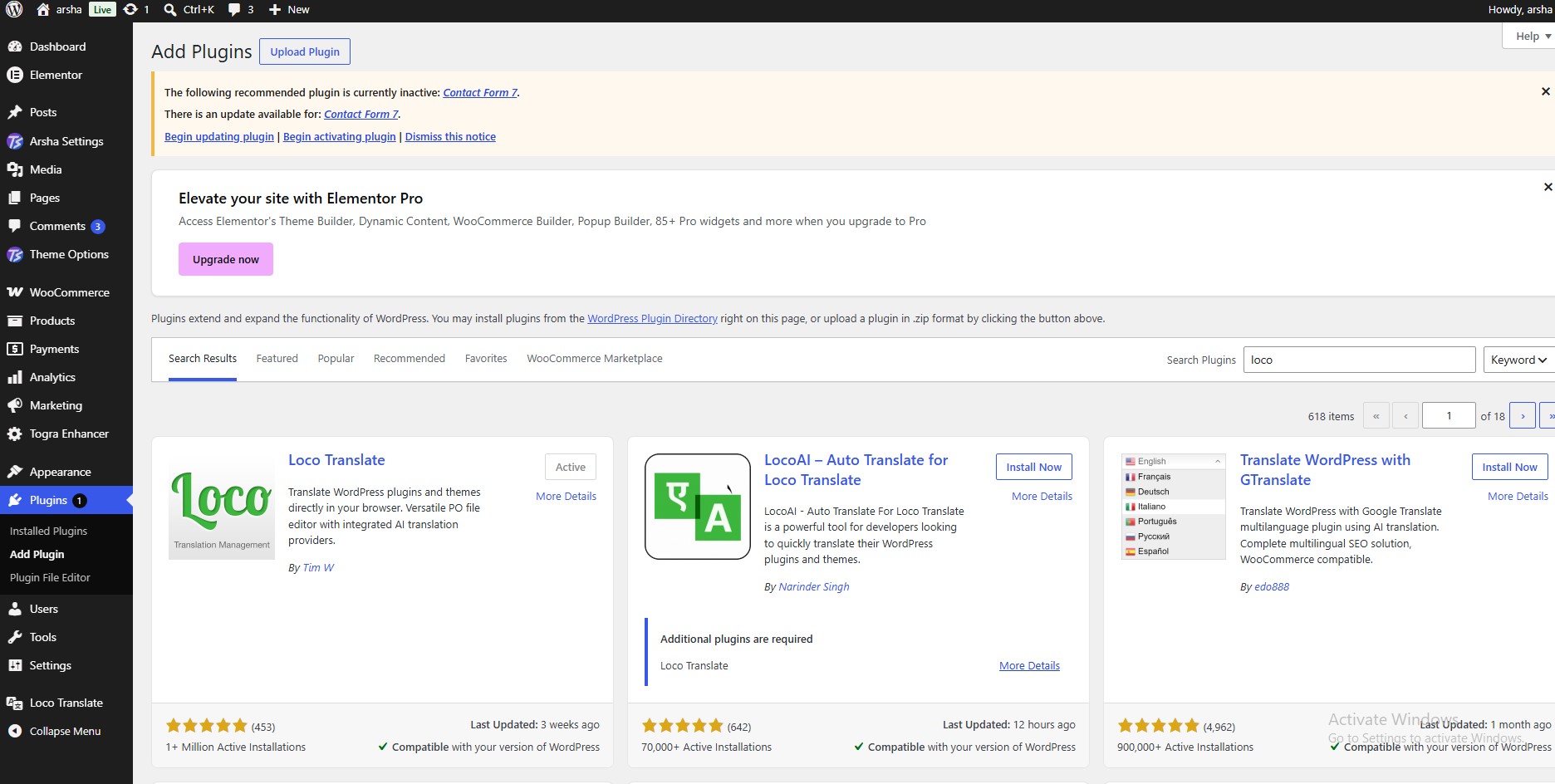
There are many tools available for translation. The easiest way is to use the plugin "Loco Translate". Using this plugin, you can translate any WordPress theme or plugin that supports translation.
Step-by-step using Loco Translate
Step 1: Install and activate "Loco Translate"
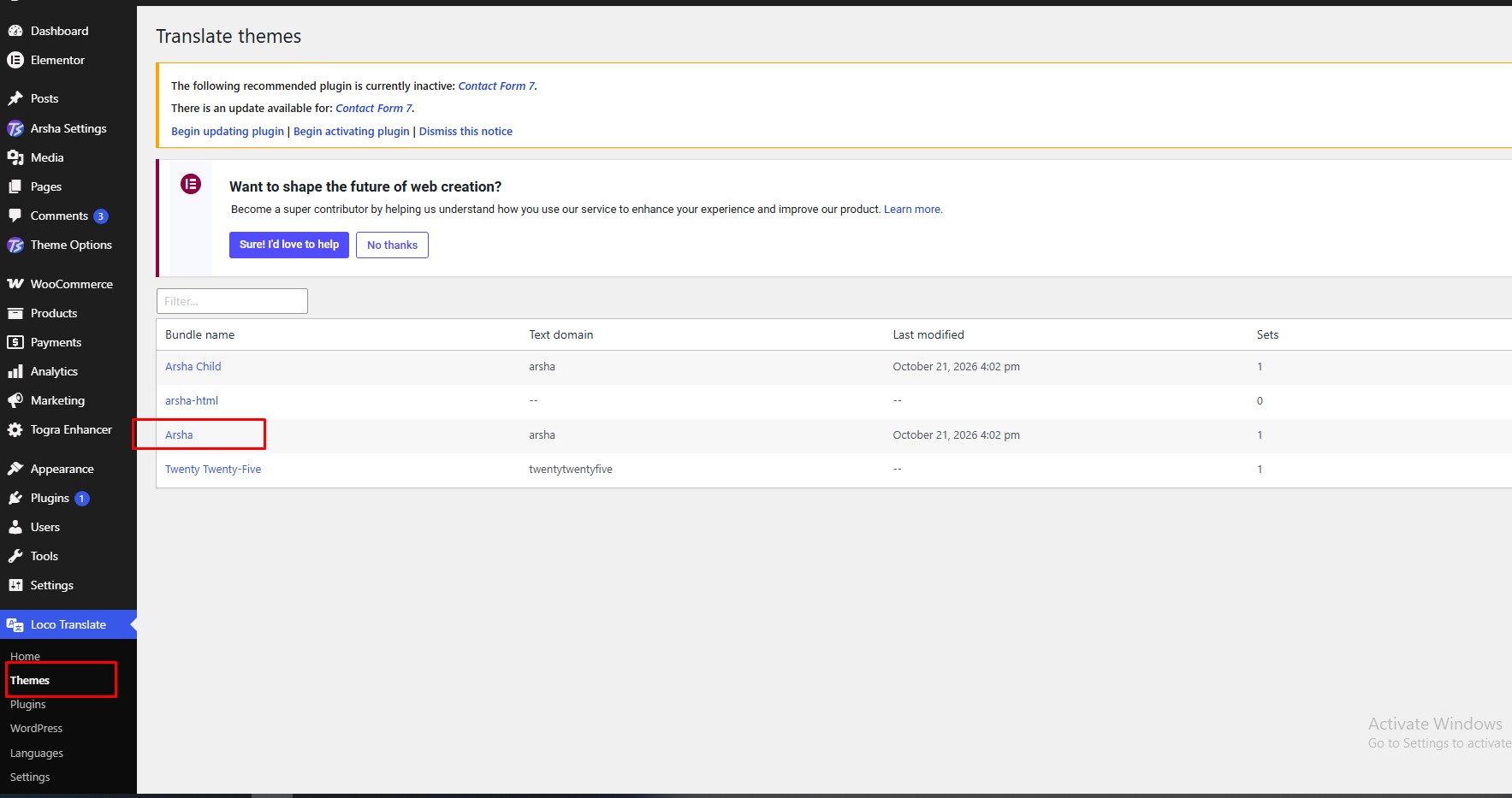
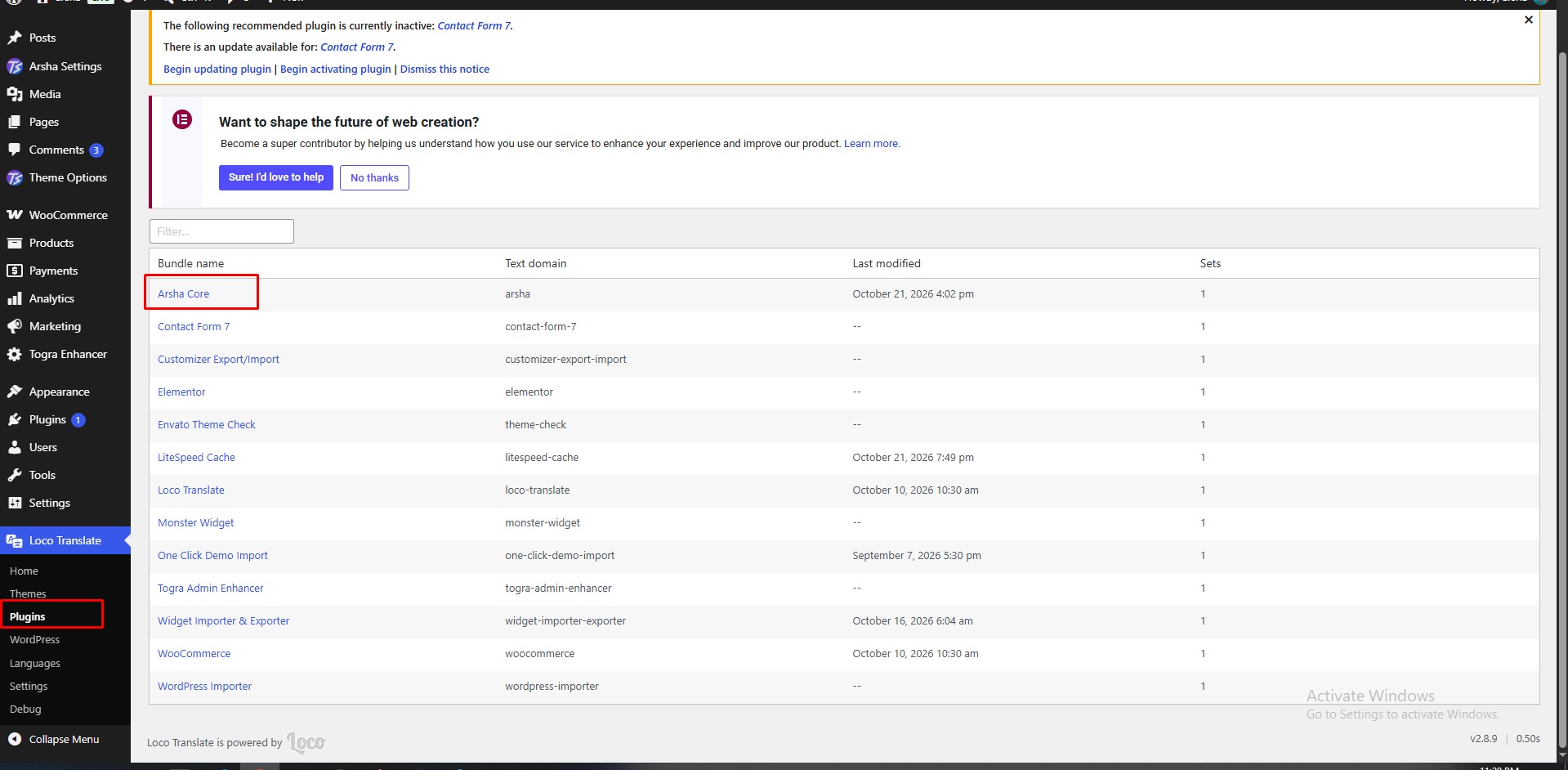
Step 2: Select the Theme or Plugin to translate
Select the theme or plugin you want to translate from the "Loco Translate" menu.
Step a: Theme Translate
Step b: Plugin Translate
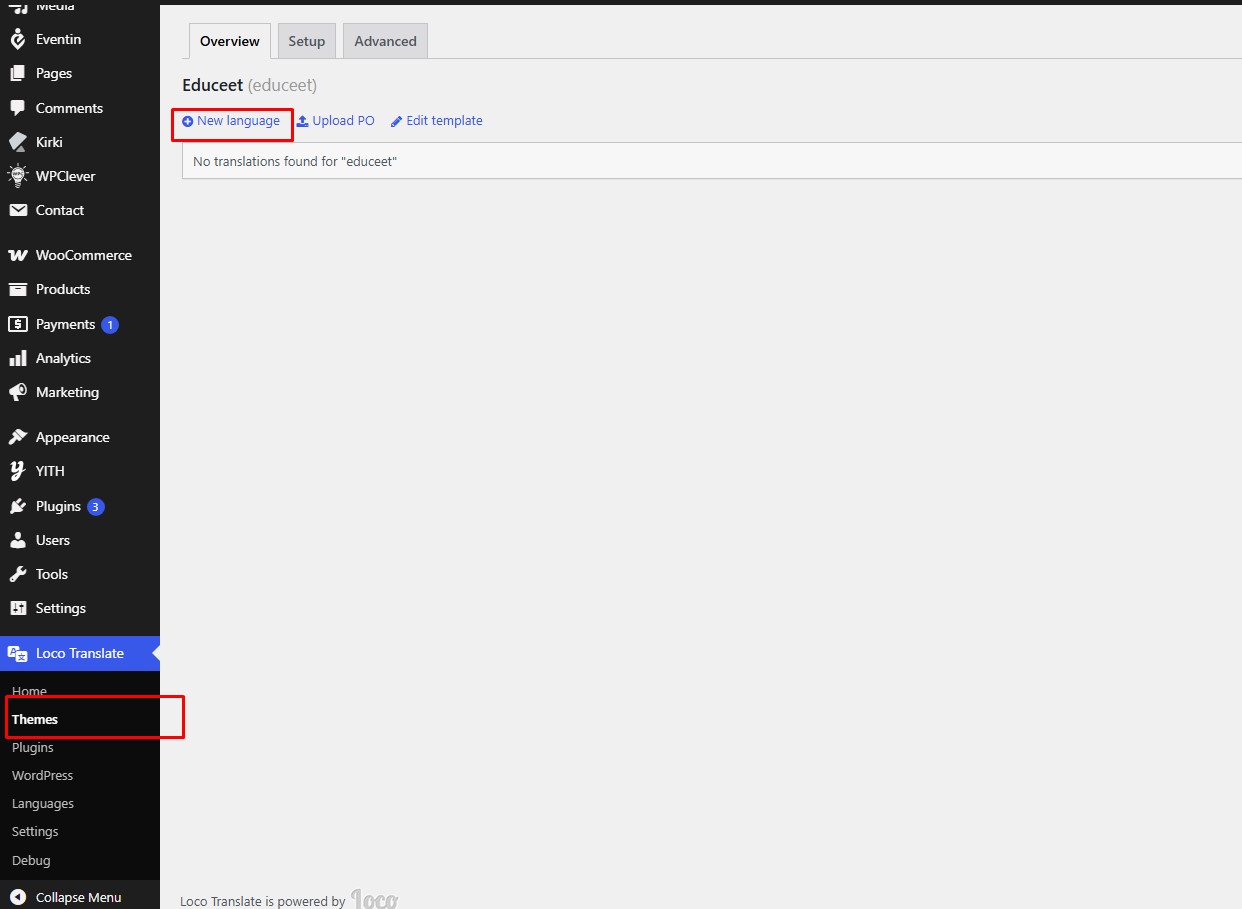
Step 3: Click "New language"
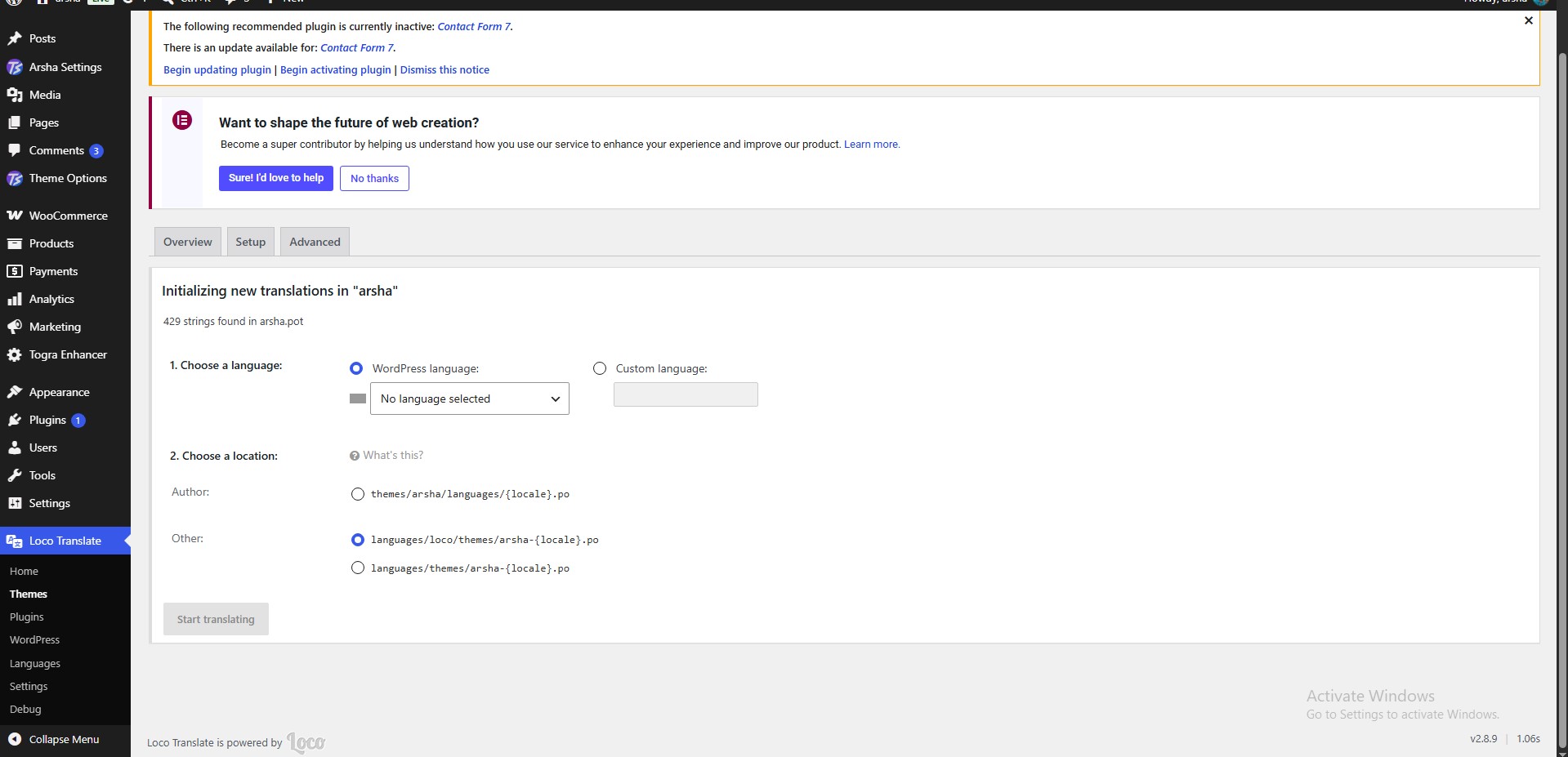
Step 4: Select language and start translating
Select your preferred language, choose location as "System", then click "Start Translating".
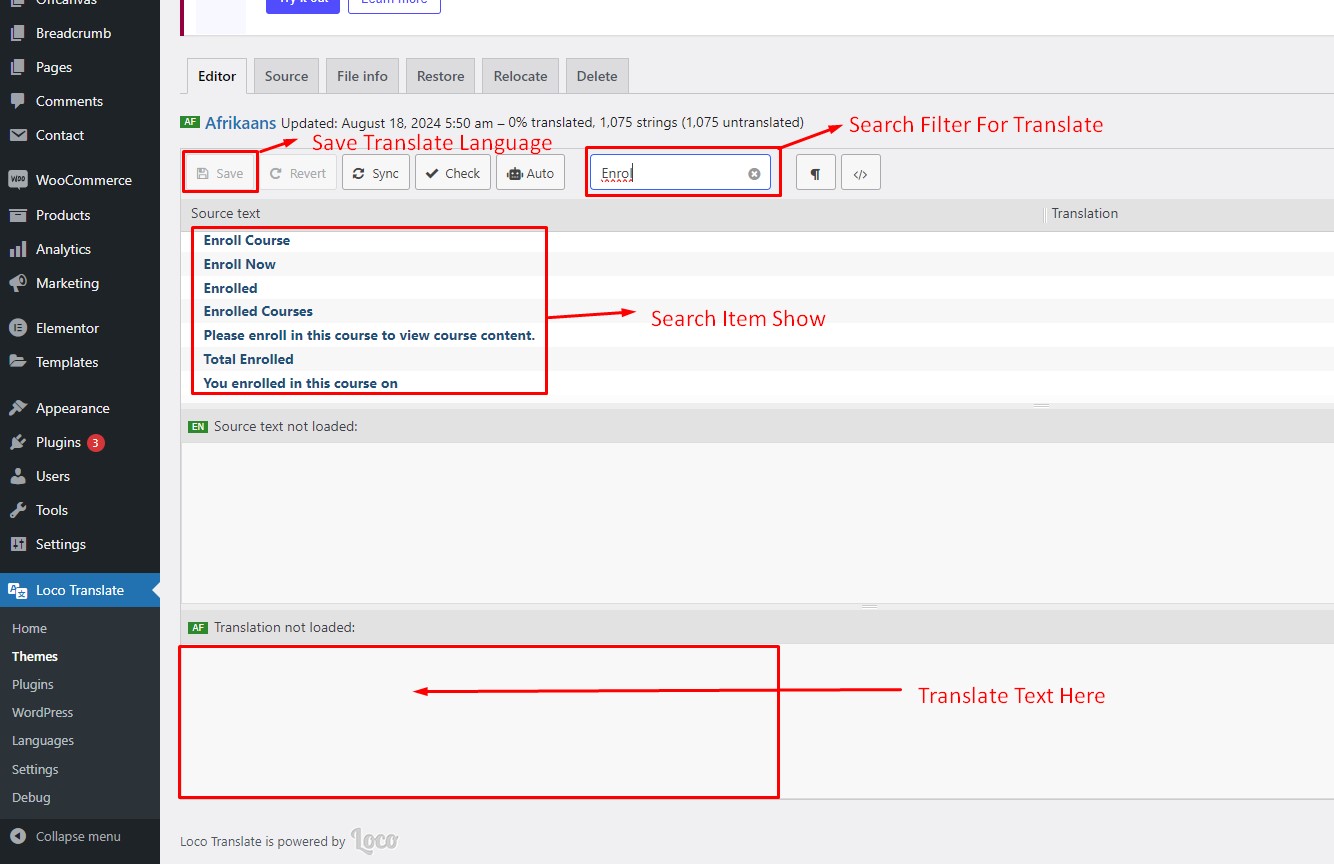
Loco Translate — Video Tutorial
Multilingual & Translation with TranslatePress
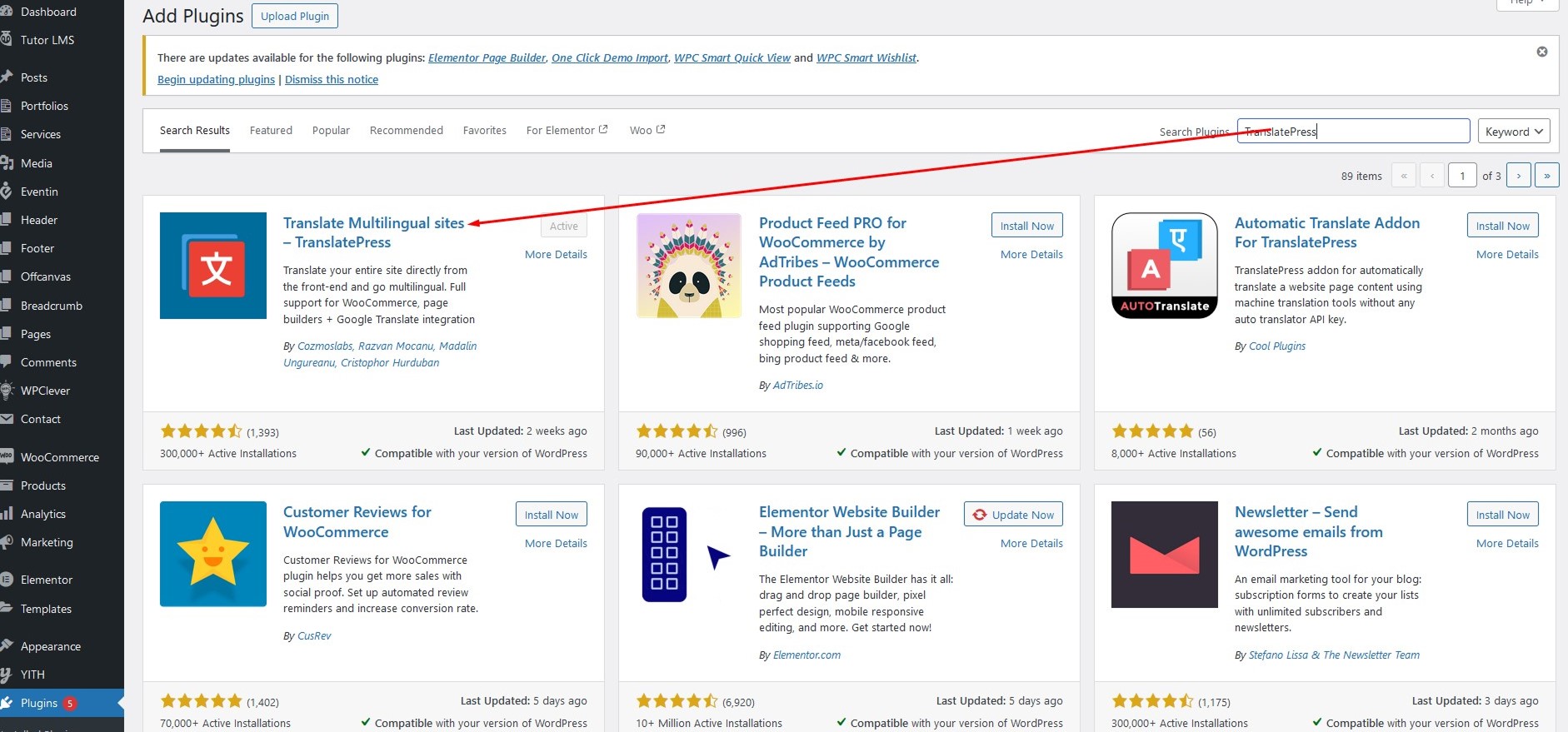
Here is a step-by-step tutorial for translating pages manually using the plugin "TranslatePress Multilingual":
Step 1: Install and activate TranslatePress
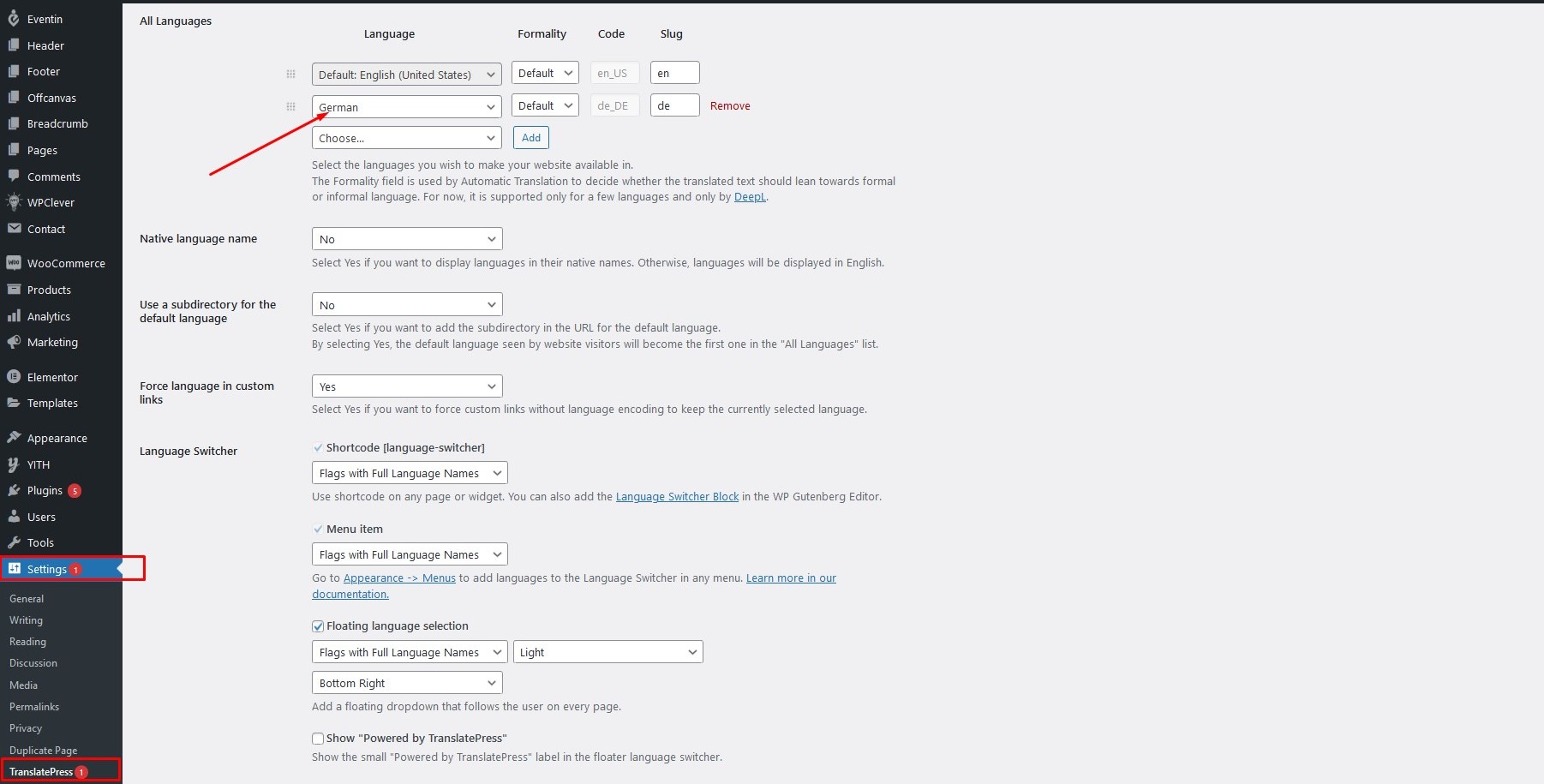
Step 2: Configure TranslatePress Settings
Go to TranslatePress Settings, select another language and click "Save".
TranslatePress — Video Tutorial
404 Error in All Pages
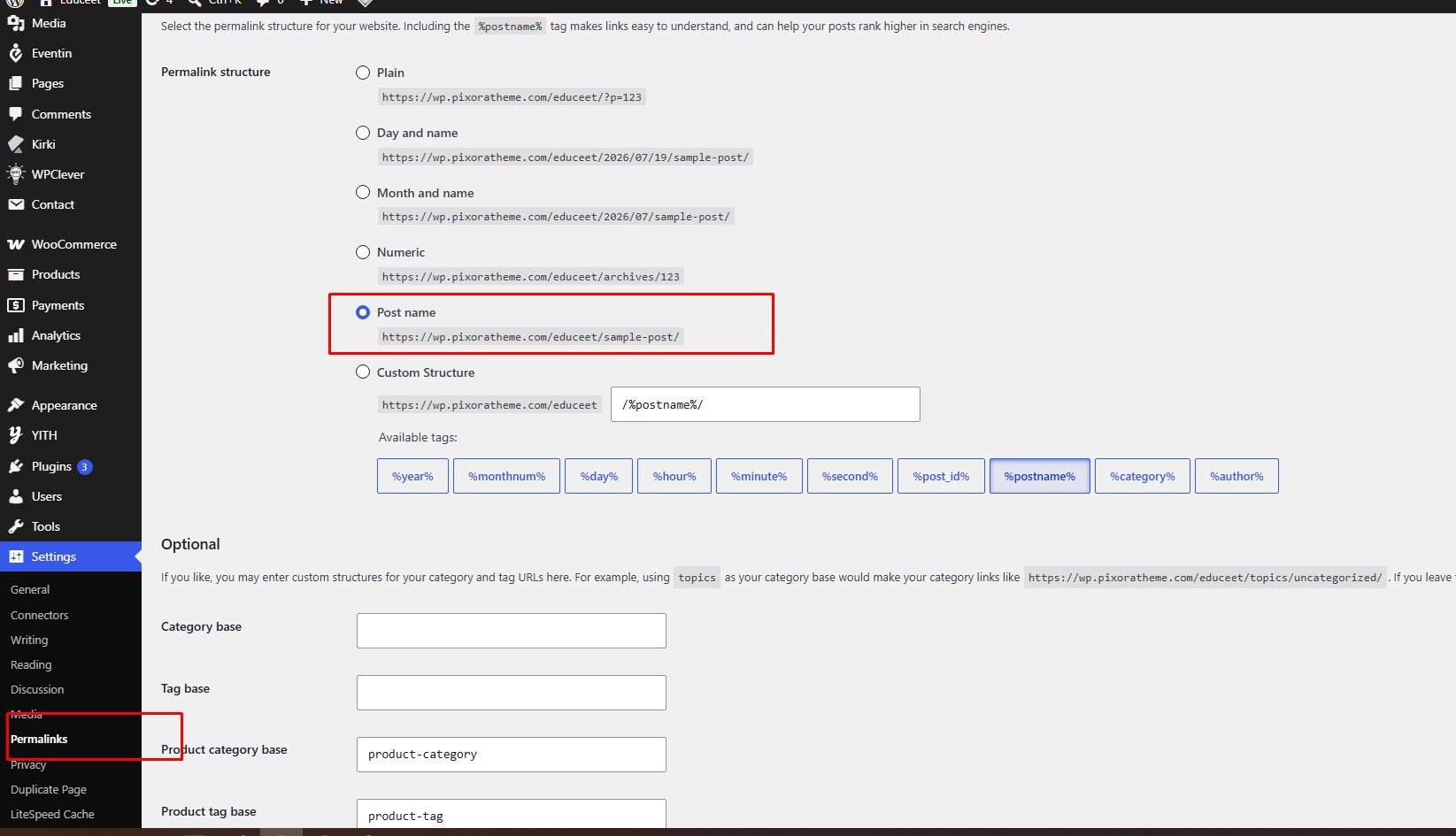
If you face 404 errors across all pages (this is common after demo import), the fix is to update your permalink structure.
Navigate to Settings → Permalink and click the "Save Settings" button. This refreshes your WordPress permalink structure and resolves the 404 issue.
Changelog
Every release in chronological order — newest first.
- NEW Initial Release of Arsha WordPress Theme
Contact Support
Can't find your answer in this guide? Our support team is available 13 hours a day. Pick the channel that suits you below.